- 01. Why You Might Need a Reset
- 02. Types of Resets Explained
- 03. Find Your Model Number
- 04. T Series (T4, T6, T9, T10)
- 05. RTH Series Models
- 06. Lyric Round & T6
- 07. Legacy & Mechanical Models
- 08. Wi-Fi Reset Guide
- 09. Schedule Reset Only
- 10. When Resetting Doesn’t Work
- 11. Setting Up After Reset
- 12. When to Upgrade Instead
- FAQs
- Conclusion
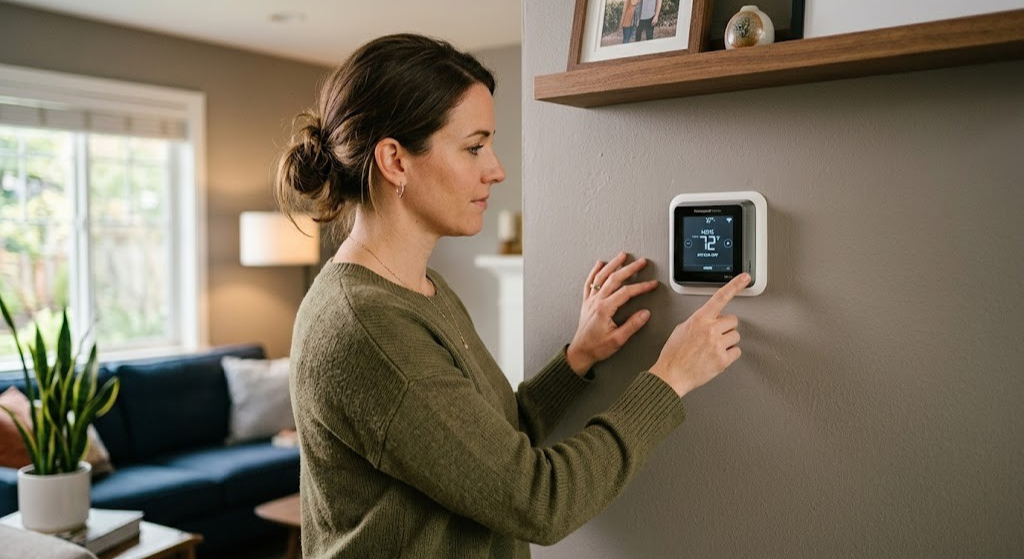
Few things are more frustrating than a thermostat that’s acting up — displaying the wrong temperature, refusing to hold a schedule, dropping its Wi-Fi connection, or simply becoming unresponsive to button presses. And when that thermostat is a Honeywell, you’re dealing with one of the most diverse product lineups in the business: dozens of models spread across the T series, RTH series, Lyric line, and a long tail of legacy units, each with its own reset procedure.
The problem isn’t that Honeywell thermostats are difficult to reset. The problem is that the reset procedure for a T6 Pro is completely different from the one for an RTH7560E, which is different again from the Lyric Round, which differs from older mechanical dial models. Use the wrong procedure and nothing happens — or worse, you think you’ve reset the unit when you haven’t.
This guide eliminates all of that guesswork. We cover every major Honeywell model family, every type of reset (factory, schedule, Wi-Fi, power cycle), and every situation you might face — including when resetting won’t actually fix what’s wrong and what to do instead. By the end, you’ll have a clear, model-specific path to a working thermostat.
Why You Might Need to Reset Your Honeywell Thermostat
Before we walk through the how, it’s worth understanding the why. A reset is a tool, not a magic cure — and knowing what situation calls for which type of reset helps you avoid unnecessary steps and avoid accidentally wiping out a carefully crafted schedule when a simpler fix would do.
Common Situations That Call for a Reset
- Frozen or unresponsive display: The screen is on but buttons or touch inputs don’t register. Often a software glitch rather than hardware failure.
- Wrong temperature reading: The thermostat shows a room temperature significantly different from what a separate thermometer reads. Could be calibration drift in the settings, solvable with a reset rather than replacement.
- HVAC not responding to thermostat commands: You raise the setpoint but nothing happens. Before assuming an equipment problem, a thermostat reset eliminates software as the culprit.
- Lost Wi-Fi connection (smart models): After a router change, password update, or network reconfiguration, the thermostat needs its Wi-Fi credentials cleared and re-entered.
- Schedule not working as programmed: The thermostat ignores the set schedule or runs at unexpected times. A schedule reset clears corrupted programming data.
- Preparing for a home sale or tenant changeover: Factory reset wipes personal settings, schedules, and Honeywell Home account linkage so the new occupant starts fresh.
- Post-HVAC upgrade: Installing a new furnace, heat pump, or AC often requires the thermostat to be reconfigured from scratch — a factory reset is the cleanest starting point.
- Recurring “System” error messages: Error codes like “E1,” “E2,” or “Err” that persist after checking HVAC equipment can sometimes be cleared with a thermostat reset.
What a Reset Cannot Fix
Understanding reset limitations saves you time. A reset will not resolve issues caused by hardware failure (a broken relay, failed display driver, or dead circuit board), wiring problems between the thermostat and the HVAC equipment, problems originating in the furnace or AC unit itself, or a thermostat that’s simply incompatible with the connected HVAC system. If the underlying issue is hardware or wiring, a reset will result in the thermostat returning to factory state and then immediately exhibiting the same problematic behavior once the HVAC system is reconnected.
The Three Types of Honeywell Thermostat Resets — and When to Use Each
Not all resets are created equal. Honeywell thermostats support different levels of reset depending on the model, and choosing the right one for your situation avoids unnecessary data loss. Here’s how they differ.
The golden rule: start with the least destructive reset and escalate only if needed. A power cycle resolves the majority of frozen screen and temporary glitch issues without touching your schedule or settings. Only proceed to a factory reset if the power cycle and schedule reset don’t resolve the problem, or if you specifically need to wipe all settings (tenant changeover, new HVAC equipment, etc.).
Finding Your Honeywell Thermostat Model Number
Every Honeywell reset procedure is model-specific. Using the wrong steps on the wrong model wastes time and can leave you more confused than when you started. The good news is that finding your model number takes about 10 seconds once you know where to look.
Where the Model Number Lives
For most Honeywell thermostats, the model number is printed on a label on the back of the thermostat body — the part that detaches from the wall plate. Pull the thermostat away from its base (most pop off with gentle forward pressure; some have a release tab on the side), and look for a label that starts with letters like “RTH,” “TH,” “T6,” “T9,” “YTH,” or “LyricT6.” The full model number usually looks something like RTH7560E1001, TH6320R1004, or T9 with a sub-model code on the sticker.
On smart thermostat models (T9, T10, Lyric Round), the model information is also accessible in the thermostat’s own menu system — look under About or Device Info in the settings.
| Model Prefix | Series Name | Type | Reset Section |
|---|---|---|---|
| T4, T4 Pro | T Series | Programmable | Section 4 |
| T6, T6 Pro | T Series | Programmable / Smart | Section 4 |
| T9 | T Series Smart | Smart (Wi-Fi) | Section 4 |
| T10 Pro | T Series Smart | Smart (Wi-Fi, IAQ) | Section 4 |
| RTH2300, RTH2510 | RTH Basic | Basic programmable | Section 5 |
| RTH6360, RTH6580 | RTH Mid-Range | 7-day programmable | Section 5 |
| RTH7560, RTH8560 | RTH Touch | Touchscreen programmable | Section 5 |
| RTH9585, RTH9590 | RTH WiFi | Smart (Wi-Fi) | Section 5 |
| Lyric Round (RCH9310) | Lyric | Smart (Wi-Fi, learning) | Section 6 |
| Lyric T6 (LyricT6) | Lyric | Smart (Wi-Fi) | Section 6 |
| CT, TH, YTH old series | Legacy | Mechanical / basic digital | Section 7 |

Honeywell Home T9 Smart Thermostat — Top Pick for Upgrading
If resetting isn’t solving your problems, the T9 is the benchmark Honeywell upgrade: remote SmartRoom sensors, geofencing, two-stage HVAC support, and a clean setup experience via the Honeywell Home app.
🛒 Check Price on AmazonResetting Honeywell T Series Thermostats (T4, T6, T6 Pro, T9, T10 Pro)
The T Series is Honeywell Home’s current flagship lineup, covering everything from the straightforward T4 Pro programmable to the feature-rich T10 Pro with indoor air quality monitoring. These are all digital units with menu-driven interfaces, which makes resets more systematic — but the exact navigation varies by model.
Resetting the Honeywell T4 Pro
The T4 Pro (TH4110U, TH4210U) is a non-Wi-Fi programmable thermostat with a simple pushbutton interface. It doesn’t support a factory reset through the user menu, but you can perform a schedule reset and a manual clear.
- Schedule Reset
Press the “Menu” button, use the arrow keys to scroll to “Reset,” press “Select,” choose “Schedule,” and confirm. This clears all programmed time/temperature periods.
- Factory Default (Installer Reset)
Access the installer setup by pressing and holding the “Menu” button for 5 seconds until “Installer Setup” appears. Navigate to parameter 0900 (or the last parameter in the list). Press the right arrow to select “Reset to Factory Default.” Press “Done.”
- Power Cycle
Pull the thermostat off the wall plate. Remove the AA batteries. Wait 60 seconds. Reinstall batteries and reattach to wall plate. This clears any temporary software glitches without affecting settings.
Resetting the Honeywell T6 Pro
The T6 Pro (TH6320U, TH6220U) is one of Honeywell’s most popular non-Wi-Fi programmable models. It has a more accessible factory reset through the user-facing menu.
- Access the Reset Menu
Press the “Menu” button on the right side of the display.
- Navigate to Reset
Use the up/down arrows to scroll through options until you reach “Reset.” Press the center checkmark button to select.
- Choose Reset Type
You’ll see options: “Schedule” (clears schedule only) and “Factory” (wipes everything). Select the appropriate option for your situation.
- Confirm
Press “Yes” or the checkmark button when prompted to confirm. The thermostat will restart and display the initial configuration wizard.
Resetting the Honeywell Home T9
The T9 is a smart Wi-Fi thermostat with a color touchscreen. Its reset procedure uses the touchscreen menu system and also interacts with the Honeywell Home app.
- Open Settings
Tap the menu icon (☰) in the upper left corner of the T9’s touchscreen to open the main menu.
- Navigate to Thermostat Settings
Scroll down to “Thermostat Settings” and tap to enter.
- Select Reset
Tap “Reset” at the bottom of the Thermostat Settings menu.
- Choose Reset Scope
Options include “Schedule Reset,” “Wi-Fi Reset,” and “Factory Reset.” For a full reset, choose “Factory Reset” and confirm the warning prompt.
- Wait for Restart
The T9 will display a progress indicator during reset and restart automatically. The full process takes approximately 60–90 seconds.
- Remove from Honeywell Home App
After a factory reset, the T9 automatically unlinks from your Honeywell Home account. Open the app, navigate to the device list, and remove the old T9 entry before re-adding the freshly reset device.
Resetting the Honeywell Home T10 Pro
The T10 Pro shares the same touchscreen interface and reset menu as the T9. Follow the identical steps described above for the T9. The one additional consideration with the T10 Pro is its indoor air quality (IAQ) sensors — after a factory reset, the IAQ calibration period restarts (typically 24 hours for accurate VOC/CO₂ readings).
Resetting Honeywell RTH Series Thermostats
The RTH series is Honeywell’s workhorse lineup — reliable, widely installed, and spanning nearly two decades of production. The upside is familiarity; the downside is that reset procedures vary significantly across the range. Here’s a breakdown of the most common RTH models.
RTH2300 / RTH2510 (Basic Programmable)
These are simple 5-2 or 5-1-1 day programmable models with minimal button interfaces. There is no factory reset through the user menu.
- Power Cycle Reset
Slide the thermostat body off the wall plate. Remove the two AA batteries. Press the “Fan” button (or any button) for 10 seconds while batteries are out — this drains any residual capacitor charge. Reinstall batteries and remount.
- Schedule Reset
Press and hold the “Set” button plus the “Day” button simultaneously for 3 seconds. The display will flash, indicating the schedule has been cleared to defaults.
RTH6360 / RTH6580 (7-Day Programmable)
These models have a slightly more advanced menu system. To perform a factory reset:
- Remove and reinstall while pressing buttons
Remove the thermostat from the wall plate. While holding the “FAN” button, slide the thermostat back onto the wall plate. Keep holding the FAN button for 5 seconds after power is restored.
- Confirm reset
The display will show dashes or flash to indicate reset is complete. The thermostat will restart with factory defaults.
RTH7560E / RTH8560 (Touchscreen Models)
These touchscreen programmable models have a menu-based reset option, making the process more straightforward than older button-only units.
- Tap “Menu” on the touchscreen
The main menu appears on the left side of the display.
- Navigate to “Preferences”
Scroll down in the menu list and tap “Preferences” (some firmware versions label this “Settings”).
- Select “Restore Factory Settings”
Scroll to the bottom of the Preferences menu and tap “Restore Factory Settings.” A confirmation dialog appears.
- Confirm and wait
Tap “Yes” to confirm. The thermostat restarts within 30–60 seconds and returns to the initial setup screen.
RTH9585 / RTH9590 (Wi-Fi Smart Models)
These older Wi-Fi models connect to the Total Connect Comfort app (not the current Honeywell Home app). The reset procedure is similar to the RTH8560:
- Access the Menu
Press the “Menu” button on the thermostat display.
- Go to Wi-Fi Settings
Select “Wi-Fi Setup” to clear and re-enter network credentials separately from a full reset.
- Factory Reset via Preferences
From Menu, go to “Preferences” → “Restore Factory Settings” → Confirm. Note that after reset, these models require reconnection through the Total Connect Comfort portal, not the Honeywell Home app.

Honeywell Home T6 Pro Programmable Thermostat
The most reliable non-smart Honeywell thermostat available — clean menu system, easy factory reset, flexible scheduling, and compatibility with virtually every 24V HVAC system. A proven workhorse.
🛒 Check Price on AmazonResetting Honeywell Lyric Thermostats (Round & T6)
The Lyric series was Honeywell’s smart thermostat answer to the Nest Learning Thermostat — a round, design-forward unit that used geofencing and schedule learning. While it’s been largely succeeded by the T9 and T10 Pro, millions of Lyric units remain in service and need specific reset attention.
Resetting the Honeywell Lyric Round (RCH9310)
The Lyric Round has a distinctive circular touchscreen interface. Its reset procedure is initiated from the Settings menu:
- Access Settings
Tap the screen to wake the display. Swipe up from the bottom to access the main menu, then tap the gear icon (⚙) to open Settings.
- Navigate to Reset
Scroll down in the Settings menu to find “Reset Thermostat” or “Factory Reset.”
- Confirm Factory Reset
Tap “Factory Reset” and then confirm by tapping “Yes” on the confirmation popup. The Lyric will restart with a chime and display the Honeywell setup screen.
- Remove from Lyric App
The Lyric Round uses the dedicated “Lyric” app (separate from Honeywell Home). After a factory reset, open the Lyric app, navigate to the thermostat settings, and remove the old device before re-pairing the reset unit.
Resetting the Honeywell Lyric T6 (LyricT6)
The Lyric T6 is a Wi-Fi enabled square touchscreen thermostat that uses the Honeywell Home app (unlike the Lyric Round). Its reset procedure:
- Tap the Menu icon
Press the menu icon (three horizontal lines) on the main screen.
- Select “Thermostat Information”
Scroll to and tap “Thermostat Information” to verify you have the correct model and firmware before resetting.
- Return to Menu → Reset
Go back to the main menu and select “Reset.” Choose between Schedule Reset, Wi-Fi Reset, or Factory Reset as appropriate.
- Confirm and wait
Confirm your selection. The Lyric T6 restarts within about 60 seconds.
Resetting Legacy & Older Honeywell Thermostat Models
Honeywell has been making thermostats for over a century, and millions of older units — CT series, TH series, YTH series, and mechanical round dials — remain in service. These older models have minimal or no digital menu systems, so reset procedures rely on physical actions rather than software navigation.
Mechanical Honeywell Round Thermostats (T86, CT87N)
The iconic Honeywell round dial thermostat has no digital settings and no electronic reset procedure. If it’s misbehaving, the only meaningful “reset” is calibration adjustment:
- Remove the thermostat body from the base by turning it counterclockwise
- Look for a small calibration screw on the bimetal coil inside the thermostat (not all models have this)
- Adjust in small increments and retest with an independent thermometer
- If accuracy can’t be restored, the bimetal coil has drifted beyond recoverable range — replacement is the solution
Older Digital Models (TH3110D, TH5110D, TH6110D)
These TH-prefix digital thermostats typically have a reset procedure involving the battery compartment:
- Remove from wall plate
Slide or pull the thermostat off its wall plate to expose the battery compartment.
- Remove all batteries
Remove all AA or AAA batteries from the compartment.
- Set the System switch to “Off”
If the thermostat has a physical System switch (Heat/Off/Cool), move it to the “Off” position.
- Hold the “Up” arrow button for 5 seconds
While batteries are removed, hold the Up temperature arrow for 5 seconds. This clears any residual charge in the capacitors and resets the processor RAM.
- Reinstall batteries and remount
Insert fresh batteries, move the System switch back to Heat or Auto, and remount on the wall plate. The thermostat should restart in its default state.
YTH Series (YTH2220, YTH6320)
YTH series thermostats have a dedicated reset option in their installer settings menu. Press and hold the “System” button for 5 seconds to enter installer setup. Navigate to the last parameter (typically ISU code 0900) and select the factory reset option. Confirm and exit. These models are battery-powered, so also check battery condition before assuming a reset is needed.
For any thermostat where the display shows unusual characters, incorrect readings, or refuses to respond to the standard reset — and fresh batteries haven’t helped — the next diagnostic step is to check whether the HVAC system itself is the source of the problem. Our 10-minute faulty thermostat diagnostic checklist helps you determine whether the thermostat or the HVAC equipment is responsible for the behavior you’re seeing.
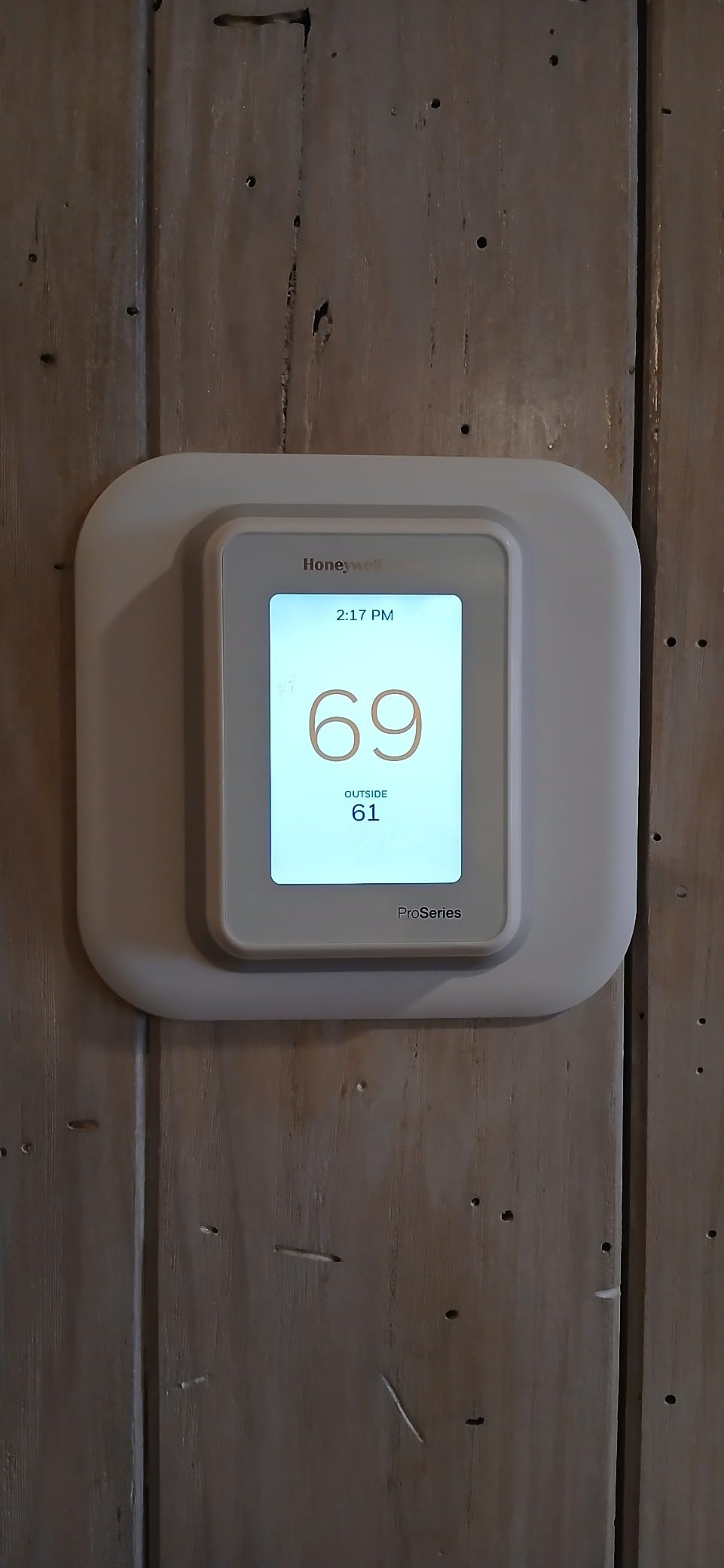
Honeywell Home T10 Pro — Best Full-Featured Honeywell Upgrade
Two-stage heat pump support, indoor air quality monitoring, remote SmartRoom sensors, and the full Honeywell Home ecosystem. If your legacy Honeywell is beyond saving, this is the premium upgrade path.
🛒 Check Price on AmazonHow to Reset the Wi-Fi on Your Honeywell Home Smart Thermostat
A Wi-Fi reset is the most targeted reset available on Honeywell Home smart thermostats — it clears only the network credentials and Wi-Fi configuration while leaving your schedule, system settings, and Honeywell Home account linkage completely intact. This is the right move after changing your router, updating your Wi-Fi password, switching internet providers, or moving the thermostat to a different network.
Wi-Fi Reset for the T9 and T10 Pro
- Tap the Menu icon (☰)
On the T9 or T10 Pro touchscreen, tap the three-line menu icon in the upper left corner.
- Navigate to “Wi-Fi”
Scroll down and tap “Wi-Fi” in the menu list.
- Tap “Forget This Network” or “Disconnect”
The current network name appears with a “Forget” or “Disconnect” option. Tap it to remove the stored credentials.
- Reconnect via the Honeywell Home App
Open the Honeywell Home app on your phone. Tap the thermostat in your device list, then tap “Connect to Wi-Fi” and follow the in-app pairing process to reconnect to your network.
Wi-Fi Reset for Lyric T6
- Tap Menu → Wi-Fi Settings
Access the main menu and select “Wi-Fi” or “Wi-Fi Settings.”
- Select “Wi-Fi Reset”
Tap “Wi-Fi Reset” from the Wi-Fi menu. Confirm when prompted.
- Reconnect
The thermostat enters Wi-Fi setup mode. Follow the on-screen instructions or use the Honeywell Home app to reconnect.
Wi-Fi Reset for RTH9585 / RTH9590
- Press “Menu” on the thermostat
Navigate to “Wi-Fi Setup” from the main menu.
- Select “Clear”
Choose the option to clear existing Wi-Fi credentials.
- Re-enter credentials via the portal
The RTH9585/9590 uses the Total Connect Comfort web portal for Wi-Fi setup, not a mobile app. Log into mytotalconnectcomfort.com and follow the device setup wizard to reconnect.
How to Reset Only the Schedule on Your Honeywell Thermostat
A schedule reset is the most conservative option — it wipes the programmed time/temperature periods and returns them to a factory default (typically 70°F throughout the day on most models) without touching any other settings. This is the right choice when your schedule has become corrupted, you’ve inherited a home with a badly programmed thermostat, or you simply want to start your schedule from scratch.
Understanding how to read and interpret your thermostat’s display helps you confirm the schedule reset has taken effect — look for the new default temperatures appearing across all time periods after the reset completes.
| Model | Schedule Reset Method | Clears System Settings? | Clears Wi-Fi? |
|---|---|---|---|
| T4 Pro | Menu → Reset → Schedule | No | No |
| T6 Pro | Menu → Reset → Schedule | No | N/A |
| T9 | Menu → Thermostat Settings → Reset → Schedule Reset | No | No |
| T10 Pro | Menu → Thermostat Settings → Reset → Schedule Reset | No | No |
| RTH7560 / RTH8560 | Menu → Preferences → Reset Schedule | No | N/A |
| Lyric T6 | Menu → Reset → Schedule Reset | No | No |
| RTH2300 / RTH2510 | Hold Set + Day for 3 seconds | No | N/A |
| RTH6360 / RTH6580 | Hold Fan button while remounting | Partial | N/A |
When Resetting Doesn’t Work: Diagnosing the Real Problem
The reset procedure completed, the thermostat restarted — and the problem came right back. This is a signal that the issue isn’t a software glitch or corrupted settings but something more fundamental. Here’s how to work through the most common root causes.
Problem: Frozen or Blank Screen That Resets Can’t Fix
If the thermostat screen stays frozen or blank even after a power cycle and battery replacement, the issue has moved beyond software into hardware territory. Check:
- Whether the C-wire (common wire) is connected and delivering stable 24V power. Use a multimeter to confirm 24V between the R and C terminals at the thermostat base. Voltage below 20V indicates a transformer or wiring issue.
- Whether the display connector inside the thermostat body has become loose. On some models, the touchscreen panel connects to the main board via a ribbon cable that can detach from rough handling.
- Whether any error codes are appearing at the furnace or air handler’s LED indicator. A furnace fault can cause the thermostat to display abnormally as a secondary symptom.
Problem: HVAC Still Doesn’t Respond After Thermostat Reset
After a factory reset and full reconfiguration, if the furnace or AC still doesn’t start when called, the problem is in the HVAC equipment or wiring — not the thermostat. The definitive test is the R-to-W bypass: at the air handler terminal strip, briefly touch the R wire to the W wire directly. If the furnace starts, the wiring path from thermostat to air handler is intact. If it doesn’t start, there’s a fault in the HVAC equipment. Our guide on what to check when your thermostat clicks but HVAC won’t start walks through this complete diagnostic sequence.
Problem: Thermostat Keeps Resetting Itself Spontaneously
A thermostat that spontaneously reboots repeatedly is almost always experiencing power instability:
- No C-wire / power stealing: Smart thermostats without a dedicated C-wire draw power through control wires. During HVAC startup, the current draw causes a momentary voltage drop that reboots the thermostat. Solution: install a proper C-wire or C-wire adapter.
- Failing HVAC transformer: The 24V transformer that powers the control circuit can degrade, producing fluctuating output voltage. Measure the transformer output with a multimeter — it should read 24–28V AC. Below 22V indicates a failing transformer.
- Failing batteries: On battery-powered models, weak batteries that measure adequate voltage at rest can drop below operating voltage under the thermostat’s processing load, causing reboots. Always use fresh alkaline batteries, not rechargeable NiMH, which have a different discharge profile.
Problem: Wrong Temperature After Reset
If the thermostat still reads temperature inaccurately after a factory reset, the thermistor (internal temperature sensor) has physically degraded. A factory reset restores calibration settings to factory default, but if the sensor itself is out of tolerance, default calibration won’t produce accurate readings. Compare the thermostat reading to a calibrated standalone thermometer — a difference of more than 3°F after reset indicates sensor failure and means the thermostat needs replacement.
Setting Up Your Honeywell Thermostat After a Factory Reset
A factory reset is only the beginning — you need to reconfigure the thermostat correctly before it can operate your HVAC system. Rushing through this setup is where most post-reset problems originate. Here’s how to do it right.
Step 1: Configure System Type
The most critical setting is the system type — whether your HVAC is conventional (gas furnace + central AC), heat pump, or dual-fuel. Incorrect system type configuration causes the thermostat to send the wrong control signals: a thermostat configured for conventional operation on a heat pump system will activate auxiliary electric heat instead of the efficient refrigerant cycle.
On the T6 Pro: access Installer Setup (hold Menu for 5 seconds) and navigate to the System Type parameter. For a conventional gas furnace plus AC, select “Conventional.” For a heat pump, select “Heat Pump” and configure the O/B reversing valve setting to match your outdoor unit (O for cooling mode energization — most brands; B for heating mode — some Rheem/Ruud systems).
Step 2: Set Number of Stages
If you have a two-stage furnace or two-stage AC compressor, configure the thermostat’s staging settings accordingly. Running a two-stage system on single-stage thermostat settings locks the equipment at full capacity 100% of the time, sacrificing the efficiency and comfort benefits of variable operation.
Step 3: Program the Schedule
For non-smart models: use the on-thermostat programming interface to set your weekday and weekend time/temperature periods. Most models use a standard 4-period structure (Wake, Leave, Return, Sleep). For T9/T10 Pro: use the Honeywell Home app’s weekly calendar view — it’s significantly faster and easier than the touchscreen interface for entering multiple time periods.
Step 4: Reconnect Wi-Fi (Smart Models)
For smart thermostats, connect to your 2.4 GHz Wi-Fi network via the Honeywell Home app’s device setup flow. The app will guide you through pairing the reset thermostat to your account. Make sure your phone’s Bluetooth is enabled during setup — the initial pairing uses Bluetooth before transitioning to Wi-Fi.
Step 5: Verify HVAC Operation in All Modes
After configuration, test all modes systematically: set the system to HEAT and raise the setpoint — confirm the furnace starts within 3 minutes. Set to COOL and lower the setpoint — confirm the AC starts within 3 minutes. Set fan to ON — confirm the blower runs independently of heating/cooling. This verification catches configuration errors immediately rather than discovering them on the next cold or hot day.
When a Reset Isn’t Enough: Signs It’s Time to Upgrade
Resetting a thermostat is a legitimate troubleshooting step, but it’s not a cure for a thermostat that has fundamentally reached the end of its useful life. If you find yourself resetting repeatedly, or if the problems return immediately after reset, it’s worth stepping back and evaluating whether an upgrade makes more financial sense than continued troubleshooting.
Clear Signs That Upgrade Makes More Sense Than Reset
- The thermostat is 10+ years old and the reset doesn’t meaningfully resolve the issue — components have physically degraded beyond software-fixable states
- The app or firmware is no longer supported — especially relevant for RTH9585/9590 (Total Connect Comfort) and Lyric Round (Lyric app) users whose platforms are being wound down
- The display has permanent damage — dead pixels, screen separation, or physical impact damage that a reset can’t address
- You’re resetting more than once every few months to maintain basic function — a thermostat requiring frequent intervention is failing incrementally
- You’ve upgraded your HVAC system — new two-stage equipment, a heat pump, or a zone system often requires thermostat capabilities (two-stage support, O/B terminal, zone coordination) that older models lack
The good news is that thermostat upgrades are among the highest-ROI home improvement purchases available. A smart thermostat upgrade from a failing programmable model typically pays for itself in energy savings within one to two heating and cooling seasons — and utility rebates of $25–$100 are available from many providers. Our comparison of Honeywell Smart Color vs. Emerson Sensi Touch for HomeKit is a useful starting point if you want to stay in the Honeywell family while also gaining Apple Home compatibility.
Honeywell Home Upgrade Path Overview
If you’re considering stepping outside the Honeywell ecosystem entirely, our deep-dive comparison of Nest vs. Honeywell for multi-stage HVAC systems gives you a thorough head-to-head of the two most popular platforms across every major feature category.
Honeywell Home RTH7560E Touchscreen Thermostat
If you want a Honeywell upgrade without the smart thermostat complexity — the RTH7560E offers a clean touchscreen, 7-day programming, and a familiar Honeywell interface that most homeowners master in minutes.
🛒 Check Price on AmazonFrequently Asked Questions
It depends on the type of reset. A schedule reset clears programmed schedules but preserves all other system settings. A factory reset wipes everything — schedules, system configuration, Wi-Fi credentials, and account linkage — returning the thermostat to its out-of-box state. A power cycle (removing and reinstalling the thermostat without removing batteries) clears temporary memory without affecting any stored data at all. Choose the least destructive reset type that addresses your specific problem.
Most Honeywell thermostats don’t have a dedicated physical reset button — resets are initiated through menu navigation or button combinations. For T Series models (T4, T6 Pro), use Menu → Reset or access the Installer Setup (hold Menu for 5+ seconds) and navigate to the factory reset parameter. For RTH models, button combination methods like holding Fan during remounting are the typical approach. For a power cycle, removing the thermostat from its wall plate and replacing batteries achieves a soft reset on most models.
To factory reset the Honeywell T6 Pro: press the Menu button, use the up/down arrows to scroll to “Reset,” press the center checkmark button, select “Factory” from the options (or “Schedule” if you only want to clear the schedule), and confirm when prompted. The thermostat will restart and display the initial configuration screen. Note that installer settings (system type, number of stages) may need to be re-entered manually through the Installer Setup menu even after a factory reset on some firmware versions.
Spontaneous resets are almost always caused by power instability. The three most common causes are: (1) weak or failing batteries — even batteries that read adequate voltage at rest can drop below operating voltage under processor load; (2) absence of a C-wire on a smart thermostat that’s power-stealing — HVAC startup current draw causes momentary voltage drops that reboot the thermostat; (3) a failing 24V transformer producing fluctuating output voltage. Test transformer output with a multimeter (should read 24–28V AC) and verify C-wire presence and connection at both the thermostat and air handler terminals.
For the T9 and T10 Pro: tap Menu (☰), select “Wi-Fi,” then tap “Forget This Network.” For the Lyric T6: go to Menu → Wi-Fi Settings → Wi-Fi Reset. For the RTH9585/9590: press Menu → Wi-Fi Setup → Clear. After the Wi-Fi reset, reconnect using the Honeywell Home app (for T9, T10 Pro, Lyric T6) or the Total Connect Comfort web portal (for RTH9585/9590). Ensure your phone is connected to 2.4 GHz Wi-Fi during setup, as Honeywell thermostats only support 2.4 GHz networks, not 5 GHz.
A factory reset can resolve frozen screens caused by software glitches or corrupted settings data. However, try a power cycle first (remove from wall plate, reinstall) — this clears temporary memory without erasing settings and resolves the majority of frozen screen issues without needing a full factory reset. If the screen is frozen due to hardware failure (failed display driver, damaged touchscreen layer), no reset will restore it. If the screen remains frozen after both a power cycle and factory reset, the thermostat needs replacement.
A factory reset on most Honeywell thermostats completes in 30–90 seconds, including the automatic restart cycle. Smart models with Wi-Fi hardware may take slightly longer — up to 2 minutes — as the wireless chipset reinitializes. The subsequent configuration process (entering system type, schedule, and Wi-Fi credentials) adds another 5–15 minutes depending on the model and how many schedule periods you program. Using the Honeywell Home app for post-reset setup on smart models significantly speeds this process compared to navigating entirely through the touchscreen.
Partial remote reset is possible for connected Honeywell Home smart thermostats. Schedule resets can typically be initiated from the app when the thermostat is online. Full factory resets require physical access to the thermostat. If the thermostat has lost its Wi-Fi connection, remote access isn’t available until the connection is restored — which requires physically reconnecting it at the device using the Wi-Fi reset procedure, then re-pairing via the app.
If the reset procedure doesn’t complete or the thermostat doesn’t respond to reset commands: (1) Replace batteries with fresh alkalines — low batteries can prevent menu navigation from registering correctly. (2) Turn off the HVAC circuit breaker, wait 30 seconds, and restore power — this performs a hard power cycle that clears any processor lockup. (3) Remove the thermostat from its wall plate, wait 5 minutes, and reinstall. (4) Verify you’re using the correct reset procedure for your exact model number — T6 Pro and RTH7560 have completely different reset steps. If none of these work, the thermostat’s control board has likely failed and replacement is appropriate.
A factory reset restores the temperature calibration setting to factory default, which can fix inaccuracy caused by corrupted or manually adjusted calibration settings. However, if the thermistor (temperature sensor) has physically degraded — common in units older than 10–12 years — default calibration won’t produce accurate readings because the sensor itself is out of tolerance. After resetting, compare the thermostat reading to a calibrated standalone thermometer placed nearby for 15+ minutes. A difference of more than 2–3°F after reset indicates sensor failure and means replacement is the correct solution.
Conclusion: Reset With Confidence, Know When to Move On
Resetting a Honeywell thermostat isn’t complicated once you have the right procedure for your specific model — and now you do. Whether you’re dealing with a frozen T9 touchscreen, a corrupted RTH7560 schedule, a Lyric Round that’s lost its Wi-Fi connection, or a legacy TH-series model that’s behaving erratically, the step-by-step procedures in this guide cover every situation with precision.
The key principle to carry forward: always start with the least destructive reset. A power cycle resolves most temporary glitches without touching settings. A schedule reset clears bad programming without wiping your system configuration. A factory reset is the nuclear option — powerful and clean, but requiring full reconfiguration afterward. Use it when the problem warrants it, not as the first move.
And when resetting doesn’t stick — when the problem returns immediately, the thermostat reboots spontaneously, or the display stays frozen despite fresh batteries and a clean factory reset — that’s the signal to look upstream at the HVAC system’s power supply, or to recognize that the thermostat itself has physically reached the end of its service life. At that point, a modern Honeywell Home T9 or T10 Pro isn’t just a replacement — it’s a significant upgrade that will deliver better comfort, lower energy bills, and years of reliable service with far less troubleshooting.
Need More Help With Your Honeywell Thermostat?
Explore our full library of Honeywell guides — from battery replacement and wiring to smart upgrades and HVAC compatibility checks.
🔍 Run the Full Thermostat Diagnostic →


 Home
Home
 Info
Info
 Compare
 Reviews
 Shop
Shop