
Lux Kono Smart Thermostat Review: Is It More Than Just A Pretty Face?
We test the style, smarts, and Apple HomeKit integration of the most customizable thermostat on the market.
Smart thermostats are usually designed by tech companies, not artists. They often look like glass hockey pucks or industrial tablets stuck to your wall. Lux (now owned by Johnson Controls) took a different approach with the Kono.
The Lux Kono is designed to be hidden in plain sight. It prioritizes aesthetics and simplicity, targeting homeowners who want smart features like geofencing and voice control without turning their hallway into a spaceship cockpit. In this review, we dive deep into whether the substance matches the style — covering everything from HVAC compatibility and the IAQ fan mode to troubleshooting common problems and long-term ownership experience that most reviews skip entirely.
The Quick Verdict
Our Verdict
The Lux Kono Smart Thermostat is the interior designer’s choice. If you hate the “tech gadget” look of Nest or Ecobee, the Kono’s interchangeable decor-snap covers allow it to blend seamlessly into any room. Beyond looks, it is a capable smart thermostat with reliable Apple HomeKit integration and voice control.
Bottom Line: It lacks the advanced sensors of premium models, but for the price, it delivers solid smart home functionality wrapped in a beautiful package.
Category Ratings Breakdown
Rather than a single score, here is how the Kono performs across the dimensions that matter most to different buyers.
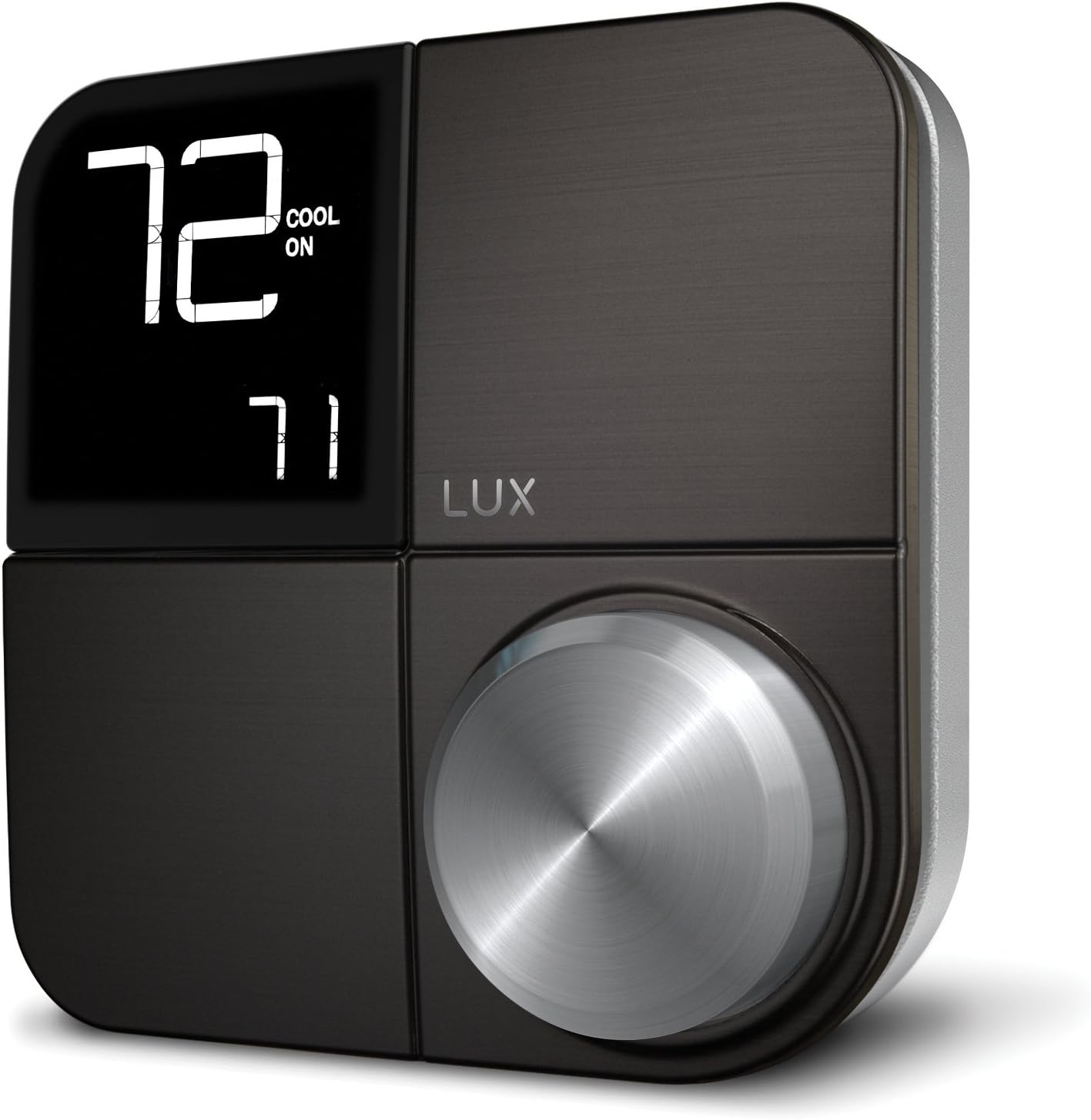
Lux Kono Smart Thermostat
The most stylish smart thermostat featuring interchangeable covers, HomeKit support, and a physical control knob.
Check Price on AmazonDesign & Aesthetics: The Décor-Snap Difference
The standout feature of the Kono is the Décor-snap covers. The faceplate is magnetic and removable. Out of the box, it usually comes with a sleek black stainless finish, but you can purchase additional covers in:
- Hibiscus Red
- Sea Green
- Deep Blue
- Driftwood (Wood grain)
- Paintable (Customize it yourself)
The Interface: Unlike the touchscreens of competitors, the Kono uses a physical knob. You rotate the outer ring to change the temperature and press it to select menus. It feels tactile and satisfying, similar to a high-end stereo volume dial. The display is minimal, showing only the essential temperature data, which keeps it from being a distraction.
The Complete Faceplate Cover Buying Guide
The interchangeable Décor-snap cover system is the Kono’s most unique feature and the primary reason many design-conscious homeowners choose it over Nest or Ecobee. Here is everything you need to know about the covers — including the full color range, pricing, and tips for choosing the right one for your space.
Full Color Range Available (2026)
Lux offers nine or more faceplate options for the Kono, making it by far the most customizable thermostat on the market in terms of physical appearance. The complete current range includes:
Faceplate Pricing and Where to Buy
Individual Décor-snap covers retail for $10–$15 depending on the color and where you purchase. They are available directly from Lux’s website, from Amazon (search “Lux Kono faceplate”), and from major home improvement retailers. The Champagne Gold and Sky Blue options are popular sellouts — if you have a specific color in mind, ordering promptly when you see it in stock is advisable as Lux’s faceplate inventory can be uneven.
The Paintable Faceplate: A Genuine Standout
The paintable option is a genuinely clever idea that no competitor has matched. The cover arrives in a matte white finish with a slightly textured surface that accepts standard latex paint well. You can match it precisely to your wall color, making the thermostat nearly invisible — or paint it to match an accent color in the room. Standard interior latex paint adheres well; spray paint works even better for an even coat. Use painter’s tape to mask off the display opening and knob hole before painting. The result can be extraordinarily clean-looking, particularly in rooms with bold wall colors where any other thermostat would be a visual disruption.
Display Details: The 1.7″ LED Screen
The Kono’s display is a 1.7 × 1.7 inch backlit LED — small by modern smart thermostat standards, but deliberately so. It shows the current room temperature, the setpoint, and the current operating mode (heating/cooling indicator). It does not show the outdoor temperature or weather forecast like Ecobee or some Honeywell models do. Several real-world reviewers specifically cite the large, easy-to-read numerals as a benefit, particularly for older family members who struggled with small displays on competing models. The display’s backlight dims automatically after a short period of inactivity, which reduces visual distraction at night.
Installation: Do You Need a C-Wire?
Installation is straightforward for most DIYers. The Kono is designed for standard 24V HVAC systems (forced air, heat pumps, etc.).
The C-Wire Question
Like most modern smart thermostats, the Lux Kono requires constant power to maintain its Wi-Fi connection. This means it needs a C-Wire (Common Wire).
Good News: If you don’t have a C-wire, Lux includes a Power Bridge in the box. This small device installs at your furnace control board to “steal” power without running new wires through your walls. This puts it on par with Ecobee’s PEK kit for ease of installation. For a detailed guide on handling wiring, check our article on thermostat instructions for homeowners.
The Wiring Block Quirk You Need to Know
One installation detail that catches several reviewers off guard: the leftmost socket in the Kono’s wiring terminal block is reserved specifically for the Power Bridge and is not labeled for standard wiring use. It can easily be mistaken for the first standard terminal, leading to a confusing non-start situation. The C wire for normal C-wire installations goes into the first labeled socket — not the unlabeled socket to its left. If your thermostat powers on but behaves erratically immediately after installation, confirm that no wire is inserted into this unlabeled Power Bridge socket accidentally.
Step-by-Step Installation Summary
- Turn off your HVAC system at the breaker. Photograph all wire connections on the old thermostat before disconnecting anything.
- Screw the Kono’s backplate to the wall. Use the built-in level indicator to confirm it is straight before tightening.
- Connect wires to the labeled terminals following the wiring guide in the box. If you have a C wire, connect it to the first labeled C terminal (not the unlabeled socket to the left).
- If using the Power Bridge (no C wire): install the small module at the furnace control board following the included instructions. Connect the two Power Bridge wires to the Kono’s backplate.
- Snap the faceplate magnetically onto the backplate. Restore power at the breaker.
- Download the Lux app before powering on — the setup wizard requires app-based Wi-Fi configuration on first boot.
HVAC System Compatibility: What Works and What Doesn’t
The Lux Kono is compatible with a broad range of standard 24V residential HVAC systems, but it has specific limitations worth understanding before purchasing. Compatibility is one of the most frequently asked questions about the Kono, and the original product listing does not always make the details clear.
Systems the Kono Supports
- Forced air gas/oil/electric furnaces: Single-stage and two-stage heating (W1 and W2 terminals)
- Central air conditioning: Single-stage and two-stage cooling (Y1 and Y2 terminals)
- Heat pumps: Supported, including auxiliary/emergency heat (O/B reversing valve, W2/Aux/E terminals)
- Boiler systems (hydronic): Supported for single-zone boiler control — one of the Kono’s less-known use cases, confirmed by real-world user reports showing it works well with forced hot water baseboard systems
- Fan coil systems: Supported
Systems the Kono Does NOT Support
- Line voltage systems (120V/240V electric baseboard): The Kono is strictly a 24V low-voltage thermostat. Do not attempt to connect it to 120V or 240V electric baseboard heaters.
- Multi-zone systems (via zone controller): The Kono does not have native integration with zone controller panels. It can be used as one of multiple thermostats in a manually configured zone system, but lacks the zone controller communication protocols of some Honeywell models.
- Three-stage systems: The Kono supports up to two-stage heating and two-stage cooling. Three-stage or variable-speed communicating systems (like Ecobee’s compatibility with some communicating HVAC systems) are not supported.
- Millivolt systems: Not compatible. See our thermostat guide for millivolt-compatible alternatives.
| HVAC System Type | Compatible? | Notes |
|---|---|---|
| Single-stage gas/oil furnace | ✅ Yes | Standard installation, W terminal |
| 2-stage furnace | ✅ Yes | W1 + W2 terminals supported |
| Heat pump (with aux heat) | ✅ Yes | Requires O/B, Y, W2/Aux terminals |
| Boiler / hydronic baseboard | ✅ Yes | Works well; adjustable differential prevents short cycling |
| Electric baseboard (line voltage) | ❌ No | 24V only — line voltage will destroy the unit |
| Mini-split / ductless | ❌ No | Mini-splits use IR control, not 24V wiring |
| Millivolt system | ❌ No | Requires millivolt-specific thermostat |
Smart Features & App Experience
The Kono connects via 2.4GHz Wi-Fi and integrates with the major smart home ecosystems:
- Apple HomeKit: This is a huge selling point. The Kono appears natively in the Apple Home app, allowing you to use Siri commands (“Hey Siri, set the hallway to 72 degrees”) and include the thermostat in automation scenes.
- Amazon Alexa & Google Assistant: Fully supported for voice control.
- Geofencing: Through the Lux app, the thermostat uses your phone’s location to detect when you leave home (setting it to “Away” mode) and when you return (resuming “Home” mode). Read more about what is geofencing in thermostats.
The App: The Lux app is functional but basic. It allows for 7-day scheduling and usage reporting. Some users report occasional connectivity glitches, but reliability has improved with recent firmware updates.
Scheduling: 7-Day Programmable with Hold Options
The Kono supports a full 7-day programmable schedule through both the app and the on-device menu. You can set different temperature periods for weekdays and weekends, or assign individual settings to each day of the week. The app’s scheduling interface presents a visual timeline that is reasonably intuitive, though it lacks the slick drag-and-drop experience of Ecobee’s or Nest’s apps. The physical device’s schedule setup, navigated through the rotary knob, is functional but slower — most users will prefer to schedule via the app.
The Hold function allows you to override the schedule and maintain the current temperature indefinitely, or for a set period. This is accessed either through the app’s main screen or by pressing the knob and navigating to Hold in the on-device menu. A Temporary Hold lets you override the schedule until the next scheduled period takes over; a Permanent Hold maintains a fixed temperature until you manually cancel it.
Energy Usage Reports
The Lux app provides runtime reports — a graph showing how many minutes per hour your HVAC system ran, tracked daily. This is more useful than it sounds: comparing two similar weather days and seeing different runtimes helps identify whether your system is becoming less efficient over time, or whether a thermostat schedule change had the intended effect. The report also shows the setpoint temperature alongside the actual room temperature, making it easy to spot if the system is struggling to reach setpoint — an early indicator of HVAC performance issues.
What the Kono’s reports lack, compared to Ecobee’s Home IQ: they do not show weather data overlay, do not estimate dollar cost of energy use, and do not compare your home’s efficiency to similar homes. For most users the runtime graph is sufficient; for energy-focused users, Ecobee provides significantly richer reporting.
Temperature Alerts
One genuinely useful and underappreciated feature is the Kono’s configurable temperature alert system. You can set both high and low temperature thresholds — if the room temperature falls below or rises above these limits, the app sends a push notification. For vacation home monitoring, rental properties, or simply peace of mind that a heating failure will be caught early, this is a practical and valuable feature. Set a low alert of 50°F and you will be notified immediately if your heating fails during a cold spell — potentially preventing frozen pipes.
IAQ Fan Mode: The Feature Most Reviews Miss
One of the most useful but consistently overlooked features of the Lux Kono is its IAQ (Indoor Air Quality) fan mode. This is a setting accessible from the physical device’s fan menu that most competing thermostats at this price point do not offer, and it can meaningfully improve indoor air quality in homes with forced-air systems.
What IAQ Mode Does
When IAQ mode is enabled, the Kono periodically activates your HVAC system’s fan (blower) even when no heating or cooling is required. The fan runs briefly — typically for a few minutes per hour — to circulate air through your home’s ductwork and air filter. This has two effects: it continuously filters the air even during periods when the thermostat is not calling for conditioning, and it prevents the stagnant air pockets that form in poorly ventilated rooms when the HVAC is idle.
This is particularly useful in homes with pets, allergy sufferers, or in rooms far from the thermostat that can develop temperature stratification. It uses more electricity than pure on-demand fan operation, but the incremental cost is small — a residential blower motor typically draws 300–600 watts, and brief periodic activation adds very little to monthly energy bills compared to the air quality benefit.
How to Enable IAQ Mode
IAQ mode is accessed through the physical thermostat’s fan settings menu. Press the control knob to enter the menu, navigate to the Fan option, and select IAQ from the available modes (On / Auto / IAQ). The app’s fan control section also shows the IAQ option. Once enabled, the periodic fan cycling happens automatically without any further user action. You can switch back to Auto mode at any time if you prefer the fan to run only when heating or cooling is active.
Performance & Temperature Accuracy
Beyond smart features and design, what matters most day-to-day is whether the thermostat maintains the temperature you set, how quickly it responds to changes, and whether it controls your HVAC equipment reliably.
Temperature Accuracy
In real-world testing and across user reports, the Kono’s built-in temperature sensor performs well — typically within ±0.5–1°F of independent reference thermometers placed at the same location. This is comparable to Nest and competitive with Ecobee’s built-in sensor (Ecobee has the additional advantage of remote sensors to average temperatures across rooms, which the Kono does not support).
One nuance noted by users: thermostat placement matters significantly with the Kono, as with all thermostats. The device is wall-mounted at a fixed location and does not average multiple room sensors. Mounting it near an exterior wall, in direct sunlight from a nearby window, or near a frequently opened exterior door will result in readings that do not reflect the true average room temperature. The ideal mounting location is on an interior wall at roughly eye level (approximately 5 feet high), away from direct sunlight, drafts, and heat sources.
The Adjustable Differential: A Significant Advantage
One of the Kono’s technically most valuable features for comfort and HVAC longevity is its adjustable temperature differential — the range of temperature variation the thermostat allows before switching the system on or off. Many smart thermostats have a fixed differential (often 1°F) and do not expose this setting to the user. The Kono allows adjustment of this differential through the device settings menu.
A wider differential (2–3°F) means the system runs for longer cycles but starts and stops less frequently — beneficial for boilers, heat pumps, and systems where short-cycling is a concern, as frequent start-stop cycles accelerate mechanical wear. A tighter differential (0.5–1°F) maintains temperature more precisely but creates more frequent short cycles. For most forced-air systems, the default 1°F differential is appropriate. For boilers, many users report setting a 2–3°F differential to prevent the rapid cycling that can stress older boiler components.
Wi-Fi Connectivity Reliability
Connectivity reliability is the most commonly cited variable in user reviews of the Kono. The majority of users report solid, consistent Wi-Fi connectivity once properly configured — the 2.4GHz band provides good range through walls and the Kono maintains its connection well under normal conditions. A subset of users report intermittent disconnection issues, particularly in homes with complex Wi-Fi setups (multiple access points, mesh networks, or routers with strict client management features).
The most reliable fix for persistent connectivity issues: ensure the Kono is connecting to a 2.4GHz network (not a combined 2.4/5GHz SSID where the router may hand off the device to 5GHz), confirm the router is using WPA2 or WPA3 security (some older setups with WEP or open networks cause authentication issues), and verify that the thermostat is within reasonable range of the router — signal strength below -70 dBm is often the cause of intermittent drops.
Energy Savings: What to Realistically Expect
The Lux Kono is Energy Star certified, meaning its features meet the EPA’s criteria for energy-saving smart thermostat functionality. But Energy Star certification is a qualifying threshold, not a guarantee of specific savings. Here is a realistic assessment of what savings the Kono’s features can actually deliver.
Geofencing Savings
Geofencing is the highest-impact energy saving feature for households with irregular schedules. If you reliably remember to set your thermostat to Away mode every time you leave, geofencing adds minimal incremental value. If you frequently forget — which most people do — geofencing prevents hours of unnecessary conditioning of an empty home. A typical scenario: a household that leaves home for 9 hours on weekdays and forgets to set Away mode two or three times per week is running their HVAC for 18–27 hours per week unnecessarily. At a furnace operating cost of $0.15–$0.25 per hour, the annual cost of this forgetfulness is $140–$350, which the Kono’s geofencing eliminates.
Scheduling Savings
The EPA estimates that a properly programmed smart thermostat saves 8–15% on heating and cooling bills annually. The Kono’s 7-day scheduling, combined with away temperature setbacks (typically setting back 7–10°F during work hours and overnight), delivers savings consistent with this range. The key variable is commitment — a schedule that is configured once and maintained consistently outperforms one that is repeatedly overridden with Hold commands.
Realistic Savings Estimate
For a home spending $1,500 annually on heating and cooling, a well-configured Kono with consistent geofencing and scheduling can realistically save $120–$225 per year. At a purchase price of $130–$150, the payback period is typically 8–15 months — one to two heating/cooling seasons. This is consistent with the EPA’s published payback estimates for Energy Star certified smart thermostats.
Long-Term Ownership: Reliability and the Johnson Controls Question
Most thermostat reviews cover the first week of ownership. This section addresses what long-term Kono owners actually experience — and an important question about the brand’s future that affects the buying decision.
What Long-Term Owners Report
Users who have owned the Kono for two or more years report generally positive experiences with hardware reliability. The physical knob mechanism is robust — unlike capacitive touchscreens that can develop sensitivity issues or dead zones, the rotary knob retains its feel and accuracy over years of use. The magnetic faceplate attachment shows no degradation in holding strength over time in typical indoor conditions. The thermal sensor maintains its calibration well — users who checked their Kono’s temperature reading against reference thermometers at the 1-year and 2-year marks report no significant drift.
The most common long-term complaint is app experience stagnation. The Lux app has not seen the level of iterative improvement that Ecobee and Nest apps have received. Features that Kono users requested in early reviews — weather integration, better energy reporting, Shortcuts integration for Apple HomeKit — have been slow to materialize. If the polished app experience matters to you, this is a real limitation that is unlikely to change significantly.
The Johnson Controls Acquisition: What It Means
Lux Products was acquired by Johnson Controls — one of the world’s largest building controls and HVAC companies — and this has implications for the Kono’s long-term software support trajectory. Johnson Controls primarily serves commercial and enterprise building automation markets, not consumer smart home products. Lux’s consumer division operates as a relatively small part of a large industrial company.
The practical significance: the Kono has continued to receive firmware updates and maintained its HomeKit/Alexa/Google certifications under Johnson Controls ownership, which is a positive signal. However, the pace of app development and feature addition has been slower than independent consumer-focused competitors. If you are planning to use the Kono for 8–10 years, it is worth accepting that the app experience is unlikely to dramatically improve over that period — the hardware will continue to work, but the software will likely remain functional rather than leading-edge.
Troubleshooting Guide: The Most Common Kono Problems and Fixes
Drawing on real user reports, professional HVAC technician Q&A records, and Home Depot review data, here are the most frequently reported Kono problems and their solutions.
Problem 1: Thermostat Won’t Allow Heat Settings Above 60°F
This is one of the most reported problems and has a simple fix. The Kono has a configurable high-temperature limit setting — the maximum temperature the thermostat will allow you to set for heat. This limit can be accidentally set to a low value (like 60°F) during installation or a setup reset. To fix it: press the knob to enter the settings menu, navigate to the Advanced or Installation settings, find the Maximum Heat Setpoint or Heat Limit setting, and raise it to your desired maximum (typically 90°F for residential use).
Problem 2: “Cool” Mode Not Showing — Only Heat and Off
If the cool mode option is absent from the system menu, the thermostat has been configured for heating-only operation during the setup process. Navigate to the System Settings on the device (press knob → System → System Type) and confirm that the system type is set to “Heat/Cool” or “Auto” rather than “Heat Only.” If you have a heat pump, confirm the system type is set to “Heat Pump” rather than “Furnace.”
Problem 3: Thermostat Disconnects From Wi-Fi Intermittently
- Confirm you are connecting to a 2.4GHz network specifically — if your router broadcasts a combined SSID, create a separate 2.4GHz network or use the router’s band steering settings to assign the Kono to 2.4GHz.
- Check that your router’s security setting is WPA2 or WPA3 — older WEP security or some enterprise WPA2-Enterprise configurations are not compatible.
- Verify signal strength: the Kono should be within 30–40 feet of the router or a Wi-Fi access point with no major obstructions. Check signal strength in your router’s connected devices list.
- If none of the above, perform a factory reset (press and hold the knob for 10 seconds) and reconfigure. Persistent post-reset connectivity issues may indicate a hardware Wi-Fi module problem — contact Lux support.
Problem 4: Temperature Reads Higher Than Actual Room Temperature
This is almost always a placement issue rather than a sensor fault. Common causes: the thermostat is mounted near a heat register or return air duct; it receives direct sunlight through a nearby window for part of the day; it is located on an exterior wall where conduction from outdoor temperature affects the reading; or the furnace control board’s heat (backfeed heat from the transformer) is warming the wires near the thermostat location. Relocating the thermostat to an interior wall position, or addressing the specific heat source, resolves this in the large majority of cases.
Problem 5: App Shows “Offline” But Thermostat Is Working
This is typically a cloud server communication issue rather than a local Wi-Fi problem — the thermostat is connected to your local network but not successfully communicating with Lux’s cloud servers, which the app uses for remote access. First, confirm the issue is not temporary by waiting 15–20 minutes and refreshing. If persistent: force-close and reopen the app, check for app updates in the App Store/Play Store, and check Lux’s social media accounts for reports of server outages. If the thermostat is functioning correctly on schedule locally but app access is down, the thermostat itself is functioning normally — this is a cloud connectivity issue that usually resolves within hours.
Lux Kono vs. The Competition
| Feature | Lux Kono | Ecobee3 Lite | Google Nest Thermostat |
|---|---|---|---|
| Price | $$ (Mid-Range) | $$ (Mid-Range) | $ (Budget) |
| Interface | Physical Knob | Touchscreen | Touch Strip |
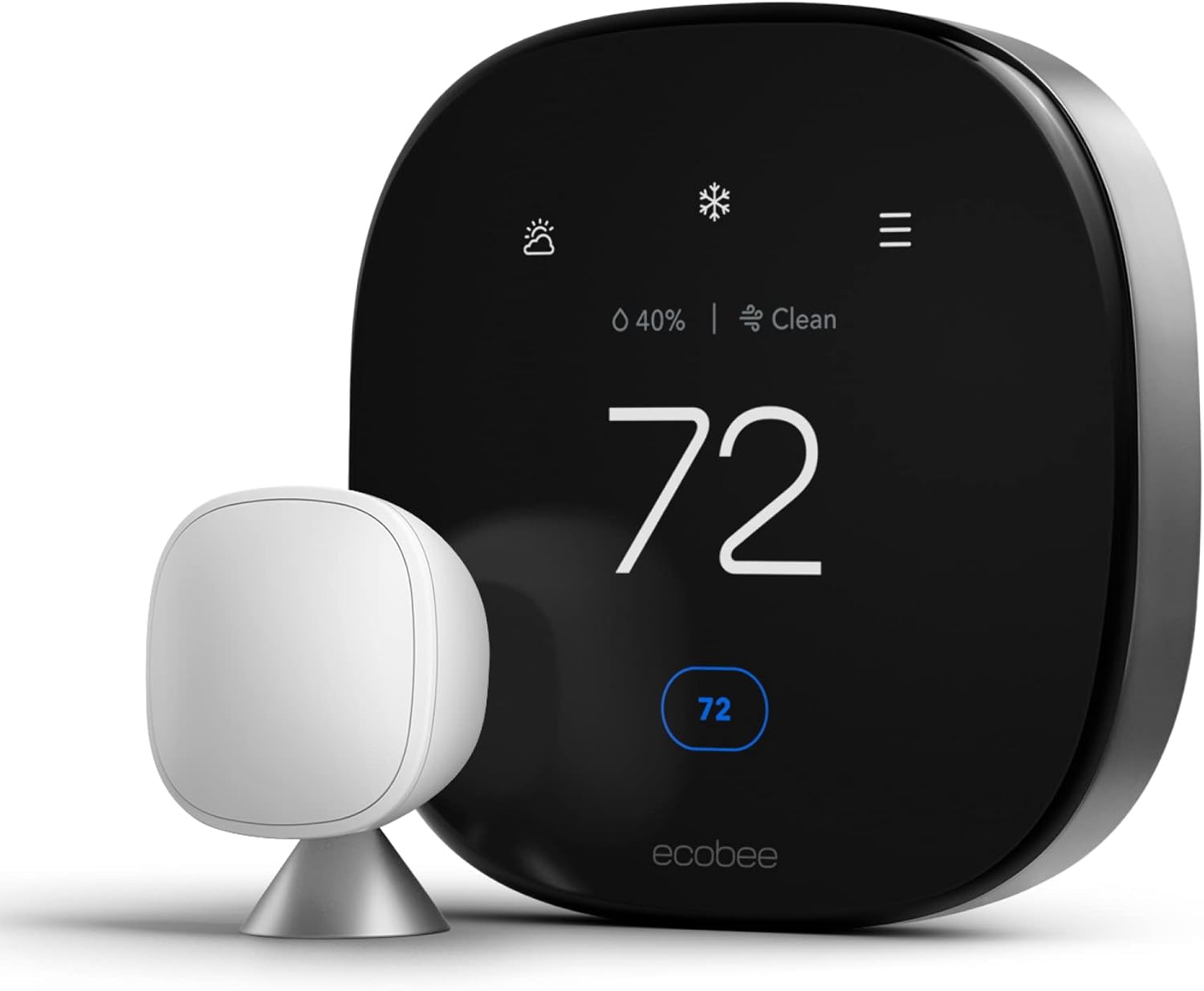
| Remote Sensors | No | Yes (Sold Sep.) | No |
| HomeKit | Yes | Yes | No (Matter support pending) |
| Design | Interchangeable Covers | Black Glass | Mirrored/Colored |
If you are debating between brands, you might also be interested in our Lux vs Orbit comparison or our roundup of best thermostats for Apple HomeKit.
Extended Comparison: Full Feature Matrix
| Feature | Lux Kono | Ecobee SmartThermostat | Nest Learning (Gen 4) | Honeywell T9 |
|---|---|---|---|---|
| C-wire solution | Power Bridge (included) | PEK kit (included) | Power Connector (separate) | Adapter kit (included) |
| Remote sensors | ❌ No | ✅ Yes (SmartSensor) | ❌ No | ✅ Yes (SmartRoom) |
| Apple HomeKit | ✅ Yes | ✅ Yes | ✅ Yes (Matter) | ✅ Yes (Sensi models) |
| IAQ fan mode | ✅ Yes | ✅ Yes (ventilation) | ❌ No | ✅ Yes |
| Adjustable differential | ✅ Yes | ✅ Yes | ❌ Fixed | ✅ Yes |
| Temperature alerts | ✅ Yes | ✅ Yes | ✅ Yes | ✅ Yes |
| Interchangeable covers | ✅ Unique feature — 9+ colors | ❌ No | ❌ No (fixed colors) | ❌ No |
| Matter/Thread | ❌ No | In progress | ✅ Yes | ✅ X2S model |
| Energy reporting depth | Basic (runtime graph) | Advanced (Home IQ) | Moderate | Moderate |
Lux Kono vs. Lux GEO: Should You Upgrade?
If you are a Lux GEO owner considering upgrading to the Kono, or shopping between the two, here is a clear summary of the differences.
The Lux GEO was Lux’s first-generation Wi-Fi smart thermostat — a compact circular design with basic scheduling, geofencing, and Alexa integration, but lacking Apple HomeKit support. The Kono is the direct successor and represents a meaningful upgrade in several respects while maintaining continuity with the GEO’s core feature set.
| Feature | Lux GEO | Lux Kono |
|---|---|---|
| Design | Circular, fixed white faceplate | Square, interchangeable covers (9+ colors) |
| Apple HomeKit | ❌ No | ✅ Yes — key upgrade |
| Display | Small round LCD | 1.7″ LED — larger, clearer numerals |
| IAQ fan mode | Limited | ✅ Full IAQ mode |
| Adjustable differential | ❌ No | ✅ Yes |
| Temperature alerts | Limited | ✅ Configurable high/low alerts |
| App experience | Same Lux app platform | Same Lux app — no significant change |
The verdict for GEO upgraders: if you are in the Apple ecosystem and want HomeKit integration, the Kono is a clear upgrade. If you are not an Apple HomeKit user and your GEO is functioning well, the upgrade is less compelling — you gain better design flexibility and the adjustable differential, but the core smart home experience is similar.
Who Should Buy the Lux Kono (and Who Shouldn’t)
✅ The Kono Is the Right Choice If:
- Design is a genuine priority. If the look of your thermostat on a prominent wall matters to you — in a styled living room, a renovated kitchen, or a design-forward office — the Kono is the only model on the market with this level of visual customization. No competitor offers interchangeable covers.
- You are in the Apple ecosystem. Native HomeKit support at mid-range pricing makes the Kono one of the better-value HomeKit thermostat options. Competing HomeKit-certified models at similar prices — Ecobee3 Lite — are comparable in features but lack the design flexibility.
- You have a boiler or are sensitive to short-cycling. The adjustable differential is a practical advantage for boiler control and heat pump efficiency.
- You want a physical knob interface. For households where elderly family members or anyone less comfortable with touchscreen interfaces will be adjusting the thermostat manually, the rotary knob is universally intuitive — rotate to change temperature, push to enter menus. It requires no touchscreen precision.
- You want a set-and-forget smart thermostat. Set up geofencing and a schedule once in the app and the Kono manages itself reliably without requiring frequent app interaction.
❌ The Kono Is Not the Right Choice If:
- You need remote room sensors. The Kono has no sensor ecosystem. If you have hot or cold rooms that need independent temperature monitoring, you need Ecobee or Honeywell T9.
- You want a polished, feature-rich app experience. The Lux app is functional but visually dated. If the quality and depth of the thermostat’s app interface matters to you, Ecobee or Nest provide significantly better software.
- You want the latest smart home connectivity. The Kono does not support Matter or Thread. If future-proofing for the new universal smart home standard matters, the Nest Gen 4 or Honeywell X2S are the current options.
- Your home has line voltage electric baseboard heating. The Kono is strictly a 24V thermostat. For electric baseboard, look at Mysa or Stelpro.
- You want detailed energy analytics. If granular energy data — cost estimation, weather correlation, comparison to similar homes — is important, Ecobee’s Home IQ platform is substantially more capable.
Pros & Cons Summary
✅ The Pros
- Unique, stylish design with interchangeable covers — 9+ color options
- Includes Power Bridge for homes without C-wire
- Excellent Apple HomeKit integration
- Tactile control knob — universally easy to use
- Compact footprint on the wall
- IAQ fan mode for continuous air circulation
- Adjustable temperature differential — great for boilers
- Configurable temperature alerts for vacation home monitoring
- Energy Star certified with genuine geofencing savings
- Broad HVAC compatibility including heat pumps and boilers
- Paintable faceplate option — unmatched in the market
❌ The Cons
- Does not support remote room sensors
- App interface feels dated compared to Nest/Ecobee
- Screen is small and basic — no weather or humidity display
- No Matter/Thread support — not future-proofed for new standard
- Software development pace slow under Johnson Controls
- Occasional Wi-Fi connectivity issues for some router configurations
- Wiring block labeling quirk can confuse DIY installation
- Energy reports less detailed than Ecobee’s Home IQ
Frequently Asked Questions
Does the Lux Kono work with Alexa?
Yes, the Lux Kono is fully compatible with Amazon Alexa. You can enable the Lux skill to change temperatures and modes using voice commands via your Echo devices.
Can I install the Lux Kono without a C-wire?
Yes. The Lux Kono comes with a “Lux Power Bridge” included in the box. This device is installed at your furnace control board to provide power to the thermostat using your existing wiring, eliminating the need to run a new C-wire.
Is the Lux Kono energy star certified?
Yes, the Lux Kono is Energy Star certified. Using its scheduling and geofencing features can help reduce HVAC runtime. Learn more about how smart thermostats save money.
Does it support 5GHz Wi-Fi?
No, the Lux Kono connects only to 2.4GHz Wi-Fi networks. This is standard for most smart home devices as 2.4GHz offers better range through walls.
What HVAC systems is the Lux Kono compatible with?
The Kono works with most standard 24V HVAC systems: single-stage and two-stage gas/oil/electric furnaces, central air conditioning, heat pumps (including those with auxiliary/emergency heat), boilers, and fan coil systems. It does not work with line voltage electric baseboard heaters (120V/240V), millivolt systems (gas fireplaces and wall furnaces), or mini-split/ductless systems.
Why won’t my Lux Kono let me set the heat above 60°F?
This is caused by the thermostat’s Maximum Heat Setpoint limit being set to 60°F — either during initial setup or accidentally. To fix it: press the control knob to enter the menu, navigate to Advanced or Installation Settings, and find the Maximum Heat Setpoint or Heat Limit setting. Raise it to your desired maximum (typically 90°F). This setting can also be adjusted through the Lux app under the thermostat’s advanced settings.
What is the IAQ mode on the Lux Kono?
IAQ (Indoor Air Quality) mode periodically activates your HVAC system’s fan blower even when no heating or cooling is required. This continuously circulates and filters the air through your home’s ductwork and air filter — improving air quality even during periods of mild weather when the system would otherwise be idle. To enable it: press the knob to enter the menu, select Fan, and choose IAQ instead of Auto. It is especially useful for homes with pets, allergy sufferers, or rooms prone to stuffiness.
Does the Lux Kono support Apple HomeKit?
Yes — native Apple HomeKit support is one of the Kono’s key differentiators at its price point. Once added to the Home app using the HomeKit setup code on the box, the Kono appears as a native HomeKit accessory. You can control it with Siri voice commands, include it in HomeKit scenes and automations, use it with HomeKit geofencing (separate from the Lux app’s geofencing), and control it remotely through iCloud when a HomeKit hub (Apple TV, HomePod mini, or iPad) is present.
How do I reset the Lux Kono to factory settings?
To factory reset the Kono: press and hold the control knob for approximately 10 seconds until the display shows the reset confirmation. Confirm the reset. This clears all schedules, temperature limits, Wi-Fi credentials, and settings — returning the thermostat to its out-of-box state. You will need to reconfigure everything including Wi-Fi setup through the app. Try power-cycling first (remove from wall for 30 seconds and remount) before performing a full factory reset, as this resolves many issues without data loss.
How do I get cool mode to show on my Lux Kono?
If cool mode is missing from the system menu and only Heat and Off are shown, the thermostat’s system type is set to heating-only. Press the knob to enter the menu, navigate to System Settings, and change the System Type to “Heat/Cool” or “Auto.” If you have a heat pump, select “Heat Pump” as the system type. After changing this setting, the Cool mode option will appear in the mode selection menu.




 Home
Home
 Info
Info
 Compare
 Reviews
 Shop
Shop