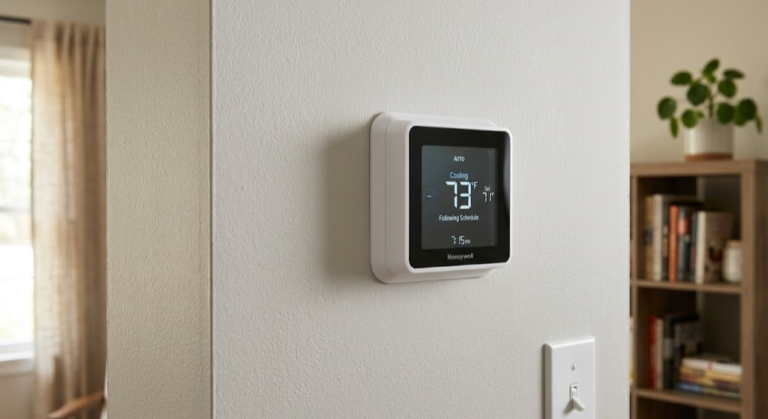
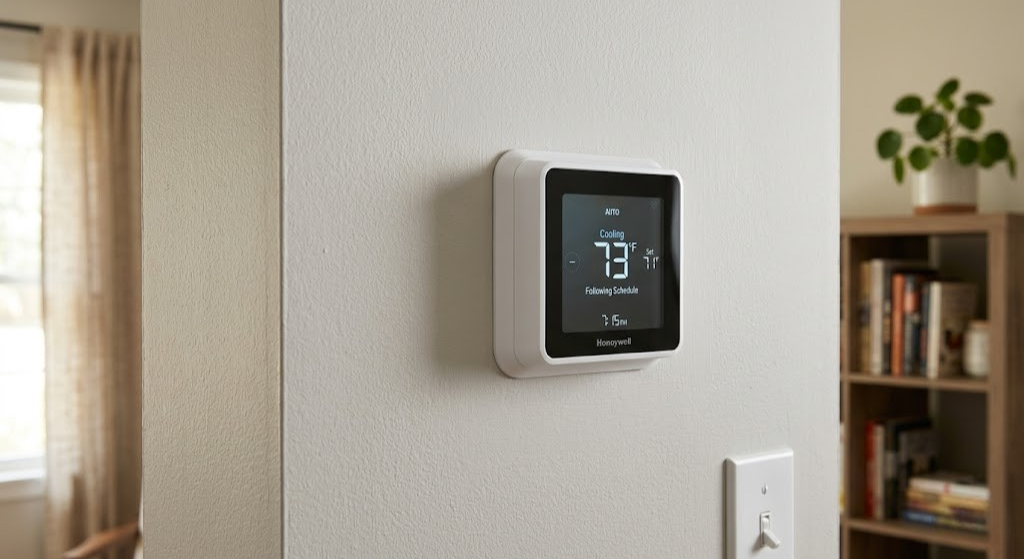
How to Reset a Honeywell Thermostat With No Reset Button — 7 Proven Methods
You’re staring at your Honeywell thermostat — it’s acting strange, not responding, or stuck on the wrong settings — and you’re searching every inch of it for a reset button. There isn’t one. Honeywell deliberately omitted a dedicated reset button from the vast majority of its thermostat lineup, leaving millions of homeowners completely stumped. Here’s the good news: resetting a Honeywell thermostat without a reset button is not only possible, it’s actually straightforward once you know which of the seven methods to use for your specific model.
This comprehensive guide covers every Honeywell thermostat reset scenario imaginable — from a quick battery pull that takes less than a minute, to a deep factory reset that clears all Wi-Fi credentials, programmed schedules, and installer settings. Whether you own a decades-old FocusPRO 6000, a mid-range T6 Pro, or the latest Honeywell Home T9 smart thermostat, you’ll find precise, model-specific instructions right here.
We’ll also explain when each type of reset is appropriate, what data you’ll lose, how to back up your settings beforehand, and what to do if the reset doesn’t solve your problem. Let’s get your thermostat working correctly again.
Why Would You Need to Reset a Honeywell Thermostat?
Before diving into the how, let’s make sure a reset is actually what you need. Resets are a powerful tool, but they’re not the fix for every thermostat problem. Understanding the root cause will help you choose the right type of reset and avoid unnecessary data loss.
Common Reasons to Reset
- Frozen or unresponsive display — The screen is blank, locked, or shows garbled text and won’t respond to button presses.
- Wrong temperature readings — The thermostat consistently shows a temperature that doesn’t match the room. (If this persists after reset, see our guide on why your thermostat shows the wrong room temperature.)
- HVAC won’t start or keeps short-cycling — The thermostat is calling for heat or cool but the system doesn’t respond.
- Wi-Fi won’t connect after router change — Smart thermostat can’t connect to new network credentials.
- Incorrect installer/contractor settings — A previous owner or technician locked certain settings or configured the wrong system type.
- Preparing to sell or move — Clearing personal schedules and Wi-Fi credentials before handing over the home.
- Persistent error codes — Codes like
E1,E2, or88that don’t clear after the underlying issue is fixed. - Schedule corruption — Programs that fire at the wrong times or refuse to accept changes.
- Battery replacement aftermath — Odd behavior after swapping depleted batteries. (Related: how to replace batteries in a Honeywell thermostat.)
Before you reset: If your HVAC system won’t start at all, a reset may not be the fix. Check your circuit breaker, filter, and thermostat wiring first. Our article on thermostat clicks but HVAC won’t start covers those scenarios in detail.
Soft Reset vs. Factory Reset — What’s the Difference?
This distinction is critical and something many guides gloss over entirely. Understanding it will save you a lot of reconfiguration time.
| Feature | Soft Reset | Factory Reset |
|---|---|---|
| Method | Battery pull or breaker cycle | Menu navigation or button combo |
| Time required | 5–10 minutes | 1–3 minutes |
| Erases schedules? | No (usually) | Yes |
| Erases Wi-Fi credentials? | No | Yes |
| Resets installer settings? | No | Yes |
| Clears error codes? | Sometimes | Yes |
| Fixes firmware freeze? | Yes | Yes |
| Best for | Minor glitches, frozen screen | Full reconfiguration, selling home |
As a general rule: always try a soft reset first. If the problem persists or you specifically need to wipe all settings, proceed to a factory reset.
Step Zero: Identify Your Honeywell Thermostat Model
Honeywell (now branded as Honeywell Home, manufactured by Resideo) has produced hundreds of thermostat models over the decades. The reset procedure varies significantly between them, so knowing your exact model number before you start is not optional — it’s essential.
Where to Find Your Model Number
- Inside the battery compartment: Pull the thermostat off the wall or open the battery door. A sticker with the model number (e.g.,
RTH9585WF1004orTH6320U1000) is usually affixed to the interior back plate. - On the display: Some smart models show the model/serial info in Settings → About.
- Honeywell Home app: If your thermostat is connected, open the app, select the device, and tap the gear icon → Device Info.
- Original packaging or installation manual: If you still have either, the full model number is printed prominently.
Pro tip: Take a photo of the model number sticker before you reinstall the thermostat. You’ll thank yourself when searching for firmware updates, replacement parts, or future troubleshooting guides.
Honeywell Thermostat Model Families at a Glance
| Model Family | Examples | Type | Reset Category |
|---|---|---|---|
| T-Series Pro | T4 Pro, T6 Pro, T10 Pro | Programmable / Smart | Menu-based |
| RTH Series | RTH9585, RTH9580, RTH7560E | Wi-Fi Programmable | Menu + battery |
| VisionPRO | TH8321, TH8110U | Programmable | Sub-menu |
| FocusPRO | TH6320U, TH6220U | Programmable | Battery pull primary |
| Lyric Series | Lyric T5, T6, Round | Smart Wi-Fi | Menu + app |
| Prestige Series | THX9321, THX9421 | Smart Zoning | Installer menu |
| Home Series Smart | T9, T10, T5+ | Smart Wi-Fi | Menu + app |
Not sure what you’re looking at? If the thermostat has a touchscreen and connects to Wi-Fi, it falls in the “Smart” category. If it has physical buttons and a small LCD display, it’s likely a programmable model. If it’s purely mechanical (just a dial), you’re in a different universe entirely — but those aren’t Honeywell’s modern lineup.
Method 1: Battery Pull — The Universal Soft Reset
The battery pull is the single most universally applicable reset method for any battery-powered Honeywell thermostat. It forces the thermostat’s microcontroller to fully power down and restart, clearing temporary memory glitches without touching permanent settings.
Turn off your HVAC system
Set the thermostat to “Off” mode before removing anything. This prevents your heating or cooling system from receiving a partial or erroneous signal during the process. If the thermostat is completely frozen and unresponsive, skip this step — you’ll handle it from the breaker panel next.
Remove the thermostat from the wall plate
Most Honeywell thermostats simply snap off their wall plates. Grip the unit firmly and pull straight outward — no screwdrivers needed. Some older models have a small release tab at the top or bottom that you press first.
Open the battery compartment and remove batteries
The battery compartment is usually on the back of the thermostat body. Use a coin or your fingernail to slide the cover open. Remove all batteries — typically 2× AA or 2× AAA depending on your model.
Wait at least 5 minutes (ideally 10)
This is the step most people rush, and it’s the most important one. The internal capacitors need time to fully discharge. If you reinstall the batteries after only 30 seconds, the soft reset won’t fully take effect. Set a timer.
Reinstall fresh batteries
This is a perfect opportunity to install brand-new batteries. Old batteries near the end of their life can cause erratic thermostat behavior — including the same symptoms that made you want to reset in the first place. Check out our deep dive on thermostat low battery symptoms if you suspect this was the root cause.
Reattach to wall plate and power on
Snap the thermostat back onto its wall plate. The display should illuminate and show the current time and temperature within a few seconds. If the display remains blank, the issue may be deeper than a simple soft reset (see the troubleshooting section below).
C-wire powered models: If your Honeywell thermostat is powered via a common wire (C-wire) and doesn’t use batteries, the battery pull won’t apply. Use the breaker method instead. Not sure if you have a C-wire? Our thermostat wiring guide will help you identify your wiring setup.

Fresh Batteries Make a Huge Difference
Using the battery pull method? Install premium alkaline batteries while you’re at it. Weak batteries are among the most overlooked causes of thermostat glitches, frozen screens, and missed heating cycles.
🛒 Check Price on AmazonMethod 2: Circuit Breaker Reset
The circuit breaker reset works on any Honeywell thermostat regardless of whether it uses batteries or a C-wire. It’s the go-to method when the thermostat is completely unresponsive, physically locked to the wall, or you can’t find the battery compartment.
Locate your electrical panel
Find your home’s main breaker panel — typically in a utility room, basement, garage, or hallway. It’s a metal box with rows of circuit breakers labeled in a grid. If unlabeled, you may need to test each breaker by checking which one cuts power to your thermostat or HVAC.
Find the HVAC or furnace/AC breaker
Look for a breaker labeled “Furnace,” “Air Handler,” “HVAC,” “Heat,” or “AC.” Some homes have two breakers: one for the air handler/furnace and one for the outdoor condenser. You may need to flip both. Avoid flipping the main breaker — that cuts power to your entire home.
Flip the breaker to Off
Push the breaker switch firmly to the “Off” position. Your thermostat display should go dark immediately if it was being powered by the HVAC system’s 24V transformer. If the display stays on, the thermostat has its own battery backup and the C-wire is now de-energized.
Wait 30 seconds minimum
Wait at least 30 seconds. For a deeper reset, wait 60 seconds. Unlike the battery pull, the components here discharge much faster because the HVAC transformer is the primary power source.
Restore power
Flip the breaker back to “On.” Your thermostat should reboot and display the current temperature within 10–20 seconds. If it was in a frozen state, it should now behave normally. Give your HVAC system 3–5 minutes before calling for a heating or cooling cycle — most systems have built-in delay protection.
Important: After restoring power, wait at least 3 minutes before setting the thermostat to heat or cool. The compressor in your air conditioning system has a pressure equalization period, and switching it on immediately after a power cut can stress or damage the compressor.
Method 3: Menu-Based Factory Reset (Recommended for Full Reset)
When you need to completely wipe a Honeywell thermostat back to its factory state — clearing every schedule, Wi-Fi password, and installer setting — the menu-based factory reset is the correct approach. This is what you use before selling your home, after buying a used thermostat, or when a full reconfiguration is needed.
The menu structure varies significantly between Honeywell models, so we’ve broken this into model-specific sections below. But first, here’s a general overview of how Honeywell’s menu-based resets work across most models.
General Menu Reset Logic
Honeywell thermostats typically protect factory reset functionality behind an “Installer Menu” or “Advanced Settings” section that requires holding a button for 5+ seconds to access. This prevents accidental resets and keeps settings stable for everyday users. The sequence usually follows this pattern:
- Access the main menu (press Menu or hold a specific button combination)
- Navigate to Installer Setup, Advanced Settings, or Preferences
- Find Factory Reset, Restore Defaults, or Reset to Defaults
- Confirm the action (usually requires pressing “Yes” or “Select”)
- Thermostat screen goes blank, then restarts in setup mode
Before you factory reset: Write down your current settings — especially your HVAC system type, heating/cooling stages, fan mode, and schedule. Once you factory reset, all of this is gone and you’ll need to reconfigure from scratch. Smart thermostat users should check the Honeywell Home app’s schedule section before resetting.
Video: Watch a visual walkthrough of Honeywell thermostat reset procedures for popular models. (Source: YouTube)

Honeywell Home T6 Pro Programmable Thermostat
If your current thermostat is beyond saving, the T6 Pro is one of the most reliable, installer-friendly replacements available. Supports 7-day programming, flexible scheduling, and easy DIY installation.
🛒 View on AmazonModel-Specific Reset Instructions
Below are precise, verified reset procedures for Honeywell’s most popular thermostat models. Find your model number in the subheadings below.
Honeywell T6 Pro (TH6210U2001 / TH6320U2008) and T4 Pro
The T6 Pro is one of Honeywell’s most popular programmable thermostats and appears in millions of homes. It has no dedicated reset button, but offers a clean menu-based factory reset path.
Press and hold the “Menu” button
Hold for approximately 5 seconds until the display changes. On some versions, the screen will flash or display “ISU” (Installer Setup).
Navigate with the arrow keys
Use the ▲ and ▼ buttons to scroll through the installer menu options. You’re looking for an option that reads “Reset,” “Factory Reset,” or displays the number 0 (some versions use ISU 0000 for factory defaults).
Select the reset option
Press the Select button to choose it. A confirmation prompt (“Are you sure?” or “YES/NO”) will appear.
Confirm and wait
Press “YES” or “Select” again to confirm. The display will go blank for several seconds, then restart. You’ll see the initial language/time setup screen if the reset was successful.
For T4 Pro models, the procedure is nearly identical. The main difference is the menu may use slightly different text labels depending on firmware version.
Honeywell RTH9585WF / RTH9580WF (Wi-Fi Touchscreen)
These popular Wi-Fi touchscreen thermostats use a completely touch-based interface — no physical buttons at all. The reset lives within the Settings menu.
Tap the Menu icon (≡)
From the home screen, tap the three-line menu icon in the upper-left or lower corner of the touchscreen.
Navigate to Preferences
Scroll down to find “Preferences” and tap it. On some firmware versions this may be labeled “Settings.”
Scroll to “Restore Factory Defaults”
This option is typically near the bottom of the Preferences list. Tap it once to select.
Confirm with “Yes”
A warning message will appear explaining what will be erased. Tap “Yes” to proceed. The thermostat will reboot into the initial setup wizard.

Honeywell Home RTH9585WF Wi-Fi Smart Color Thermostat
If you’re troubleshooting the RTH9585 or considering an upgrade, this model offers intuitive touch controls, customizable display colors, and solid app connectivity at a competitive price.
🛒 View on AmazonHoneywell VisionPRO 8000 (TH8321R1001 / TH8110U1003)
The VisionPRO 8000 is a premium programmable thermostat commonly installed by HVAC contractors. Its factory reset is buried in the installer sub-menu, which requires a button combination on startup.
- With the thermostat powered on, press and hold the System button and the up arrow (▲) simultaneously for 5 seconds.
- The display will show “ISU” (Installer Setup menu). Use ◄► arrows to navigate to setting 0180 (Factory Defaults).
- Press the center button to access the setting, then change the value to 1 using the ▲ button.
- Press Done to confirm. The thermostat will restart with factory settings.
Honeywell Lyric T5 / T6 / T5+ Smart Thermostat
The Lyric series smart thermostats have both an on-device reset option and an app-based removal. Use both in sequence for a complete reset.
Step 1: Remove from the Honeywell Home App
- Open the Honeywell Home app on your phone.
- Select your thermostat from the home screen.
- Tap the gear icon (settings) in the upper right.
- Scroll down to Remove Thermostat and confirm.
Step 2: Factory Reset on the Device
- Press and hold the Menu button for 5 seconds until the display changes.
- Use arrows to navigate to Factory Reset.
- Press Select and confirm when prompted.
- The thermostat restarts and shows the setup screen.
If you skip the app removal step, the thermostat may still show as connected in the Honeywell Home app even after a factory reset, which can prevent successful re-pairing. Always remove from the app before resetting the device.
Honeywell FocusPRO 6000 (TH6320U / TH6220U) and 5000 Series
The FocusPRO series is one of Honeywell’s older programmable lines, and its reset behavior is slightly different from newer models. These thermostats store many settings in non-volatile memory, meaning a battery pull often has more limited effect.
For a full reset on FocusPRO models:
- Remove the thermostat from the wall plate and take out all batteries.
- Locate the small jumper or switch on the back labeled “Reset” or look for two metal contacts labeled RESET.
- If there are two contacts, use a flathead screwdriver to bridge them briefly.
- If there is no jumper, keep the batteries out for a full 10 minutes.
- Reinstall batteries and reattach to the wall plate. Navigate to Menu → Dealer Information → Factory Reset if the menu option is available on your specific sub-model.
For the FocusPRO 5000, the most reliable reset is a combination of a 10-minute battery pull followed by accessing ISU (Installer Setup) by simultaneously holding ▲ and Fan buttons for 5 seconds on power-up.
Resetting Honeywell Smart Thermostats (Wi-Fi Connected Models)
Smart Honeywell thermostats — particularly the T9, T10 Pro, and newer connected models — have additional reset considerations because they maintain connections to cloud services, the Honeywell Home app, and sometimes third-party platforms like Amazon Alexa or Google Home.
A factory reset on a smart thermostat affects three layers simultaneously:
- Device layer: Clears schedule, settings, Wi-Fi credentials, and calibration data stored on the thermostat hardware.
- App layer: The device still shows in your Honeywell Home app until you manually remove it.
- Smart home layer: Alexa, Google Home, or HomeKit integrations remain linked until you unlink them from the respective platform.
Honeywell Home T9 / T10 Pro Reset Procedure
- From the thermostat home screen, press the Menu icon.
- Scroll down and tap Thermostat Information.
- Tap Factory Reset at the bottom of the page.
- Read the warning and tap Reset to confirm.
- The thermostat will wipe all data and reboot into the setup wizard.
Cleaning Up Smart Home Integrations
After factory resetting a Honeywell smart thermostat, clean up all linked accounts to avoid orphaned device entries:
- Amazon Alexa: Open Alexa app → Devices → Find the thermostat → tap the gear icon → Delete Device.
- Google Home: Open Google Home → Tap and hold the thermostat card → Settings → Remove Device.
- Apple HomeKit: Open Home app → Long press the thermostat tile → Remove Accessory.
For a comprehensive comparison of how Honeywell smart thermostats stack up against competing platforms, see our analysis of Nest vs Honeywell multi-stage HVAC compatibility.

Honeywell Home T9 Smart Thermostat with Sensor
The T9 is Honeywell’s flagship room-sensing smart thermostat. If your older Honeywell model is giving you reset headaches repeatedly, upgrading to the T9 offers remote room sensors, geofencing, and a much more intuitive setup experience.
🛒 View on AmazonAfter the Reset: Setting Up Your Honeywell Thermostat from Scratch
A factory reset returns your thermostat to its out-of-box state. That means you’ll need to walk through the initial setup process again. Here’s what to expect and how to do it efficiently.
Initial Configuration Checklist
Work through these settings in order — they build on each other and configuring the system type first ensures all subsequent settings are relevant to your HVAC setup.
| # | Setting | What to Configure | Where to Find It |
|---|---|---|---|
| 1 | System type | Heat only, cool only, heat+cool (conventional or heat pump) | Installer menu → System |
| 2 | Number of stages | Single-stage or multi-stage heat/cool | Installer menu → Stages |
| 3 | Fan setting | Auto or On; also configure fan delay if applicable | Installer menu → Fan |
| 4 | Date and time | Set current date, time, and time zone | Preferences → Date/Time |
| 5 | Temperature units | Fahrenheit or Celsius | Preferences → Units |
| 6 | Schedule | Wake/Leave/Return/Sleep temps for each day | Schedule menu |
| 7 | Wi-Fi (smart models) | Network name and password | Wi-Fi Setup wizard |
| 8 | App pairing (smart models) | Honeywell Home account and device registration | Honeywell Home app → Add Device |
Pro Tips for Reconfiguration
- If you’re unsure about your system type, check the thermostat wiring terminals:
W= heat,Y= cool,O/B= heat pump reversing valve. - For the most energy-efficient schedule, start with Honeywell’s default recommendation: 68°F when awake, 60°F when sleeping or away.
- If you use geofencing or vacation mode, re-enable these in the app after setup. Learn more about how thermostat geofencing works with your HVAC runtime.
- Test both heating and cooling before calling setup complete — run each for 5 minutes to confirm the HVAC system responds correctly.
Troubleshooting: What If the Reset Didn’t Work?
Occasionally, a reset doesn’t resolve the problem. In some cases, the reset itself seems to fail. Here’s how to diagnose what’s really going on.
Scenario 1: Screen is Still Blank After Reset
A blank screen after reinstalling batteries or restoring power is almost always a power supply issue — not a software problem.
- Check that batteries are installed in the correct orientation (match the +/− symbols).
- Test with brand-new batteries from a fresh pack — not ones from a junk drawer.
- Verify the circuit breaker is firmly in the “On” position (sometimes breakers appear on but are actually tripped in a middle position).
- Check the 3-amp fuse on the air handler control board — a blown fuse cuts 24V power to the thermostat.
- Inspect the thermostat wiring for any loose or disconnected wires at the terminals. See our guide on diagnosing a faulty thermostat in 10 minutes.
Scenario 2: Same Error Code Returns Immediately
If an error code like E1 or COOL ON flashing appears immediately after a factory reset, the thermostat is detecting an ongoing hardware or wiring condition. The reset cleared the stored code, but the condition that triggered it still exists.
E1— Indoor sensor failure: the thermostat’s internal temperature sensor may be damaged.COOL ONflashing — Compressor protection delay is active (normal for 5 minutes after power restore).AUX HEAT ONunexpectedly — Heat pump configuration may be set incorrectly (check O/B terminal setting).
Scenario 3: Thermostat Resets But HVAC Still Doesn’t Start
The thermostat may be functioning perfectly, but the HVAC system itself has a fault. Test this by setting the temperature to 5°F above/below room temperature and listening for any response from the air handler or furnace.
- No click at all → Suspect wiring continuity between thermostat and air handler.
- Click from thermostat but furnace silent → Furnace control board fault, igniter failure, or gas supply issue.
- Fan runs but no heat/cool → Heating element, heat exchanger, or compressor fault.
When to call a professional: If you’ve tried all three reset methods, verified wiring, replaced batteries, and the thermostat or HVAC system still isn’t functioning correctly, it’s time to call a licensed HVAC technician. Continued DIY attempts on a potentially damaged system can lead to bigger (and more expensive) failures.
Scenario 4: Wi-Fi Won’t Reconnect After Reset
After a factory reset, smart Honeywell thermostats occasionally struggle to reconnect to Wi-Fi even with correct credentials. Common causes and fixes:
- 2.4 GHz vs 5 GHz confusion: Most Honeywell smart thermostats only support 2.4 GHz networks. Make sure you’re connecting to the 2.4 GHz band, not 5 GHz.
- Network name has special characters: Wi-Fi SSIDs with apostrophes, emoji, or uncommon symbols can cause parsing errors. Simplify your network name temporarily during setup.
- Router using WPA3 only: Older Honeywell firmware may not support WPA3. Temporarily enable WPA2/WPA3 mixed mode in your router settings.
- App not updated: Ensure the Honeywell Home app is fully updated before attempting to pair.
Preventing Future Thermostat Issues
Resets are a useful tool, but the goal should be to minimize how often you need them. Most Honeywell thermostat problems are preventable with a few simple maintenance habits.
Battery Management
Low batteries are the single most common cause of mysterious thermostat behavior — frozen screens, wrong readings, missed schedules, and unresponsive controls. The fix is simple: don’t wait for the low battery warning to appear.
- Replace thermostat batteries every 12 months, regardless of whether the low battery indicator has appeared.
- Use alkaline batteries (Energizer or Duracell), not cheap store-brand or rechargeable batteries. Rechargeable NiMH cells have a lower terminal voltage (1.2V vs 1.5V) that can trigger false low-battery alerts.
- Always replace all batteries at the same time — never mix old and new.
Keep the Thermostat Clean
Dust inside the thermostat housing can insulate the temperature sensor, causing the unit to read the room as hotter or cooler than it actually is. This is one cause of the thermostat never reaching the set temperature.
- Once per year, gently blow out the interior with compressed air after removing the thermostat from its wall plate.
- Do not use a vacuum cleaner directly on thermostat components — static discharge can damage the circuit board.
Maintain Correct Installation Location
Thermostat placement dramatically affects accuracy and efficiency. Common problem locations include walls near heat registers, exterior walls with poor insulation, and spots in direct sunlight. If your thermostat consistently reads incorrectly, understanding how to properly read your thermostat and its limitations can help you determine whether relocation is the right fix.
Schedule Firmware Updates
For smart Honeywell thermostats, firmware updates frequently fix bugs that would otherwise require manual resets to resolve. Enable automatic updates in the Honeywell Home app, or periodically check for updates in Settings → Software Update.
✅ Good Thermostat Habits
- Annual battery replacement
- Yearly interior dust removal
- Keeping app and firmware updated
- Writing down installer settings
- Testing HVAC before each season
- Using fresh alkaline batteries only
❌ Habits That Cause Problems
- Waiting for the battery warning
- Using rechargeable batteries
- Skipping firmware updates
- Factory resetting without noting settings
- Ignoring intermittent error codes
- Forcing HVAC on immediately after reset

Dust-Off Compressed Air Duster for Electronics
Annual cleaning of your thermostat’s interior sensor prevents false temperature readings and reduces the need for resets. A can of compressed air is the safest, most effective tool for the job.
🛒 View on AmazonReset Methods Comparison: Which One Should You Use?
Here’s a consolidated reference table to help you quickly select the right reset method for your specific situation. Match your symptom to the recommended approach before starting.
| Your Situation | Recommended Method | Estimated Time | Data Loss? |
|---|---|---|---|
| Frozen/blank screen, minor glitch | Battery pull (Method 1) | 5–10 min | None |
| Thermostat is C-wire powered, no batteries | Breaker cycle (Method 2) | 2–3 min | None |
| Need to clear all settings & schedules | Menu factory reset (Method 3) | 2–5 min | Full |
| Preparing to sell/move out | Menu factory reset (Method 3) | 2–5 min | Full |
| Wi-Fi won’t connect to new router | Menu factory reset (Method 3) | 2–5 min | Full |
| Persistent error code | Battery pull then menu reset if needed | 10–15 min | Partial/Full |
| Wrong installer settings from previous owner | Menu factory reset (Method 3) | 2–5 min | Full |
| Screen flickering/intermittent issues | Battery replacement + soft reset | 5 min | None |
| Wrong temperature readings | Soft reset, then check sensor placement | 5–10 min | None |
| Thermostat physically locked | Breaker cycle (Method 2) | 2–3 min | None |
When to Consider Replacing Instead of Resetting
Sometimes a reset is a bandage over a deeper problem. If you find yourself resetting the same thermostat repeatedly every few weeks, it’s worth evaluating whether replacement makes more financial sense. Consider replacement when:
- The thermostat is more than 10 years old and shows recurring problems
- The display is physically cracked, discolored, or backlight is failing
- HVAC runs inconsistently regardless of thermostat settings
- You want to add smart home integration the current model doesn’t support
- The unit has suffered water damage or pest intrusion
If you’re evaluating a replacement, our article on how long Honeywell thermostats last covers expected lifespans across different model generations, plus signs that it’s genuinely time to upgrade rather than repair.

Honeywell Home T5+ Smart Thermostat
Looking for a budget-friendly upgrade from an older programmable Honeywell? The T5+ offers smartphone control, geofencing, flexible scheduling, and Alexa/Google compatibility — all under $80.
🛒 View on AmazonAdvanced Honeywell Thermostat Tips for Power Users
If you’ve made it this far, you’re clearly someone who wants to understand your HVAC system at a deeper level. Here are some advanced strategies that go beyond basic resets to help you get the most out of your Honeywell thermostat long-term.
Document Your Installer Settings Before Any Reset
The single most valuable thing you can do before a factory reset is photograph or transcribe every installer setting menu screen. Use your phone to take pictures of each screen while you navigate through the ISU menu. This documentation is invaluable when you need to restore settings or understand what a previous installer configured.
Common installer settings to document:
- ISU 0100: System type (Gas/Electric/Heat Pump)
- ISU 0200: Number of heating stages
- ISU 0240: Number of cooling stages
- ISU 0300: Fan control settings
- ISU 0400: Compressor lock-out temperature
- ISU 0600: Changeover valve (O or B for heat pumps)
Understanding Honeywell’s Compressor Protection Mode
After any power interruption (including a reset), Honeywell thermostats activate a 5-minute compressor protection delay. During this time, you’ll see “COOL ON” flashing on the display even though the air conditioner isn’t running. This is intentional — it protects the compressor from damage that can occur when it restarts under refrigerant pressure.
Do not attempt another reset during this period. Simply wait the 5 minutes and the system will start normally.
Using the Honeywell Home App for Remote Diagnostics
If you have a smart Honeywell thermostat connected to the Honeywell Home app, you can view system runtime history, alerts, and connectivity status remotely. This is particularly useful for diagnosing whether a reset is even necessary — you can check if the system has been running normally or if something has been off for days without you realizing it.
App-based diagnostics are also useful for checking why your thermostat isn’t reaching the set temperature — a symptom that often gets blamed on the thermostat but is usually an HVAC system issue.
Third-Party Compatibility After Reset
If you use your Honeywell thermostat with third-party smart home platforms, a factory reset severs these connections at the thermostat level. Here’s a quick re-linking reference for common platforms:
| Platform | Re-linking Path | Notes |
|---|---|---|
| Amazon Alexa | Alexa app → Skills → Honeywell Home → Enable | Re-authorize account if needed |
| Google Home | Home app → + → Set up device → Works with Google → Honeywell Home | Use same Honeywell Home account |
| Apple HomeKit | Home app → + → Add Accessory → Scan HomeKit code | HomeKit code on thermostat back |
| IFTTT | IFTTT.com → My Applets → Re-authorize Honeywell | Existing applets should resume |
| SmartThings | SmartThings app → Devices → Add Device → Honeywell | May need to remove old entry first |
Frequently Asked Questions
Conclusion: Getting Your Honeywell Thermostat Back on Track
Resetting a Honeywell thermostat without a dedicated reset button is something virtually every Honeywell owner will need to do at some point — and now you have the complete toolkit to handle any scenario your specific model throws at you.
Here’s the core takeaway in a single decision tree: frozen screen or minor glitch? → Start with a 5-minute battery pull. C-wire powered or the display is completely dark? → Use the breaker cycle method. Need a complete wipe — schedules, Wi-Fi, installer settings? → Use the model-specific menu-based factory reset.
Whatever brought you here — a frozen screen, a misbehaving schedule, a new router that your smart thermostat can’t find, or preparing to sell your home — you now have the knowledge to resolve it without calling a technician for what is, at its heart, a software issue.
After your reset, take 10 minutes to document your installer settings and photograph your thermostat’s model sticker. Future-you will appreciate the preparation. And if the reset revealed a deeper problem with your HVAC system rather than the thermostat itself, our diagnostics guides linked throughout this article will help you pinpoint the next step.
Still Having Thermostat Trouble?
If a reset didn’t resolve your issue, the problem may lie with your HVAC system, wiring, or transformer — not the thermostat itself. Use our 10-minute diagnostic checklist to find the real cause fast.
🔍 Run the Diagnostic Checklist →


 Home
Home
 Info
Info
 Compare
 Reviews
 Shop
Shop