- 01. Why Reset Your Thermostat?
- 02. The 4 Types of Resets
- 03. Before You Reset — Checklist
- 04. How to Reset a Nest Thermostat
- 05. How to Reset an ecobee
- 06. How to Reset Honeywell Home
- 07. How to Reset Emerson Sensi
- 08. Amazon & Wyze Thermostats
- 09. Legacy & Non-Smart Models
- 10. Wi-Fi Reset: All Brands
- 11. When Reset Won’t Fix It
- 12. After the Reset: Setup Guide
- FAQs
- Conclusion
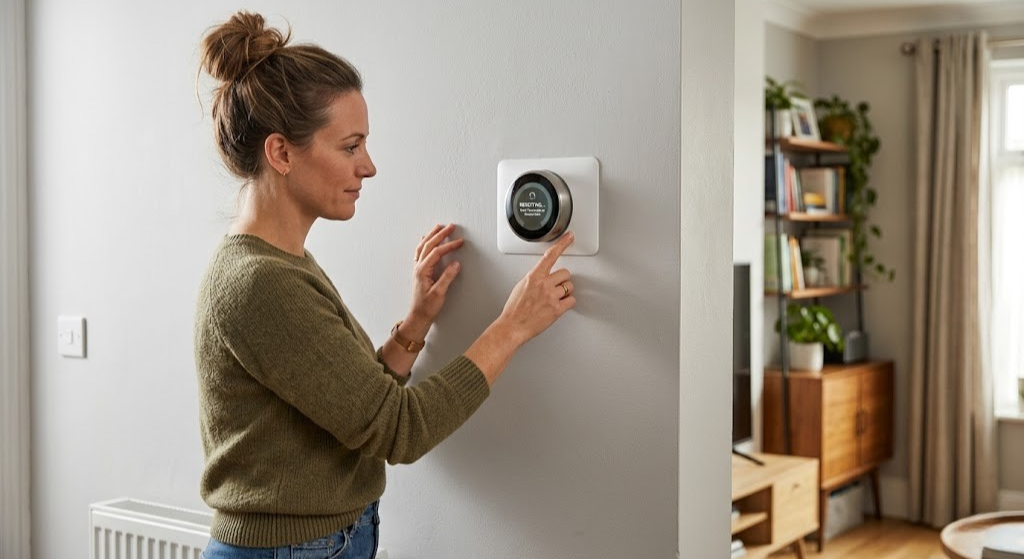
Your thermostat is behaving oddly — maybe the screen froze, the Wi-Fi dropped, the HVAC stopped responding to commands, or the temperature readings have been wildly off for weeks. You’ve heard that resetting the thermostat might fix it. But here’s the catch: “resetting a thermostat” means something completely different depending on which brand and model you have, what type of reset you actually need, and what underlying problem you’re trying to solve.
A Nest Learning Thermostat reset is nothing like an ecobee reset. An RTH-series Honeywell uses a different procedure than the T6 Pro. And none of those are anything like resetting an old mechanical dial thermostat. Using the wrong procedure wastes time at best and wipes important configuration data at worst.
This guide is the definitive universal reference. We cover every major brand and model line currently in use — all in one place — along with the four types of resets, a diagnostic checklist to determine which reset you actually need, and a clear post-reset setup protocol so your HVAC system comes back online correctly every time.
Why Would You Need to Reset Your Thermostat?
Thermostats are small computers mounted on walls — and like any computer, they can develop software glitches, accumulate corrupted settings, lose network connectivity, or simply need a clean slate after a major change to the home’s HVAC system. Understanding the specific trigger for your reset helps you choose the most targeted solution rather than jumping straight to a factory wipe.
The Most Common Reset Triggers
- Frozen or unresponsive screen: The display is lit but doesn’t respond to touch or button presses. Usually a software lockup resolvable with a power cycle.
- HVAC not responding to thermostat commands: You raise or lower the setpoint but the furnace or AC doesn’t start. A reset eliminates the thermostat as the software-level cause before you dig into wiring.
- Incorrect temperature readings: The thermostat reads 5–8°F off from actual room temperature. A factory reset restores calibration defaults and can resolve this when caused by corrupted settings.
- Lost or unstable Wi-Fi connection: The thermostat keeps dropping off your network. A targeted Wi-Fi reset clears stale credentials without touching your schedule.
- Corrupted or erratic schedule behavior: The thermostat runs at unexpected times or ignores programmed periods. A schedule reset clears bad data without a full wipe.
- Preparing the thermostat for a new owner or tenant: A factory reset wipes account linkage, schedules, and preferences so the new occupant starts completely fresh.
- Post-HVAC system upgrade: New furnace, new heat pump, or new zoning system — the thermostat’s system configuration must be reconfigured from scratch.
- Persistent error codes that won’t clear: Error messages like “E1,” “Lo Batt,” or system fault indicators that remain after the underlying issue is addressed.
- App showing thermostat as offline despite being powered: The thermostat’s cloud registration has become corrupted and needs a re-registration reset.
What a Reset Cannot Fix
A reset resolves software-level problems. It does not fix hardware failures (broken relay, failed display driver, dead circuit board), wiring issues between the thermostat and HVAC equipment, or problems originating in the furnace, heat pump, or AC unit itself. If the underlying problem is physical, a reset will complete successfully — and then the thermostat will immediately exhibit the same problem again once it reconnects to the HVAC system.
The 4 Types of Thermostat Resets — and When to Use Each
Reaching for a factory reset when a power cycle would have done the job is one of the most common thermostat troubleshooting mistakes. These four reset types range from completely non-destructive to a full data wipe — always start at the top and work down.
The practical decision tree is simple: frozen screen or temporary glitch → try power cycle first. Schedule acting up → schedule reset. Wi-Fi dropped after router change → Wi-Fi reset. Nothing else works, or you need a clean slate → factory reset. Follow this hierarchy and you’ll avoid accidentally nuking a perfectly good setup when a 60-second power cycle would have done the job.
Before You Reset: The 5-Minute Pre-Reset Checklist
Running through this checklist before initiating any reset takes five minutes and routinely eliminates the need for the reset entirely — or at minimum, tells you which type of reset is actually appropriate.
- Replace batteries with fresh alkalines
Even thermostats with a C-wire often use batteries as backup. Weak batteries cause freezing, wrong temperature readings, schedule loss, and Wi-Fi drops. New batteries cost $3 and eliminate this variable completely before any other step.
- Check the circuit breaker and HVAC power switch
A tripped breaker cuts power to the HVAC’s 24V transformer, which powers the thermostat’s C-wire feed. Confirm the HVAC breaker is on and the power switch on or near the furnace is in the ON position.
- Try a power cycle before anything else
Pull the thermostat off its wall plate, wait 60 seconds, and reinstall. This clears processor RAM and resolves the majority of frozen screens and temporary glitches without touching any stored data. It takes 90 seconds and erases nothing.
- Photograph your current wiring
Before a factory reset, document which wire connects to which terminal. A factory reset wipes the system type configuration but not the physical wiring — you’ll need this photo to reconfigure the system type settings correctly after reset.
- Note your current installer settings
For thermostats with installer setup menus (Honeywell T-series, ecobee), photograph or write down the current system type, number of stages, and heat pump settings before a factory reset — these parameters must be re-entered manually and can’t always be auto-detected after reset.
If you’re still seeing the problem after the power cycle and battery replacement, continue to the brand-specific reset instructions below for your model.

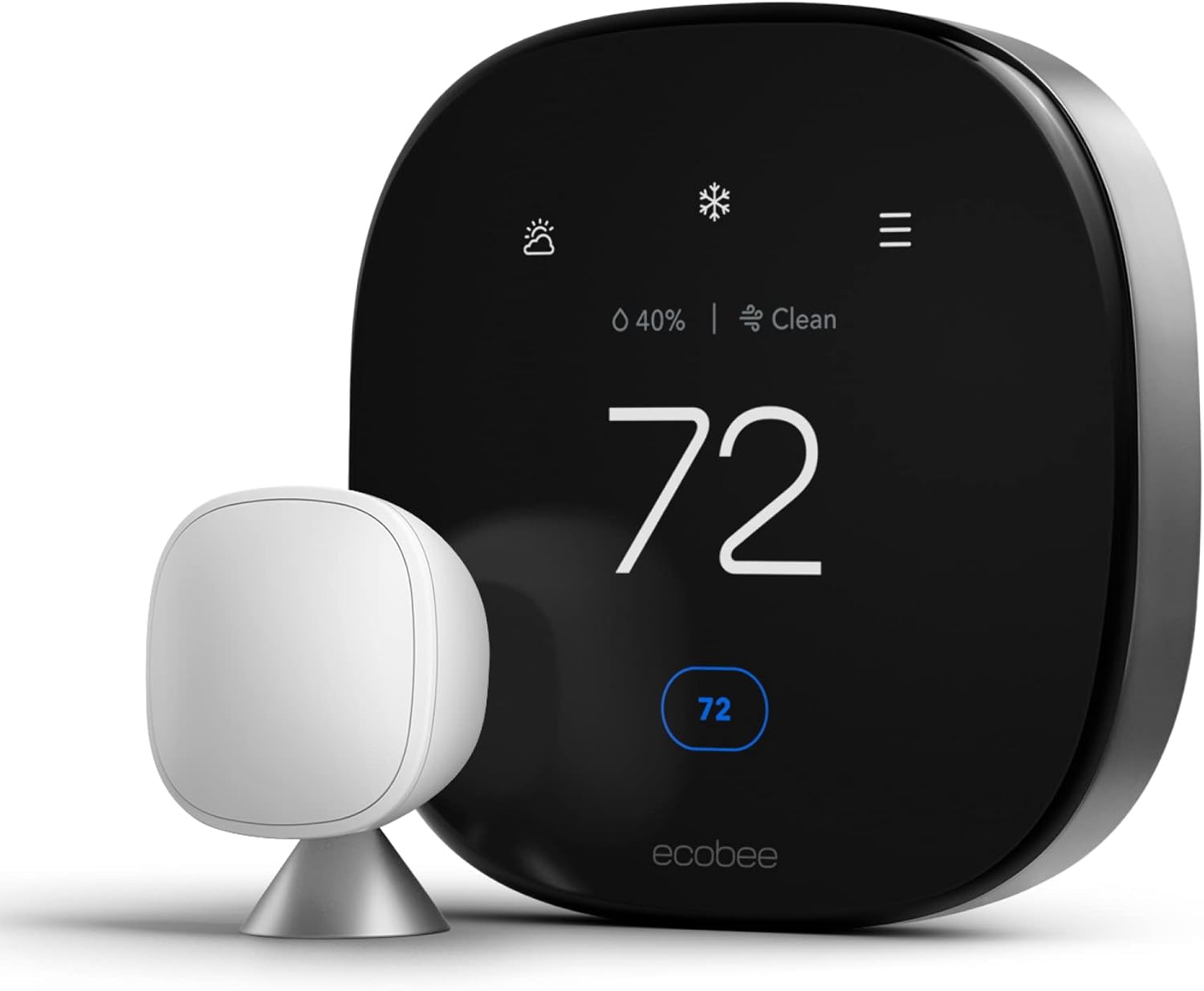
ecobee SmartThermostat Premium — Easiest Smart Thermostat to Reset & Recover
Clean menu-based reset options, built-in SmartSensor, air quality monitoring, and one of the most reliable post-reset setup experiences in the category. Our top overall pick.
🛒 Check Price on AmazonHow to Reset a Nest Thermostat (All Models)
Google Nest Thermostats
Nest Learning Thermostat (1st–4th Gen) · Nest Thermostat E · Nest Thermostat (2020)Nest thermostats offer the most granular reset options of any major brand — you can reset individual aspects like the schedule, away history, network settings, or everything at once. This selectivity means you almost never need to factory-wipe a Nest to fix a specific problem.
Nest Learning Thermostat (2nd, 3rd, and 4th Generation)
The Nest Learning Thermostat uses a rotating, pressable ring as its primary interface. Navigate by rotating; select by pressing.
- Press the thermostat ring
This opens the Quick View menu. Rotate to the Settings icon (gear/wrench symbol) and press to select.
- Navigate to Reset
Rotate to scroll through the Settings options until you reach “Reset.” Press to select.
- Choose your reset type
Nest Learning Thermostat offers five reset options: Schedule (clears learned and programmed schedule), Away (clears learned Away temperatures), Network (clears Wi-Fi credentials), Home/Away Assist (resets presence detection learning), and All Settings (full factory reset).
- Confirm the reset
After selecting a reset type, press to confirm. “All Settings” requires a second confirmation due to its irreversibility. The thermostat restarts within 60–90 seconds.
Nest Thermostat E
The Nest Thermostat E has a similar ring interface to the Learning Thermostat. Follow the identical procedure: press ring → Settings → Reset → choose option. The Nest E offers the same five reset categories.
Nest Thermostat (2020, Entry-Level)
The 2020 Nest Thermostat uses a touchscreen rather than a rotating ring. The reset procedure is slightly different:
- Tap Settings on the thermostat display
From the home screen, tap the gear icon or swipe up to access the settings panel.
- Scroll to Reset
Scroll down in the settings list to find the “Reset” option. Tap to open.
- Select your reset type
Options include Schedule Reset, Network Reset, and Factory Reset (called “Reset All” on some firmware versions).
- Confirm and wait
Confirm the selection. The thermostat restarts within about 60 seconds. For a factory reset on the 2020 model, also remove it from the Google Home app after reset completes.
Resetting Nest via the Google Home App
For all Nest models, certain resets can be initiated remotely via the Google Home app while the thermostat is online: open the app → tap the thermostat → tap the gear icon → scroll to Reset → choose option. Network resets and schedule resets work remotely. A full factory reset typically requires physical access to the thermostat.
How to Reset an ecobee Thermostat (All Models)
ecobee Smart Thermostats
ecobee3 Lite · ecobee SmartThermostat Enhanced · ecobee Premium · ecobee4All current ecobee models share a consistent touchscreen interface and the same menu-based reset procedure — making ecobee one of the easiest brands to reset correctly regardless of which model you have.
- Tap the Main Menu icon
Tap the three horizontal lines (☰) in the upper left corner of any ecobee touchscreen to open the main menu.
- Navigate to Settings
Tap “Settings” from the main menu list.
- Tap Reset
Scroll to the bottom of the Settings menu and tap “Reset.”
- Choose your reset type
ecobee offers three options: Reset All Settings (full factory reset — wipes everything), Reset Schedule & Preferences (clears schedule, holds, and preferences but keeps system config and Wi-Fi), and Reset Registration (removes the thermostat from your ecobee account without wiping other settings).
- Confirm and wait
Tap “Yes” to confirm. The ecobee restarts within 60–90 seconds. For a full reset, you’ll be greeted with the initial setup wizard.
ecobee Wi-Fi Reset (Separate Procedure)
To reset only the Wi-Fi on an ecobee without touching other settings: tap Main Menu → Wi-Fi → select your current network → tap “Forget.” The ecobee returns to Wi-Fi setup mode. Reconnect using the ecobee app or the on-screen network selection.
ecobee Reset Registration
The “Reset Registration” option is unique to ecobee and extremely useful when transferring ownership. It removes the thermostat from the previous owner’s ecobee account without erasing the HVAC system configuration or Wi-Fi settings — so the new owner can add the thermostat to their own account without reconfiguring anything else. This is the cleanest ownership-transfer reset available on any smart thermostat platform.
If your ecobee is dropping Wi-Fi or showing connectivity problems even after a Wi-Fi reset, the issue may be router-side rather than thermostat-side. Check that your router is broadcasting on 2.4 GHz (ecobee supports both 2.4 and 5 GHz on current models, but placement and signal strength matter) and confirm the ecobee can reach your router signal. For persistent connectivity issues with Sensi thermostats, our guide to fixing Sensi “connected but not to Sensi Cloud” errors covers overlap diagnostic steps that apply to other brands too.
How to Reset a Honeywell Home Thermostat
Honeywell Home Thermostats
T4 Pro · T6 Pro · T9 · T10 Pro · RTH Series · Lyric SeriesHoneywell Home has the most diverse product lineup of any thermostat brand — reset procedures vary significantly by model series. Here are the most common models and their procedures.
Honeywell T6 Pro (Most Common Non-Smart Model)
- Press the Menu button
The Menu button is on the right side of the T6 Pro’s display panel.
- Scroll to Reset
Use the up/down arrows to navigate to “Reset” and press the center checkmark button.
- Choose Schedule or Factory
Select “Schedule” to clear only the programmed schedule, or “Factory” to wipe all settings. Press the checkmark to confirm.
- Confirm and wait
The T6 Pro restarts within about 45 seconds. Installer settings (system type, stages) may need to be manually re-entered via the Installer Setup menu (hold Menu for 5 seconds to access).
Honeywell Home T9 / T10 Pro (Smart Wi-Fi Models)
- Tap the Menu icon (☰)
Opens the main navigation menu on the touchscreen.
- Navigate to Thermostat Settings
Scroll and tap “Thermostat Settings.”
- Tap Reset
Scroll to and tap “Reset” at the bottom of the Thermostat Settings screen.
- Choose: Schedule Reset, Wi-Fi Reset, or Factory Reset
Select the appropriate scope for your situation and confirm the warning prompt.
- Remove from Honeywell Home app after factory reset
A factory reset automatically unlinks the T9/T10 Pro from your account. Open the Honeywell Home app and remove the old device entry before re-adding the freshly reset thermostat.
Honeywell RTH7560E / RTH8560 (Touchscreen Programmable)
- Tap Menu on the touchscreen
Opens the left-side navigation panel.
- Go to Preferences
Scroll down and tap “Preferences” (labeled “Settings” on some firmware versions).
- Tap Restore Factory Settings
Scroll to the bottom of Preferences and tap “Restore Factory Settings.” Confirm on the dialog that appears.
Honeywell RTH2300 / RTH2510 (Basic Button Models)
These models have no menu-based factory reset. Power cycle by removing from the wall plate and removing batteries for 60 seconds. For a schedule reset: press and hold Set + Day simultaneously for 3 seconds until the display flashes.
| Honeywell Model | Factory Reset Method | Wi-Fi Reset? | App Required? |
|---|---|---|---|
| T4 Pro | Installer Setup → Parameter 0900 → Reset | No Wi-Fi | No |
| T6 Pro | Menu → Reset → Factory | No Wi-Fi | No |
| T9 | Menu → Thermostat Settings → Reset → Factory Reset | Yes | Yes (post-reset) |
| T10 Pro | Menu → Thermostat Settings → Reset → Factory Reset | Yes | Yes (post-reset) |
| RTH7560/8560 | Menu → Preferences → Restore Factory Settings | No Wi-Fi | No |
| RTH9585/9590 | Menu → Preferences → Restore Factory Settings | Yes | Legacy portal |
| Lyric Round | Settings → Reset Thermostat → Factory Reset | Yes | Yes (Lyric app) |

Google Nest Learning Thermostat (4th Gen) — Best-in-Class Reset Options
Nest’s granular reset menu lets you reset only the schedule, only the network, or all settings independently — the smartest reset architecture of any thermostat brand. Plus Soli radar, Matter, and a mirror display.
🛒 Check Price on AmazonHow to Reset an Emerson Sensi Thermostat
Emerson Sensi Thermostats
Sensi Touch 2 · Sensi Wi-Fi (ST55) · Sensi Lite · Sensi Touch (1st Gen)Emerson Sensi thermostats use the Sensi app as the primary interface for most configuration tasks, including resets. The on-thermostat interface can also initiate resets on most models.
Factory Reset via the Sensi App (Recommended Method)
- Open the Sensi app
Launch the Sensi app on your iOS or Android device and ensure your phone is connected to the same Wi-Fi network as the thermostat.
- Select your thermostat
Tap the thermostat in the device list to open its control screen.
- Go to Settings
Tap the gear icon in the upper right corner of the thermostat’s control screen.
- Tap Remove Thermostat / Factory Reset
Scroll to the bottom of the settings page. “Remove Thermostat” initiates a factory reset and removes the device from your Sensi account. Confirm when prompted.
- Wait for the thermostat to restart
The Sensi thermostat will reset and return to the initial pairing screen (blinking Wi-Fi indicator). Re-add via the Sensi app using the standard device setup flow.
Factory Reset Directly on the Sensi Touch 2
For the Sensi Touch 2 (color touchscreen model), you can also reset without the app:
- Tap Menu on the thermostat touchscreen
Opens the navigation menu panel on the left side of the display.
- Navigate to Settings → Reset
Select Settings from the menu, then scroll to the Reset option at the bottom.
- Select Factory Reset and confirm
Tap “Factory Reset” and confirm the dialog. The Sensi Touch 2 restarts within 60 seconds.
Power Cycling a Sensi (No-Settings-Loss Reset)
All Sensi thermostats support a power cycle by removing the thermostat from its wall base. The Sensi models that use terminal-mounted bases can be pulled directly off the base (no screws on most models). Remove from base, wait 60 seconds, and remount. This resolves frozen screens and connection hiccups without affecting settings.
How to Reset Amazon Smart Thermostat and Wyze Thermostat
Amazon Smart Thermostat & Wyze Thermostat
Budget-friendly smart thermostats with Alexa and app-based controlResetting the Amazon Smart Thermostat
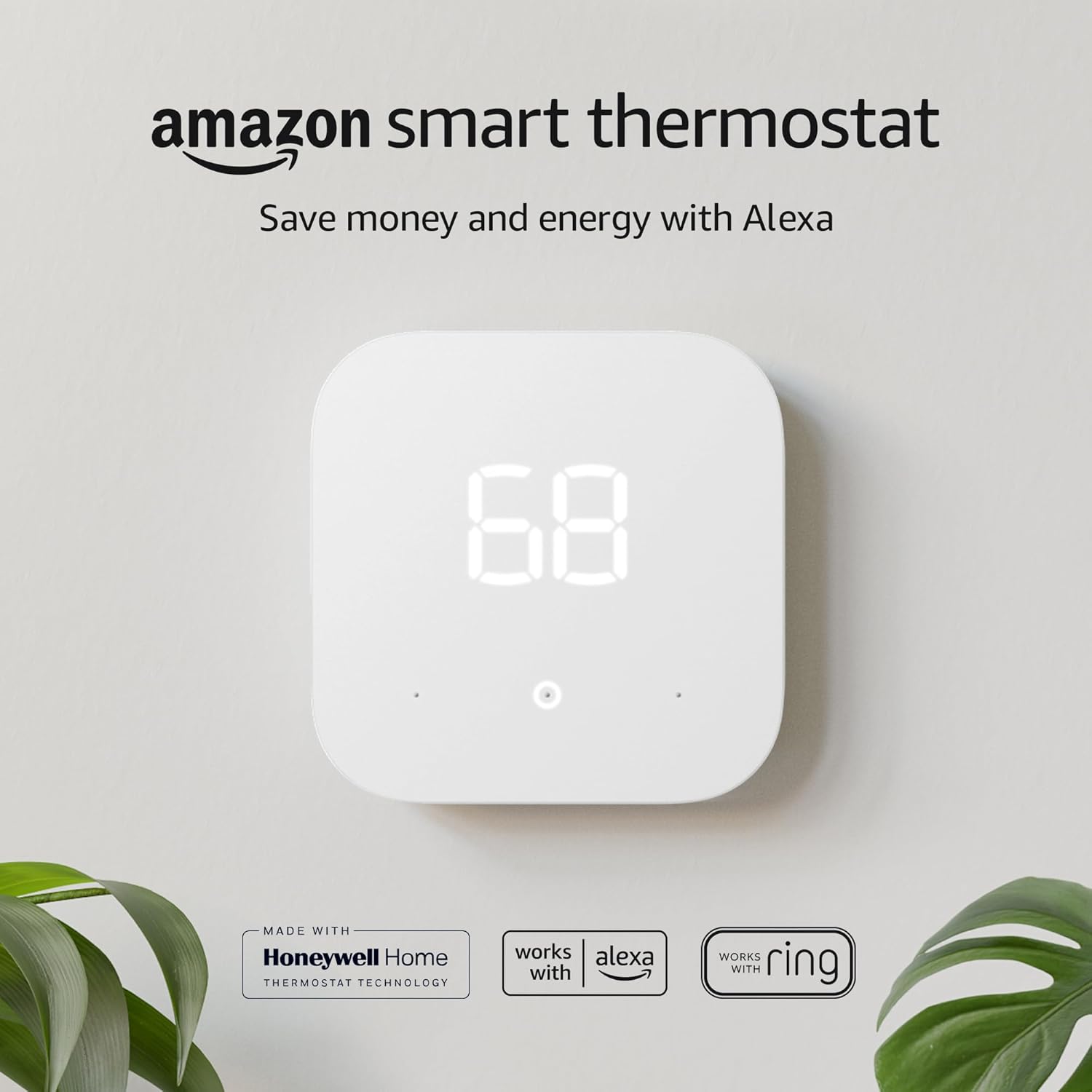
The Amazon Smart Thermostat is a budget-friendly Alexa-integrated unit with a physical button interface. Its reset procedure is clean and straightforward.
- Press the center button to wake the display
The Amazon Smart Thermostat’s main interface is accessed via a single center button with directional press zones.
- Navigate to Settings
Press down to scroll through the main menu until you reach “Settings.” Press center to select.
- Select Reset to Factory Defaults
Scroll through Settings until you see “Reset to Factory Defaults.” Press center to select.
- Confirm
Press center again when prompted to confirm the factory reset. The thermostat will restart within 60 seconds and return to the initial setup mode.
- Re-add via the Alexa app
Open the Alexa app → Devices → Add Device → Thermostat → follow the guided setup to reconnect the Amazon Smart Thermostat to your account and Wi-Fi.
Resetting the Wyze Thermostat
The Wyze Thermostat uses a minimalist touchscreen interface and relies heavily on the Wyze app for configuration.
- Tap the display to wake it
Tap anywhere on the Wyze Thermostat’s touchscreen display to activate it.
- Swipe down from the top of the display
This reveals the quick settings panel, including access to the full settings menu.
- Tap Settings → Reset
In the Settings menu, scroll to “Reset” and tap. Choose “Factory Reset” from the options presented.
- Confirm and re-add via Wyze app
Confirm the reset. After restart, open the Wyze app → Tap the “+” to add a device → follow the thermostat setup wizard to reconnect.
Alternative: Reset via the Wyze App
You can also reset the Wyze Thermostat remotely if it’s online: open the Wyze app → tap the thermostat → tap the gear icon → scroll to “Delete Device.” This removes the thermostat from your account and initiates a factory reset on the device. Re-add via the standard setup flow after reset completes.
How to Reset Legacy and Non-Smart Thermostats
Legacy, Mechanical & Basic Digital Thermostats
Older Honeywell, White-Rodgers, Lux, Carrier, and mechanical dial modelsNon-smart thermostats from the 1990s and 2000s don’t have software menus or app connectivity, so “reset” means something more physical — typically a battery-pull procedure, a button combination, or in the case of purely mechanical units, manual recalibration.
Basic Digital Programmable Thermostats (Most Non-Smart Models)
This procedure applies to the vast majority of older digital programmable thermostats from any brand:
- Turn the System switch to “Off”
If your thermostat has a physical System switch (Heat / Off / Cool / Auto), move it to Off.
- Remove the thermostat from the wall plate
Most slide up or pull forward. Expose the battery compartment on the back.
- Remove all batteries
Remove the AA or AAA batteries completely.
- Hold any button for 10 seconds with batteries out
This drains residual capacitor charge from the circuit board, performing a true processor reset. The Up arrow button or System button are typical choices.
- Reinstall fresh batteries, remount, and reconfigure
Insert new alkaline batteries, remount the thermostat, and return the System switch to Heat or Cool as appropriate. The thermostat will restart in its default state.
Mechanical Dial Thermostats
Purely mechanical thermostats (bimetal coil or mercury switch types) have no electronics to reset. If a mechanical thermostat is reading temperature inaccurately, the only corrective action is physical calibration of the bimetal coil (using a small adjustment screw, if present) or replacement. If the thermostat is wildly inaccurate or unresponsive despite calibration attempts, the bimetal coil or mercury switch has reached end of life.
It’s also worth reading up on how to correctly read your thermostat’s display and settings before concluding that a temperature problem requires a reset — display interpretation errors are surprisingly common on older digital models with small screens and cryptic symbols.
Lux, White-Rodgers, Carrier, and Other OEM Brands
Many OEM-branded thermostats (sold with Carrier, Trane, Lennox HVAC systems) are manufactured by Honeywell or White-Rodgers under a house brand. The reset procedure typically matches the equivalent Honeywell model. Check the model number format: if it starts with “TH” or “RTH,” it’s a Honeywell-made unit and the procedures in Section 6 apply. White-Rodgers models typically use the battery-pull reset procedure described above.

Honeywell Home T9 — Best Smart Upgrade from Any Legacy Thermostat
Remote SmartRoom sensors, geofencing, flexible scheduling, and a polished Honeywell Home app. The most natural upgrade path for anyone replacing an old Honeywell or OEM-branded programmable.
🛒 Check Price on AmazonWi-Fi Reset Quick Reference: All Major Brands
A Wi-Fi reset is the most frequently needed reset on smart thermostats — triggered by router upgrades, password changes, ISP switches, and moving. Here’s the fastest path to Wi-Fi reset on every major brand, without touching your schedule or system settings.
| Brand / Model | Wi-Fi Reset Path | Affects Schedule? | Affects System Config? |
|---|---|---|---|
| Nest Learning Thermostat | Press ring → Settings → Reset → Network | No | No |
| Nest Thermostat (2020) | Settings → Reset → Network Reset | No | No |
| ecobee (all models) | Main Menu → Wi-Fi → select network → Forget | No | No |
| Honeywell T9 / T10 Pro | Menu → Wi-Fi → Forget This Network | No | No |
| Honeywell Lyric T6 | Menu → Wi-Fi Settings → Wi-Fi Reset | No | No |
| Emerson Sensi (all) | Sensi app → Settings → Remove Thermostat | Yes (re-add) | Re-entered in app |
| Amazon Smart Thermostat | Settings → Wi-Fi → Forget Network | No | No |
| Wyze Thermostat | Settings → Wi-Fi → Forget Network | No | No |
When a Reset Won’t Fix the Problem — Diagnosing Deeper Issues
A successful reset followed by immediate return of the same problem is one of the most useful diagnostic signals available. It tells you definitively that the issue is not software-level — it’s either hardware in the thermostat or something in the connected HVAC system.
Spontaneous Resets: The Power Instability Problem
A thermostat that resets itself repeatedly — without you doing anything — is almost always experiencing power instability. The three causes, in order of frequency:
- No C-wire on a smart thermostat: Power-stealing smart thermostats draw current from control wires. During HVAC startup, this creates a momentary voltage drop that reboots the thermostat. Installing a proper C-wire or using a manufacturer-approved adapter eliminates the problem entirely.
- Weak or failing batteries: Batteries that measure adequate voltage at rest can drop below operating voltage under the thermostat’s processing load. Switch to premium alkaline batteries (not rechargeable NiMH) and check if the spontaneous resets stop.
- Failing 24V transformer: Measure the transformer’s secondary output with a multimeter. Should read 24–28V AC under load. Output below 22V or that fluctuates significantly indicates a failing transformer that needs replacement.
For a structured diagnosis of what’s happening when your thermostat’s behavior persists after a reset, our thermostat not reaching set temperature diagnostic flowchart provides step-by-step testing protocols for every HVAC configuration type.
Temperature Inaccuracy That Persists After Reset
If temperature readings are still significantly off after a factory reset, the thermistor (temperature sensing resistor) inside the thermostat has physically degraded. This is common in thermostats older than 10 years. Compare the thermostat’s displayed temperature to a calibrated digital thermometer placed directly next to it for 15 minutes. A persistent difference of 3°F or more after factory reset confirms sensor hardware failure — replacement is the only resolution.
Setting Up Your Thermostat After a Factory Reset
A factory reset is a starting point, not a finish line. Getting the thermostat configured correctly after reset is where most post-reset HVAC problems originate — and where taking an extra 10 minutes pays dividends for years of reliable operation.
Critical Step 1: Configure System Type Correctly
The single most important post-reset configuration is the system type. Getting this wrong causes the thermostat to send incorrect control signals to your HVAC equipment. The core choices:
- Conventional (forced air): Gas or oil furnace + central AC. Uses W for heat, Y for cool, G for fan.
- Heat pump: Refrigerant-based system that heats and cools. Uses Y for compressor, O/B for reversing valve direction. Getting the O/B setting wrong causes the heat pump to heat when you ask for cool and vice versa.
- Dual-fuel/hybrid: Heat pump + gas furnace backup. Requires specific dual-fuel configuration on thermostats that support it.
- Electric baseboard: Line-voltage system. Cannot use standard smart thermostats — requires dedicated line-voltage thermostat models.
Critical Step 2: Set Number of Heating and Cooling Stages
If you have a two-stage furnace, two-stage AC compressor, or variable-capacity heat pump, configure the thermostat’s staging settings accordingly. Running a two-stage system on single-stage settings locks the equipment at full capacity 100% of the time — eliminating the efficiency and comfort benefits of variable operation.
Step 3: Reconnect Wi-Fi and Re-link to Your Account
For smart thermostats, reconnect to your 2.4 GHz network and re-link to the manufacturer’s app. Ensure Bluetooth is enabled on your phone during the initial pairing process — most smart thermostats use Bluetooth for the handshake before transitioning to Wi-Fi. After pairing, verify the thermostat appears in your app as online before proceeding.
Step 4: Rebuild Your Schedule
Rebuild your heating and cooling schedule. For smart thermostats, use the app’s calendar interface — it’s significantly faster than programming through the thermostat’s touchscreen. A well-crafted schedule with realistic setbacks (lowering heat or raising cooling setpoints during empty and sleeping hours) is one of the highest-ROI thermostat configurations available.
Step 5: Test All HVAC Modes
Before considering setup complete, test every mode:
- Set to HEAT and raise setpoint 5°F above room temperature — confirm furnace or heat pump starts within 3 minutes
- Set to COOL and lower setpoint 5°F below room temperature — confirm AC starts within 3 minutes
- Set FAN to ON — confirm blower runs independently
- For heat pumps: verify the system heats in heat mode and cools in cool mode (O/B reversal is a common configuration mistake)
This verification catches configuration errors on the same day as the reset — not on the first hot or cold evening when you actually need the system to work.

Emerson Sensi Touch 2 — Simplest Reset & Setup Experience
Illuminated terminals make installation intuitive, the Sensi app guides every setup step after reset, and multi-stage HVAC support is included. An excellent value-conscious smart thermostat for any home.
🛒 Check Price on AmazonFrequently Asked Questions
The factory reset procedure depends on your brand and model. For Nest Learning Thermostat: press the ring → Settings → Reset → All Settings. For ecobee: tap Main Menu → Settings → Reset → Reset All Settings. For Honeywell T6 Pro: press Menu → Reset → Factory. For Emerson Sensi: use the Sensi app → Settings → Remove Thermostat. For Amazon Smart Thermostat: Settings → Reset to Factory Defaults. Always check your exact model number first, as procedures vary significantly even within the same brand family.
A thermostat reset affects only the thermostat’s internal settings and does not directly change anything in your furnace, AC, or heat pump. However, after a factory reset, the thermostat’s system configuration (system type, heat pump vs. conventional, number of stages) is wiped and must be re-entered correctly before the thermostat can reliably control your HVAC. Sending incorrect control signals due to misconfiguration after reset — particularly the wrong heat pump O/B setting — can cause your HVAC system to behave unexpectedly until the configuration is corrected.
Most thermostats don’t have a dedicated reset button. For smart thermostats (Nest, ecobee, Honeywell T9), resets are initiated through menu navigation — typically Settings → Reset on the touchscreen or via the manufacturer’s app. For older digital thermostats, the most reliable reset method is removing from the wall plate, removing batteries, holding any button for 10 seconds (to drain capacitor charge), then reinstalling with fresh batteries. For a no-settings-loss soft reset on any thermostat, simply removing it from the wall plate and reinstalling after 60 seconds clears temporary memory.
For Nest Learning Thermostat (2nd, 3rd, 4th Gen): press the ring to open Quick View, rotate to Settings (gear icon), press to select, rotate to Reset, press to select, then choose your reset type: Schedule, Away, Network (Wi-Fi only), Home/Away Assist, or All Settings (full factory reset). For Nest Thermostat (2020): tap Settings on the display, scroll to Reset, tap, and choose the type. All Nest thermostats can also be partially reset via the Google Home app while online — navigate to the thermostat, tap the gear icon, and select Reset.
On any ecobee thermostat, tap the Main Menu icon (☰), go to Settings, scroll to Reset at the bottom, and tap. You’ll see three options: Reset All Settings (full factory reset), Reset Schedule & Preferences (clears schedule and holds but keeps system config and Wi-Fi), and Reset Registration (removes from your ecobee account only). For a Wi-Fi-only reset, go to Main Menu → Wi-Fi → select your network → Forget. All procedures are consistent across ecobee3 Lite, Enhanced, and Premium models.
Spontaneous thermostat resets are almost always caused by power instability. The three most common causes are: (1) No C-wire on a smart thermostat — power-stealing during HVAC startup causes voltage drops that reboot the thermostat; install a C-wire or approved adapter to fix this. (2) Low or failing batteries — even batteries that read fine at rest can drop below operating voltage under processing load; use premium alkaline batteries. (3) Failing 24V transformer — measure output with a multimeter (should be 24–28V AC); output below 22V or significant fluctuation indicates a transformer that needs replacement.
A factory reset restores temperature calibration to factory defaults, which can fix inaccuracy caused by corrupted calibration settings or manual adjustments gone wrong. However, if the thermostat’s temperature sensor (thermistor) has physically degraded — common in units over 10 years old — resetting to default calibration won’t help because the sensor itself is out of tolerance. After resetting, place a calibrated standalone thermometer next to the thermostat for 15 minutes. A persistent difference of 3°F or more after reset indicates sensor hardware failure, and replacement is necessary.
All major smart thermostat brands support a dedicated Wi-Fi reset that clears only network credentials without affecting other settings. For ecobee: Main Menu → Wi-Fi → Forget. For Nest Learning Thermostat: Settings → Reset → Network. For Honeywell Home T9: Menu → Wi-Fi → Forget This Network. For Amazon Smart Thermostat: Settings → Wi-Fi → Forget Network. For Wyze: Settings → Wi-Fi → Forget Network. The Emerson Sensi Wi-Fi reset is primarily managed through the Sensi app. After clearing credentials, reconnect via the manufacturer’s app or the thermostat’s on-screen Wi-Fi setup.
It depends on the reset type. A schedule reset clears programmed time/temperature periods while preserving system settings and Wi-Fi credentials. A factory reset erases everything — schedule, system configuration, Wi-Fi credentials, and account registration. A power cycle (removing the thermostat from its wall plate and reinstalling) clears only temporary memory and preserves all settings completely. Always use the least destructive reset type that addresses your specific issue — a power cycle fixes the majority of temporary glitches without touching any stored data.
After a factory reset, complete these steps in order: (1) Configure system type (conventional vs. heat pump) and number of heating/cooling stages in the thermostat’s installer or setup settings. (2) Reconnect to your 2.4 GHz Wi-Fi network using the manufacturer’s app. (3) Re-link to your thermostat account and restore any automations or integrations. (4) Rebuild your heating and cooling schedule — use the app interface, not the on-thermostat controls, for fastest entry. (5) Test all modes (heat, cool, fan) to verify the HVAC system responds correctly before considering setup complete.
Conclusion: Start Simple, Escalate as Needed
Resetting a thermostat doesn’t have to be intimidating — and it doesn’t have to mean wiping everything and starting from scratch. The core principle that runs through this entire guide is one of escalation: start with the gentlest intervention (a power cycle) and work toward more destructive options only as needed. A 60-second power cycle fixes a frozen screen without touching a single setting. A targeted Wi-Fi reset reconnects your thermostat after a router change without clearing your carefully built schedule. A factory reset is reserved for the situations that genuinely need it — deep software corruption, system changeover, or transferring ownership.
The brand-specific steps in this guide give you the exact procedure for every major thermostat family — Nest, ecobee, Honeywell Home, Emerson Sensi, Amazon, Wyze, and legacy non-smart models — so you’re never guessing at button combinations or following generic instructions that don’t match your device.
And when a reset completes but the problem comes right back, that’s not failure — it’s a useful diagnostic signal pointing you toward a hardware, wiring, or HVAC equipment issue that no software reset can solve. The diagnostic framework in Section 11 gives you a clear path forward in that scenario, and the post-reset setup guide in Section 12 ensures that when you do successfully reset, the thermostat comes back online configured correctly and ready to deliver the comfort and efficiency it was designed for.
Still Troubleshooting? Let Us Help.
Use our comprehensive thermostat diagnostic checklist to identify exactly what’s wrong with your system — whether it’s the thermostat, the wiring, or the HVAC equipment itself.
🔍 Run the Full Diagnostic Checklist →


 Home
Home
 Info
Info
 Compare
 Reviews
 Shop
Shop