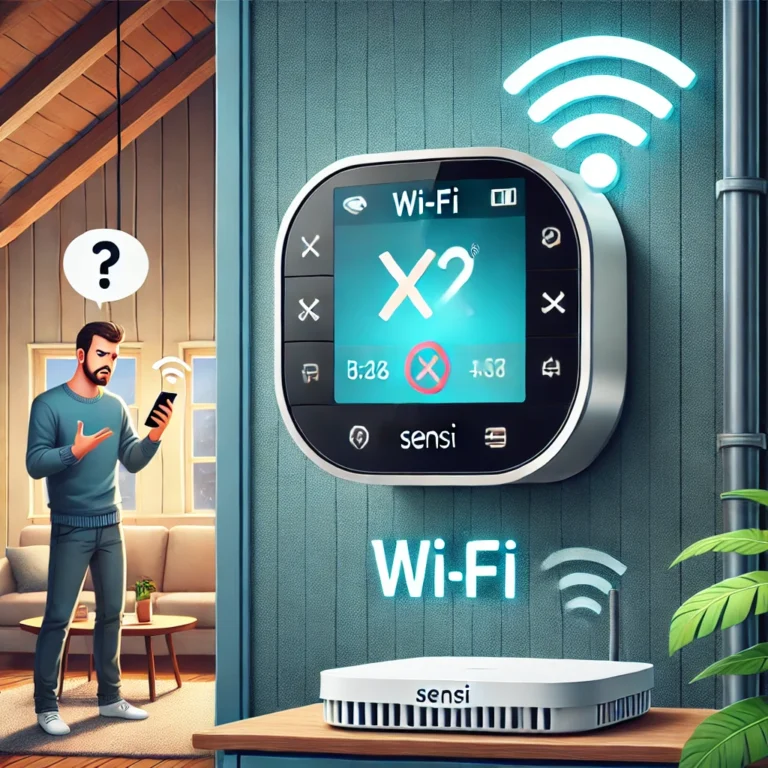
Why Is My Sensi Thermostat Not Working? The Complete Wi-Fi & HVAC Troubleshooting Guide
The Sensi smart thermostat is a fantastic addition to any home, offering energy savings, convenience, and enhanced comfort. However, like any smart device, it relies on a stable Wi-Fi connection to deliver its full range of features. If your Sensi thermostat is acting up — whether it won’t connect to Wi-Fi, won’t control your HVAC system, or is showing error states you don’t recognize — this comprehensive guide has you covered.
We’ll walk you through every common failure mode: from simple Wi-Fi dropouts and Sensi Cloud sync errors to more complex issues like power wiring faults, scheduling bugs, HVAC incompatibilities, and display problems. Whether you have the Sensi Smart, Sensi Touch, Sensi Touch 2, Sensi Lite, or Sensi SE, the fixes in this guide are organized by symptom so you can get to the right solution fast.
Important Note: If your Sensi thermostat loses its Wi-Fi connection, it will not stop working. It will continue to function as a standard thermostat, controlling your HVAC system based on its last settings or schedule. You can always manually adjust the temperature on the wall unit. However, you will lose remote control, advanced settings, and software updates until the connection is restored.
Common Reasons for Sensi Wi-Fi Connectivity Issues
Before diving into fixes, understanding the root cause can save you time. Here are the most frequent reasons your Sensi thermostat is offline:
- New Router or Changed Network Settings: If you recently got a new router or changed your Wi-Fi password or network name (SSID), your thermostat must be reconnected.
- Weak Wi-Fi Signal: Your thermostat may be too far from the router, or physical obstructions could be weakening the signal.
- Incorrect Wi-Fi Password: A simple typo during setup is a very common mistake.
- Router Compatibility Problems: Some router settings, especially on 5 GHz-only networks or with high-security firewalls, can prevent the Sensi from connecting.
- Network Congestion: Too many devices on your network can sometimes cause connection drops for lower-priority devices like thermostats.
- Outdated Software or App Glitches: The Sensi app or the thermostat’s firmware might need an update.
- “Connected” but Not Sensi Cloud: A unique Sensi error state where local network connection works but cloud sync fails — covered in detail below.
- Power Supply Issues: Insufficient voltage from the HVAC control wiring can cause intermittent Wi-Fi dropouts.
How to Fix Sensi Thermostat Wi-Fi Problems: A Step-by-Step Guide
-
Check the Wi-Fi Status Icon on Your Sensi Thermostat
Your first step is to see what the thermostat itself is reporting. Each Sensi model displays its Wi-Fi status differently.
Sensi Smart Thermostat
Look at the upper left-hand corner of the display:
- Blank (No Icon): The thermostat is not attempting to connect to Wi-Fi.
- “X” in the corner: No network was detected. Your router may be off or too far away.
- “X” with a Wi-Fi icon: A network is detected, but the thermostat failed to connect. This is often a password issue.
- Full Wi-Fi icon: You are successfully connected.
Sensi Touch & Sensi Touch 2 Smart Thermostat
On the thermostat’s screen, tap Menu > Wi-Fi. Check the status message:
- “Not connected to Wi-Fi”: The device is offline. You’ll need to reconnect it.
- “Connected to network, not Sensi cloud”: Your thermostat is connected to your router, but your internet service may be down — or there’s a Sensi server issue.
- “Connected”: Everything should be working normally.
Sensi Lite Smart Thermostat
Tap Menu on the thermostat and check the Wi-Fi status next to the room temperature:
- No icon or a flashing “X” with Wi-Fi symbol: The thermostat is offline.
- Solid “X” in the corner: No network was detected.
- Full Wi-Fi icon: You are successfully connected.
-
Reconnect Your Thermostat After Router Changes
If you’ve changed your router or Wi-Fi password, you must update the settings on your Sensi.
- Open the Sensi app on your smartphone or tablet.
- Tap on your thermostat’s name, then go to the Settings menu (usually a gear icon).
- Select Wi-Fi and follow the on-screen instructions to connect your thermostat to the new network.
-
Power Cycle Your Router and Thermostat
The classic “turn it off and on again” works for a reason. This simple reboot can clear up many temporary glitches.
- Restart Your Router: Unplug your Wi-Fi router from the power outlet. Wait a full 60 seconds, then plug it back in. Give it a few minutes to fully boot up.
- Restart Your Thermostat: Gently pull the thermostat faceplate off the wall-mounted sub-base. Wait about 30 seconds, then snap it back into place.
- Once both devices have restarted, check if the thermostat reconnects automatically.
-
Improve Your Wi-Fi Signal Strength
If your thermostat is in a “dead zone,” it will struggle to stay connected.
- Move your Wi-Fi router closer to your thermostat if possible.
- Remove obstructions like large metal objects (filing cabinets, refrigerators) that might be between the router and the thermostat.
- Consider installing a Wi-Fi extender or mesh system if your home is large and has poor coverage.
-
Check for Router Compatibility Issues
Some router settings can block smart devices. Log in to your router’s admin panel and check the following:
- Network Band: Sensi thermostats only connect to 2.4 GHz Wi-Fi networks. They do not support 5 GHz networks. If your router has both, make sure the 2.4 GHz band is enabled.
- Firewall Settings: Ensure your router’s firewall isn’t set to a high-security mode that blocks new devices.
- Parental Controls or MAC Filtering: Make sure you haven’t accidentally restricted the thermostat from accessing the network.
-
Update Your Sensi App and Firmware
Outdated software can lead to bugs and connectivity issues.
- Go to the App Store (iOS) or Google Play Store (Android) and check for updates to the Sensi app.
- Within the app’s settings for your thermostat, check if there are any available firmware updates and install them.
Understanding “Connected to Network, Not Sensi Cloud” — And How to Fix It
One of the most confusing error states that Sensi Touch and Sensi Touch 2 users encounter is when the thermostat displays “Connected to network, not Sensi cloud.” This message means your thermostat has successfully joined your home Wi-Fi network — it can see your router — but it cannot reach Emerson’s Sensi cloud servers on the internet.
This is a fundamentally different problem from a simple Wi-Fi disconnect, and it requires a different set of fixes. For a complete deep-dive into this specific error state with detailed diagnostic steps, see our dedicated guide on fixing the Sensi “Connected Not Sensi Cloud” error.
Why Does “Connected Not Sensi Cloud” Happen?
🌐 Sensi Server Outage
Emerson’s cloud servers occasionally go offline for maintenance or experience unexpected outages. Check the Sensi status page or social media for service announcements before troubleshooting further.
🔒 Router Firewall Blocking Cloud
Your router may be connected to the internet but blocking outbound connections to Sensi’s servers. Enterprise-grade or high-security consumer routers with deep packet inspection can cause this.
📡 DNS Resolution Failure
If your router’s DNS settings are misconfigured or your ISP’s DNS is experiencing issues, the thermostat may connect to Wi-Fi but fail to resolve Sensi’s server addresses.
⏱️ NTP Time Sync Issue
Sensi devices use NTP (Network Time Protocol) to sync time. If UDP port 123 is blocked, the thermostat may fail the cloud authentication handshake even with internet access.
Step-by-Step Fix for “Connected Not Sensi Cloud”
- Verify your internet is working by checking another device on the same Wi-Fi network.
- Check Emerson’s status page at status.sensicomfort.com for any reported outages.
- Restart your router completely (unplug for 60 seconds) — not just the thermostat.
- Change your DNS to Google (8.8.8.8) or Cloudflare (1.1.1.1) in your router’s settings if you’re comfortable doing so.
- Temporarily disable advanced firewall features like Deep Packet Inspection (DPI) or IPS/IDS to see if they’re blocking cloud traffic.
- Factory reset the thermostat (instructions in the next section) and re-add it to your account — this forces a fresh cloud authentication token.
Pro Tip: If the “Connected Not Sensi Cloud” error appears only after a power outage, your router and thermostat may be racing to reconnect at startup. Adding a smart plug timer that delays the thermostat’s power restore by 2 minutes after the router comes back online can permanently solve this race condition.
Complete Sensi Factory Reset Guide (All Models)
A factory reset should be your last resort for connectivity issues — but when other steps haven’t worked, it’s often the most reliable fix. A reset wipes all saved Wi-Fi credentials, schedules, and custom settings from the thermostat, returning it to its out-of-box state. Before resetting, take a screenshot of your current schedule settings in the app.
For cases where a reset itself fails or the thermostat won’t respond during the reset process, our guide on Sensi reset failed: diagnosing power and wiring issues explains what to do when the reset sequence doesn’t complete normally — which is often a sign of an underlying power supply problem.
| Sensi Model | Factory Reset Method | What It Resets |
|---|---|---|
| Sensi Touch / Touch 2 | Menu → Settings → Reset → Factory Reset. Confirm when prompted. | Wi-Fi credentials, schedule, all custom settings |
| Sensi Smart (UP500W) | Remove faceplate. Hold the SYSTEM button for 10+ seconds until the display resets. | Wi-Fi credentials, schedule |
| Sensi Lite (ST25) | Menu → Wi-Fi → Disconnect, then re-pair via app. Full reset: hold both UP and DOWN arrows for 10 seconds. | Wi-Fi credentials only (settings preserved) |
| Sensi SE (ST62W) | Menu → Advanced → Factory Defaults. Enter PIN if applicable. | All settings including lockout PIN |
Warning: After a factory reset, you must re-add the thermostat to your Sensi account in the app. It will appear as “offline” in the app until you complete the setup process again. The thermostat itself will continue controlling your HVAC during this time — it just won’t have remote access.
Power and Wiring Issues: When Your Sensi Won’t Stay On
A large category of Sensi problems that homeowners mistake for Wi-Fi or software issues are actually caused by insufficient power delivery from the HVAC control wiring. The Sensi thermostat is a sophisticated device that requires stable, continuous power — and the 24VAC low-voltage system it runs on can cause intermittent failures when wiring is marginal.
The C-Wire: Why It Matters More for Sensi Than You Think
The C-wire (Common wire) provides continuous 24VAC power return to the thermostat. Without it, the Sensi must “steal” small amounts of power from the heating, cooling, or fan control wires — a technique known as power harvesting. While Emerson designed the Sensi to support power stealing on some models, this approach has real limitations that can cause the very symptoms you’re experiencing:
- Intermittent Wi-Fi disconnections — especially noticeable when no HVAC cycle has run for a while and the internal capacitor runs low
- Slow screen response or display that dims and brightens unpredictably
- Loss of schedule after power outages
- Failed reset attempts — the thermostat may not have enough power to complete the reset sequence
- Heating or cooling that starts, then stops unexpectedly mid-cycle
If you’re experiencing any of these symptoms, the first diagnostic question is: do you have a C-wire connected? Check your thermostat’s sub-base. If you see a wire in the “C” terminal, you have a C-wire. If not — and you have an older system — you may be relying on power stealing. Our detailed guide on why your thermostat isn’t charging covers the complete diagnostic process for power-related thermostat failures.
Adding a C-Wire to Your Sensi Thermostat
If you don’t have a C-wire, you have several options:
- Run a new C-wire: If your furnace control board has a “C” terminal and you have a spare wire in your thermostat cable bundle, you can simply connect it. This is the most reliable solution.
- Use a C-wire adapter: Devices like the Venstar Add-a-Wire or the adapter included with some thermostats allow you to add a C-wire function using existing 4-wire installations.
- Use a plug-in transformer: A 24VAC plug-in transformer connected to the C and R terminals at the thermostat location provides continuous power without any wiring at the furnace.
For a detailed wiring walkthrough, including how to identify which wire in your bundle can serve as a C-wire, see our complete thermostat wiring guide.
Voltage Drop: The Hidden Power Problem
Even if you have a C-wire, you can still experience power-related symptoms if the wire is too long, too thin (high resistance), or if your HVAC transformer is aging and outputting low voltage. Standard HVAC control systems should output 24–28VAC. If your transformer is producing less than 22VAC under load, the thermostat may behave erratically.
You can test this with a basic multimeter set to AC voltage mode. Measure between the R and C terminals at the thermostat. If you read below 22V, suspect a failing transformer or a wiring fault (like a partial short somewhere in the cable run). A transformer replacement is typically a $15–$30 part and a simple DIY repair with basic electrical knowledge.
🔌 Power Diagnostic Quick Test
If your Sensi goes offline repeatedly and you suspect a power issue, try this quick test before calling a technician:
- Set a multimeter to AC volts (200V range)
- Touch probes to the R and C terminals in your thermostat sub-base
- Reading of 24–28V = normal. Reading below 22V = power problem
- No C terminal? Test R to G (fan terminal) — a reading here confirms the transformer is working
For voltage drop issues caused by the HVAC system drawing too much current, see our guide on thermostat rebooting when AC turns on due to voltage drop.
Sensi Is Online But Your HVAC System Isn’t Responding
Some homeowners find themselves in a frustrating situation: the Sensi app shows the thermostat as “Connected,” the schedule is running, the temperature setpoint has been changed — but the furnace or air conditioner simply doesn’t respond. The Wi-Fi is fine, but the HVAC control isn’t working.
This category of problem is distinct from connectivity issues. It means the thermostat and HVAC equipment are failing to communicate through the control wiring, not through Wi-Fi. Here’s how to diagnose it systematically.
Step 1: Verify the Thermostat Is Actually Sending a Signal
The easiest way to test whether the thermostat is sending a control signal is to manually set the temperature well above the current room temperature (for heating) or well below it (for cooling). Listen for a “click” from the thermostat — this is the relay closing inside the thermostat to send voltage through the control wire. If you hear a click but nothing happens, the problem is downstream of the thermostat.
If you don’t hear a click, or if the thermostat shows it’s calling for heat/cooling but nothing happens, the issue may be in the thermostat’s output relay. Our in-depth guide on thermostat clicks but HVAC won’t start covers this exact scenario — including battery, breaker, and wiring diagnostics for relay click failures.
Step 2: Check Your HVAC Equipment Directly
Go to your furnace or air handler and inspect the following:
- Power switch: Furnaces have a wall switch nearby that looks like a light switch. Make sure it’s “On.”
- Circuit breakers: Check the breaker panel for any tripped breakers. HVAC systems typically have separate breakers for the air handler and outdoor condenser.
- Furnace door safety switch: Most furnaces have a safety switch inside the service panel door. If the door is ajar, the switch opens and disables the furnace.
- Error codes: Many modern furnaces flash error codes on their control board LED. These codes are decoded on a sticker inside the furnace door.
If the furnace has power and is showing no error codes but still won’t fire when the thermostat calls for heat, you’re likely dealing with an igniter, gas valve, or pressure switch failure that requires a professional. For situations where your thermostat shows “Heat On” but produces no heat, our guide explains how to distinguish between a thermostat signal problem and a furnace hardware failure.
Step 3: Verify the Sensi Thermostat Is Compatible With Your System
One underappreciated cause of “Sensi online, HVAC not responding” is a compatibility mismatch. Sensi thermostats are designed for most conventional forced-air systems, but there are specific system types that require special configuration or may not be supported:
- Electric baseboard heaters (line voltage): Sensi thermostats are low-voltage devices and cannot control line-voltage (120V or 240V) baseboard heaters directly.
- Hydronic/radiant systems: Some boiler and radiant floor systems use different signaling protocols. The Sensi may need to be configured in a specific system type mode.
- Multi-stage heat pumps: Heat pumps require O/B reversing valve control. Ensure your Sensi is configured for “heat pump” mode and that the O/B wire is connected correctly.
- Millivolt systems: Older gas fireplaces and some older boilers use millivolt (not 24VAC) control systems. Sensi thermostats are not compatible with these.
If you’re unsure about your system type or compatibility, our complete thermostat compatibility guide for 2026 walks through every system type with clear identification tips and compatibility matrices.
Battery and Power Supply: Keeping Your Sensi Running Reliably
Not all Sensi models use batteries — many are powered entirely through the HVAC control wiring. But some models do use AA batteries as either primary or backup power, and battery issues are a surprisingly common source of mysterious thermostat failures.
Which Sensi Models Use Batteries?
| Sensi Model | Primary Power Source | Battery Backup? | Battery Type |
|---|---|---|---|
| Sensi Touch (ST75) | C-wire (required) | No | None |
| Sensi Touch 2 (ST76) | C-wire or Power Harvesting | No | None |
| Sensi Smart (UP500W) | Power Harvesting + Batteries | Yes | 2× AA alkaline |
| Sensi Lite (ST25) | Power Harvesting | No | None |
| Sensi SE (ST62W) | Power Harvesting | No | None |
For the Sensi Smart (UP500W), batteries serve as both primary and backup power. If the batteries are low, the thermostat may exhibit erratic behavior — dropping Wi-Fi, failing to maintain schedule, or showing a dim or unresponsive display — without ever showing a clear low-battery warning until the batteries are nearly dead. This is because the battery indicator only activates at a very low threshold.
Our guide on thermostat low battery, fading display, and relay click failure explains this symptom in detail and covers how failing batteries can prevent the relay from closing properly — meaning the furnace or AC won’t turn on even when the thermostat appears to be working. For the Sensi Touch models that require a C-wire, see our broader discussion of thermostat battery failure and relay no-start conditions.
Sensi Display Problems: Blank Screen, Frozen Screen, and Dim Display
A thermostat with display issues can be alarming, but most display problems have straightforward causes. Here’s how to diagnose the most common Sensi display failures.
Blank or Black Screen
A completely blank screen on any Sensi model is almost always a power problem. The thermostat needs a minimum voltage to drive the display. Here’s the diagnostic order:
- For battery-powered models: replace the batteries with fresh alkaline AA cells, even if you think the old ones are still good.
- Remove the faceplate from the sub-base and wait 30 seconds. Reattach and check if the display activates.
- Check the circuit breaker for your air handler or furnace. A tripped breaker cuts 24VAC power entirely.
- Test voltage at the R and C terminals of the sub-base with a multimeter (should read 24–28VAC).
- If voltage is present but the screen remains blank, the display assembly or main board may have failed — contact Emerson support for warranty replacement.
Frozen or Unresponsive Touchscreen (Sensi Touch / Touch 2)
If the Sensi Touch or Touch 2 screen is stuck on one display, won’t respond to touch, or shows garbled text, try a soft reset first: remove the faceplate and reattach it. If the problem persists through two or three soft resets, proceed to a factory reset (see the reset guide above).
A frozen touchscreen after a firmware update is a known issue with some Sensi Touch firmware versions. If the screen froze immediately after an update, check Emerson’s support forums for version-specific recovery instructions.
Dim Display
A screen that’s noticeably dimmer than usual is almost always a symptom of low power supply voltage. On models without batteries, this typically points to a failing HVAC transformer or insufficient C-wire connection. On the Sensi Smart with batteries, dim display is the first visible sign of battery depletion. Replace the batteries before the display goes blank entirely.
Scheduling Bugs and App Issues: When Your Sensi Ignores the Schedule
One of the most frustrating Sensi problems isn’t a hardware failure at all — it’s schedule-related confusion. Users frequently report that their Sensi thermostat seems to ignore the programmed schedule, gets stuck in “Away” mode, reverts to a single temperature, or shows a different temperature setpoint than what was configured in the app.
Schedule Not Running: Common Causes
- Hold mode activated: The most common cause. If someone manually adjusted the temperature at the wall or in the app, the Sensi may have entered “Hold” mode, which overrides the schedule. Check the app or thermostat display for a “Hold” indicator and cancel it.
- Away mode stuck: If you enabled “Away” mode manually or through geofencing, the schedule may be suspended. Check the app’s main screen for an Away mode indicator.
- Time zone mismatch: If the thermostat’s time zone doesn’t match your actual location, the schedule runs at the wrong times. Verify the time zone in the app settings.
- DST not applied: After a daylight saving time change, schedules can shift by one hour. Check that automatic DST is enabled in the app settings.
- Schedule not synced after reconnection: After a Wi-Fi reconnection, the schedule stored on the thermostat and the schedule in the app may temporarily disagree. Open the app, navigate to the schedule, and re-save it to force a sync.
Understanding the difference between schedule-based and learning thermostat approaches can help you decide whether the Sensi’s manual scheduling model is the right fit for your household, or whether an AI-learning thermostat might serve you better. If your schedule needs are complex, our comparison of smart AI-learning vs. schedule-based programmable thermostats provides a useful framework.
Geofencing Not Working on Sensi
The Sensi app includes a geofencing feature that switches the thermostat to “Away” mode when you leave home and back to “Home” when you return. If this isn’t working correctly, check these common causes:
- Location permission revoked: The Sensi app needs “Always Allow” location access on both iOS and Android. Many phone updates reset app permissions to “Only While Using.”
- Background app refresh disabled: On iOS, the Sensi app needs Background App Refresh enabled to detect location changes when the app isn’t open.
- Multiple household members: If multiple people use the Sensi account, geofencing triggers based on the last person to leave and first to arrive. All members must have the app installed and location-enabled.
- Battery optimization: Android’s battery optimization features can kill background location processes for apps. Exclude the Sensi app from battery optimization.
Sensi vs. Alternative Smart Thermostats: Is It Time to Switch?
If you’ve been through this entire troubleshooting guide and your Sensi is still giving you persistent problems, it may be worth comparing the Sensi platform against alternatives to see if a different thermostat would better suit your home’s needs. Different smart thermostats have different strengths, and what’s frustrating you about the Sensi may simply be a better fit elsewhere.
Sensi Touch vs. Honeywell Home T9: Color Touchscreen Showdown
The Sensi Touch and Honeywell Home T9 occupy similar price points and both feature color touchscreens with smart scheduling. The Honeywell T9 has a significant advantage in its remote sensor ecosystem — SmartRoom sensors that can prioritize specific rooms — which is useful if temperature imbalance across your home is part of why you’re frustrated with the Sensi. Our detailed comparison of the Honeywell Smart Color vs. Emerson Sensi Touch for HomeKit compatibility is essential reading if Apple HomeKit integration is a priority for you.
Sensi vs. Ecobee: Which Handles Fan and Scheduling Better?
If your Sensi frustrations are primarily about fan scheduling limitations, scheduling complexity, or lack of room sensor support, the ecobee platform is a strong upgrade candidate. The ecobee’s “Circulate” mode for fan control, its room sensor ecosystem, and its more granular scheduling options address all three of these limitations simultaneously. See our Sensi vs. ecobee comparison for C-wire and PEK installation for a practical look at the installation differences between the two platforms.
Sensi vs. Nest: Power Stealing and Long-Term Reliability
If your Sensi problems are power-related (intermittent disconnections, display issues), the Nest Learning Thermostat’s more sophisticated power harvesting algorithm — along with its larger internal battery — makes it significantly more resilient in no-C-wire scenarios. Our comparison of Nest vs. Sensi power-stealing vs. battery backup quantifies this difference clearly.
Budget Alternatives: Wyze and Others Under $50
If you’re considering replacing your Sensi with a more affordable option that still offers smart features, our roundup of smart thermostats under $50 with Alexa and C-wire options covers the best budget alternatives with honest assessments of their trade-offs compared to more premium options like Sensi and ecobee.
Wyze Thermostat: The Value Challenger
The Wyze Thermostat has emerged as a strong value option for homeowners who want basic smart features without the Sensi’s connectivity complexity. If you have a multi-story home with temperature inconsistencies that no single thermostat can solve, our comparison of Wyze vs. ecobee for multi-story homes addresses this specific scenario in detail. For homes with persistent hot and cold room problems, our guide on Wyze vs. Govee for best budget thermostat in hot and cold room scenarios is also worth reading.
When to Replace Your Sensi Thermostat
Not every Sensi problem is worth troubleshooting indefinitely. Knowing when to cut your losses and replace the thermostat — or upgrade to a better platform — can save you hours of frustration and potentially prevent HVAC system damage from a misbehaving controller.
Signs Your Sensi Hardware Has Failed
- Screen doesn’t respond after factory reset and fresh power: The touchscreen digitizer or main PCB has likely failed.
- Relay clicks consistently but HVAC never activates, despite verified wiring: The output relay may be welded open or the triac has failed.
- Won’t hold Wi-Fi credentials through power cycles: Flash memory storing credentials may be corrupted — rare but happens on older devices.
- Physical damage visible: Cracked screen, burn marks, or signs of moisture ingress inside the thermostat.
- Model discontinued and no longer receiving firmware updates: Security vulnerabilities may go unpatched; older Sensi models may lose cloud functionality as Emerson retires legacy server support.
If you’re diagnosing whether your thermostat itself is truly bad versus something upstream in the HVAC system, our guide with 12 symptoms and tests to tell if your thermostat is bad provides a definitive testing framework. And if you’ve concluded you need a replacement, our guide on how to know if you need a new thermostat covers what to look for in a replacement.
Thermostat Longevity: How Long Should a Sensi Last?
Smart thermostats are typically designed for 10+ years of hardware life, but their useful smart-feature life may be shorter due to evolving cloud infrastructure, app support, and protocol standards. Sensi thermostats that are 5–7 years old may be running on older Wi-Fi chipsets that have compatibility issues with modern mesh routers or Wi-Fi 6 networks — which can explain why they work fine on older equipment but suddenly struggle after a router upgrade.
If you’re evaluating a replacement and want to understand what current smart thermostat options look like, our guide to key features to compare when buying a smart thermostat is an essential starting point. It covers Wi-Fi standards, sensor ecosystems, heat pump compatibility, and remote sensor support in a practical comparison format.
Advanced Sensi Settings and Configuration Guide
Many Sensi users don’t realize the full depth of configuration available through the app and the thermostat’s own menu system. Some of these settings can directly address intermittent issues and improve reliability.
Thermostat Lock / PIN Protection
The Sensi app allows you to lock the thermostat at the wall level, preventing manual adjustments from overriding your programmed schedule. This is particularly useful in households with children, or in rental properties. The lock can be set to a full lock (no changes at the wall) or a partial lock (allows temperature changes within a range but no mode changes).
If you’ve locked your Sensi and forgotten the PIN, or if you’re a tenant dealing with a landlord-locked thermostat, our guide on thermostat lockouts, PINs, and range limits explains how different lock types work and what options you have.
Setting Up Remote Sensors with Sensi
The Sensi platform doesn’t support dedicated remote room sensors the way ecobee does, but the app does allow you to use your smartphone as a location-aware presence sensor through its geofencing feature. Understanding how thermostat remote sensors work can help you decide whether the Sensi’s approach meets your needs or whether a sensor-capable platform like ecobee would serve you better.
Configuring Multi-Stage HVAC Systems on Sensi
If your home has a two-stage furnace or two-stage heat pump, proper Sensi configuration is essential for correct operation. During the initial setup wizard, you must select your system type and stage configuration. If this was set up incorrectly (a common mistake), the thermostat may only call for Stage 1 heating regardless of the temperature differential, making your system feel underpowered.
To reconfigure: go to Menu → Settings → System Type on Sensi Touch models, or navigate to the Installation Settings in the app. Select the correct system type (Conventional, Heat Pump, etc.) and enable dual-stage operation if your equipment supports it. Our comparison of how Nest and Honeywell handle multi-stage HVAC provides useful context for how proper multi-stage configuration should work and what to expect from a correctly configured system.
Understanding How Smart Thermostat Connectivity Works
The Sensi thermostat communicates through a layered architecture: device → home router → internet → Sensi cloud servers → Sensi mobile app. A failure at any of these layers produces different symptoms. Understanding how smart thermostat connectivity works at each layer helps you correctly diagnose which layer is failing — avoiding the classic mistake of factory-resetting the thermostat when the actual problem is an ISP outage or a cloud server issue.
The Thermostat Schedule vs. Learning Debate
One strategic question worth revisiting if you’re frustrated with the Sensi’s manual scheduling: would a learning thermostat work better for your household? The Sensi uses traditional programmable scheduling — you set time/temperature periods for each day, and the thermostat follows them exactly. AI-learning thermostats like Nest instead observe your manual adjustments over time and build a schedule automatically.
For households with highly variable schedules — irregular work hours, frequent travel, multiple occupants with different routines — the learning approach often produces better results than manual scheduling because it adapts automatically rather than requiring you to maintain an accurate schedule. See our complete comparison of schedule-based vs. learning thermostat approaches to help decide which paradigm fits your lifestyle.
Frequently Asked Questions
Why does my Sensi thermostat keep going offline?
Repeated disconnections are most commonly caused by one of three things: weak Wi-Fi signal at the thermostat location, power supply instability (especially in models without a C-wire), or router compatibility issues (5GHz-only networks or MAC filtering). Work through the steps in this guide starting with signal strength, then power supply, then router settings. If the problem persists after all three are addressed, a factory reset often resolves persistent state corruption in the Wi-Fi module.
Can I use my Sensi thermostat without Wi-Fi?
Yes. All Sensi thermostats function as standard thermostats when Wi-Fi is unavailable. You can still set the temperature manually at the wall unit, and the system will continue heating and cooling based on the last saved schedule. The only features that require Wi-Fi are remote access, scheduling through the app, firmware updates, and geofencing. Your HVAC system will not be harmed by operating offline.
My Sensi says “Connected” in the app but it won’t change temperature. What’s wrong?
This typically means the thermostat’s Wi-Fi connection is working but the HVAC control wiring has a problem. The most common causes are a tripped HVAC circuit breaker, a blown fuse on the furnace control board, a loose wire in the thermostat’s sub-base, or an HVAC system that has locked out due to a fault. Check your furnace or air handler for error codes, and verify that the circuit breakers for both the air handler and outdoor unit are in the “On” position.
How do I know if my Sensi thermostat needs a C-wire?
The Sensi Touch (ST75) and some Sensi SE models require a C-wire for reliable operation. The Sensi Smart (UP500W) and Sensi Lite can operate without a C-wire using power harvesting, but a C-wire significantly improves reliability. You can check for a C-wire by removing the thermostat faceplate and looking for a wire connected to the “C” terminal on the sub-base. No wire in the C terminal = no C-wire. See our complete thermostat wiring guide for instructions on how to add a C-wire if needed.
Why is my Sensi thermostat not following its programmed schedule?
The most likely culprit is an active “Hold” override. When someone manually adjusts the temperature at the wall or through the app, the Sensi enters Hold mode and suspends the schedule. Check the thermostat display or app for a “Hold” indicator and cancel it. Other causes include an active Away mode, a time zone mismatch, or a schedule that didn’t sync properly after a Wi-Fi reconnection. Open the app, go to the schedule section, and re-save the schedule to force a fresh sync.
How does the Sensi thermostat compare to ecobee for smart home use?
The Sensi offers a simpler, more straightforward smart thermostat experience at a generally lower price point. Ecobee’s key advantages are its room sensor ecosystem (SmartSensors), its “Circulate” fan mode with configurable runtime, built-in air quality monitoring on the Premium model, and more granular HVAC control options for multi-stage and heat pump systems. If you primarily need reliable remote scheduling and geofencing, Sensi is entirely sufficient. If you need room-by-room temperature balancing or advanced fan management, ecobee is worth the premium. See our Sensi vs. ecobee comparison for a side-by-side analysis.
Can a bad thermostat cause my heating or AC to stop working?
Absolutely. A thermostat that’s sending incorrect signals — or failing to send them at all — is one of the most common HVAC performance issues. If your Sensi’s output relay has failed, it may show “Heat On” in the app while sending no actual signal to the furnace. Similarly, a low-battery condition can prevent relay contacts from closing with enough force to activate HVAC equipment. See our guides on whether a bad thermostat causes AC not to cool and whether a bad thermostat causes the heater not to work for diagnostic guidance.
My Sensi thermostat keeps switching from Heat to Cool on its own. Why?
Unexpected mode switching can be caused by a temperature setpoint differential that’s too small (the system crosses from heating to cooling territory with normal temperature fluctuations), an incorrect system type configuration, or a software bug in the app. Check that your heating and cooling setpoints are at least 3–5°F apart. If the problem persists, our guide on why your thermostat keeps switching from Heat to Cool covers all the causes and fixes in detail.
Does the Sensi thermostat work with Apple HomeKit?
The Sensi Touch and Sensi Touch 2 support Apple HomeKit, allowing Siri voice control and Home app automation. The Sensi Smart (UP500W) and Sensi Lite do not support HomeKit. For HomeKit users, the Sensi Touch’s integration is solid, but it’s worth comparing to dedicated HomeKit thermostats. Our guide on HomeKit thermostat automation with geofencing and scenes covers how Sensi Touch HomeKit integration compares to alternatives.
How do I add my Sensi to a smart home ecosystem with Amazon Alexa or Google Assistant?
All Sensi Wi-Fi thermostats support Amazon Alexa and Google Assistant. In the Alexa app, go to Skills > Enable Skills > search for “Sensi” and link your account. For Google Home, open the app > Add > Set up device > Works with Google > search for Sensi. Once linked, you can use voice commands like “Alexa, set the thermostat to 72 degrees.” If linking fails, ensure both your Sensi app and your smart home app are up to date and that you’re using the same account credentials.
Final Thoughts & Recommended Upgrade
A Sensi thermostat that won’t connect to Wi-Fi — or that’s causing HVAC control problems — can be frustrating, but with systematic troubleshooting, the vast majority of issues are resolvable without a service call. The most important takeaway from this guide: work through the layers. Check Wi-Fi and signal first, then power supply, then HVAC wiring, then system compatibility. This order reflects the probability distribution of actual causes, and working through it systematically prevents the common mistake of replacing the wrong component.
If you’ve exhausted all troubleshooting options and are considering a replacement, the Sensi Touch 2 or the ecobee Smart Thermostat Enhanced are both strong choices depending on your budget and feature needs. For a no-compromise recommendation, see our Sensi Touch review covering illuminated terminals and C-wire stability for an honest assessment of the platform’s strengths and remaining limitations.

EMERSON Sensi Touch Wi-Fi Smart Thermostat
Features a bright touchscreen, easy installation, and compatibility with Alexa, Google Assistant, and Apple HomeKit.
Check Price on AmazonFurther Reading
Explore these related guides to get the most out of your home’s HVAC system and smart thermostat:
- Why Is My Thermostat Clicking but Not Turning On?
- How Much Electricity Does the Fan on the Thermostat Use?
- Sensi “Connected Not Sensi Cloud” Fix Guide
- Sensi Reset Failed: Diagnosing Power and Wiring
- 10-Minute Thermostat Diagnostic Checklist
- Thermostat Not Reaching Set Temperature: Diagnostic Flowchart
- Furnace Won’t Turn On But Fan Works
- Thermostat Shows “Heat On” But No Heat
- Sensi vs. Ecobee: C-Wire and PEK Installation Compared
- Nest vs. Sensi: Power Stealing vs. Battery Backup
- Wi-Fi Thermostat ROI Payback Calculator
- Is Your Thermostat Compatible With Your Furnace?
- 12 Symptoms That Your Thermostat Is Bad
- Smart Thermostat Energy Savings with Geofencing
- Smart vs. Programmable: AI Learning vs. Schedule Efficiency

About the Author
John Carter is a certified HVAC technician with over 15 years of in-the-field experience. He specializes in residential heating, ventilation, and air conditioning systems, with a passion for helping homeowners improve their energy efficiency and indoor air quality.




 Home
Home
 Info
Info
 Compare
 Reviews
 Shop
Shop