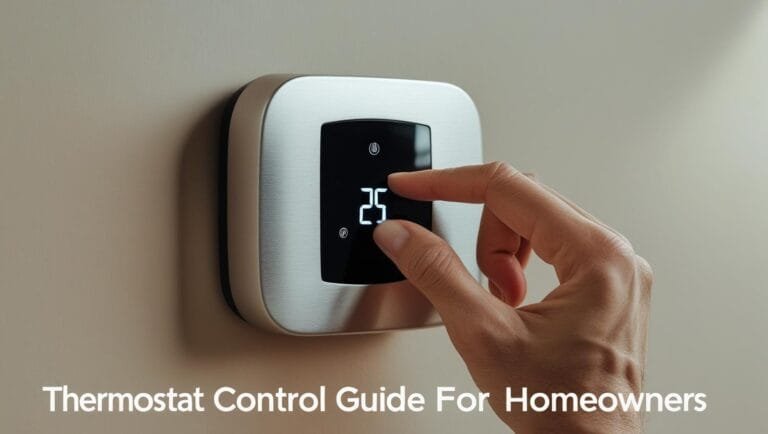
A Homeowner’s Guide: How to Set, Change, Lock & Reset Your Thermostat
Take full control of your home’s climate and energy bills. This practical guide walks you through everything from setting temperature limits to DIY thermostat replacement, locking smart devices, and more.
Quick How-To’s
- To Reset a Thermostat: For simple models, remove the batteries for 30 seconds. For smart models, use the factory reset option in the settings menu.
- To Change a Thermostat: Turn off power at the breaker, label the wires, then connect the new thermostat following the same wiring scheme.
- To Lock a Nest: In the Nest app or on the device, go to Settings > Lock, and set a 4-digit PIN.
- To Lock an Ecobee: In the Ecobee app or on the device, go to Main Menu > Settings > Access Control to enable a security code.
Before You Start: Compatibility, Wiring & Tool Checklist
Most thermostat problems and failed installations come from skipping the prep work. Spending fifteen minutes verifying compatibility and gathering the right tools saves hours of frustration later. Here’s the full pre-installation checklist that experienced HVAC pros use.
Identifying Your Wiring Setup
Pull your existing thermostat off the wall (with the breaker off, of course) and look at the wires connected to terminals. Wire color is unreliable — always go by the terminal letter. Here’s the standard code:
- R / Rh / Rc — 24V AC hot from the transformer (the power source)
- W / W1 / W2 — Heat call (W1 = stage 1, W2 = second stage for two-stage systems)
- Y / Y1 / Y2 — Cooling call
- G — Fan
- C — Common (the return path that powers smart thermostats continuously)
- O / B — Heat pump reversing valve (O energizes for cool, B energizes for heat)
- AUX / E — Auxiliary or emergency heat for heat pumps
If you see only two wires (R + W), you have a heat-only system. Four or more wires including C means a fully wired system that supports any modern smart thermostat. If you have R, W, Y, G but no C-wire, your options for going smart get a little more complex (covered below). For a comprehensive walkthrough of these wiring scenarios, our complete thermostat wiring guide has step-by-step diagrams for every common configuration.
The C-Wire Question (and What to Do If You Don’t Have One)
The C-wire — common wire — is the single biggest gotcha for homeowners trying to install a smart thermostat. Older thermostats didn’t need it because they ran on batteries; modern smart thermostats need continuous 24V power for Wi-Fi and the display, and that’s what the C-wire provides.
If you don’t have a C-wire, you have three options:
- Use an adapter (PEK or similar). Many smart thermostats include adapter kits that let you “create” a C-wire from your existing 4-wire setup. The Amazon Smart Thermostat ships with one; ecobee includes the Power Extender Kit (PEK) for this exact scenario. The adapter installs at the furnace control board, not the thermostat. Our ecobee3 Lite PEK C-wire installation review walks through the procedure step by step.
- Use a battery-powered or power-stealing thermostat. Nest uses power stealing — it draws tiny amounts of current from the heating and cooling wires when they’re not active — but this approach has known issues with some heat pumps. Our deep-dive on Nest Learning Thermostat power stealing and C-wire fixes covers exactly when power stealing fails. Battery-powered alternatives like the Sensi can work indefinitely on AAs.
- Run new wire. The most expensive but cleanest option. An electrician or HVAC pro typically charges $200-400 to run a new 18/5 thermostat wire. If you’re already opening walls for other work, this is the time to do it.
To compare your specific options, our piece on Sensi vs. ecobee C-wire and PEK installation directly compares the two leading approaches, and our Nest vs. Sensi power-stealing vs. battery-backup comparison covers the strategic choice between approaches.
Compatibility Check Before You Buy
Don’t buy a thermostat without verifying compatibility first. Most major manufacturers (Nest, ecobee, Honeywell, Amazon, Sensi) offer free online compatibility checkers — you input your wire configuration and they confirm whether their thermostat works. For a comprehensive overview of what compatibility actually means, our complete 2026 furnace-thermostat compatibility guide walks through the variables. If you’re unsure whether your house wiring even supports an upgrade, our piece on how to tell if your thermostat can be upgraded answers the prerequisite question.
Tools You’ll Need
- Phillips-head screwdriver
- Small flat-head screwdriver (for terminal screws)
- Smartphone (for taking photos of existing wiring)
- Masking tape or wire-labeling stickers (often included with the new thermostat)
- Wire strippers (only if you need to cut and re-strip damaged wire ends)
- Bubble level (for mounting the new backplate straight)
- Drywall anchors (if your new mount can’t hit existing studs)
- Non-contact voltage tester (optional but recommended for verifying power is off)
Optimizing Your Settings: How Low Can I Set My Thermostat?
This question has two answers: one for energy savings and one about the device’s physical limits.
For Energy Savings (Recommended Lowest Setting)
To save money and energy, the U.S. Department of Energy recommends setting your thermostat to 68°F (20°C) during the winter when you are home and awake. You can set it even lower when you are asleep or away. Setting it back 7°-10°F for 8 hours a day can save up to 10% a year on heating costs.
Technical Limits (How Low Can a Thermostat Go?)
Most residential thermostats have a minimum temperature setting of around 45-50°F (7-10°C). This isn’t for comfort, but for safety. This setting, often called “Away” or represented by a snowflake icon, is designed to prevent your home’s pipes from freezing and bursting during a winter cold snap while you’re away.
Building a Schedule That Actually Saves Money
The 68°F daytime / 60°F overnight pattern is a great starting point, but real savings come from matching your thermostat schedule to your actual life. Most households waste energy heating an empty house during work hours and an unoccupied bedroom during dinner. Here’s how to build a smarter schedule.
The science behind 68°F as the daytime “comfort” target is well-established — it represents the sweet spot between comfort, hydration retention, and circulatory health for most people. Our piece on winter thermostat schedules around 68°F for comfort covers the underlying logic. For sleep specifically, lower temperatures (typically 65°F) actually improve sleep quality by triggering natural body cooling — the rationale is detailed in our guide to the science of 65°F sleep temperature.
The Standard 4-Period Schedule
Most programmable thermostats divide the day into four periods. Here’s a high-savings template:
- Wake (6:00-8:00 AM): 68-70°F. The thermostat starts heating before you wake so the house is comfortable when you get out of bed.
- Day / Away (8:00 AM-5:00 PM): 60-62°F if no one is home; 68°F if you work from home.
- Evening (5:00-10:00 PM): 68-70°F when family is home and active.
- Sleep (10:00 PM-6:00 AM): 60-65°F. Better sleep, dramatic energy savings.
Households that work from home should not use the “Away” period at all — keeping the heat at 68°F continuously is more efficient than letting it drop and then re-warming a cold house when you start work.
Do Setbacks Actually Save Money?
This question gets debated endlessly online. The answer is yes, setbacks do save money — but only if your home’s thermal envelope (insulation, air sealing) is reasonably good. In a poorly insulated home, the energy required to re-warm a cold house can match or exceed what was saved during the setback. In well-insulated modern homes, setbacks of 5-10°F save 8-15% on heating costs. Our analysis of smart vs. programmable schedules and AI-learning vs. schedule efficiency looks at the real numbers across different home types.
Cooling-Season Setpoints
The ENERGY STAR-recommended cooling setpoint is 78°F (26°C) when home, with setbacks to 82-85°F when away. As with heating, every degree of setback saves roughly 3% on cooling costs. Many users find 78°F too warm, but ceiling fans (which use minimal electricity) can make 78°F feel like 75°F by improving evaporative cooling on skin. Smart thermostats with humidity sensors can also dehumidify slightly to make higher setpoints feel cooler.
Vacation and Long-Absence Settings
For trips longer than 24 hours, a deeper setback than your daily Away period saves real money. In winter, drop to 50-55°F (any lower risks pipe freezing in unprotected sections). In summer, raise to 85-90°F. Smart thermostats with vacation modes handle this elegantly; older programmables require manual override. Detailed strategies including pipe-freeze protection are covered in our winter vacation thermostat settings to prevent pipe freeze guide.
Smart Strategies: Geofencing and Adaptive Learning
Beyond manual schedules, modern smart thermostats use two automation features that pay back enormously: geofencing and adaptive learning. Both deserve their own explanation.
Geofencing: Location-Aware Heating
Geofencing uses your phone’s GPS to detect when you’ve left a defined radius around your home (typically 200 meters to 7 miles, configurable). When the last family member crosses the geofence outbound, the thermostat switches to Eco mode and stops heating an empty house. When the first person heads home, the thermostat begins pre-warming so the house is comfortable on arrival.
For a household with predictable departures (work, school), geofencing typically saves 10-20% beyond a manual schedule because it eliminates the buffer time you’d normally pad into a schedule. For deeper analysis, our piece on how smart thermostat geofencing cuts HVAC runtime costs covers the real-world numbers. The companion piece on geofencing thermostat GPS radius and HVAC eco-mode covers the radius optimization decisions.
The conceptual primer in our explainer on what the home/away feature actually does sets the foundation. For households comparing specific implementations, our Honeywell T5 geofencing accuracy settings deep-dive covers what works and what doesn’t on a popular budget model.
Adaptive Learning: When Schedules Build Themselves
Some thermostats — most famously Nest — observe your manual setpoint adjustments over the first week or two of use and automatically build a schedule from your behavior. Set the temperature down at 11 PM every night for a week, and Nest learns to do it for you. This works wonderfully for households with regular routines and frustratingly for households with irregular schedules.
Adaptive learning isn’t a binary feature — different brands implement it differently, with very different results. Our explainer on what thermostat adaptive learning actually means demystifies the marketing claims. The comparison of schedule-vs-learning approaches covers the philosophical differences. And our piece on Nest auto-schedule vs. ecobee SmartSensors comfort looks at how the two market leaders implement automation differently.
Multi-Room Sensors
If your house has rooms that run dramatically warmer or cooler than the thermostat location (a common problem in multi-story homes), remote room sensors solve it. Place sensors in the rooms that matter (master bedroom, home office), and the thermostat averages or follows the readings to keep those rooms comfortable instead of just the hallway where the thermostat lives. Our explainer on what a thermostat remote sensor is covers the technology, and our ecobee vs. Honeywell remote-sensor range and multi-zone comparison picks apart the leading implementations.
Troubleshooting 101: How Can You Reset a Thermostat?
Before you assume your thermostat has gone bad, a simple reset can often solve issues like a blank screen or unresponsiveness.
- For Non-Programmable/Simple Digital Thermostats: Many have a small, recessed reset button you can press with a paperclip. If not, simply removing the batteries for about 30 seconds will often reset the device.
- For Smart Thermostats (Nest, Ecobee, etc.): You should perform a factory reset through the device’s menu. Look for an option like “Reset All Settings” or “Factory Reset” in the main settings area. Be aware this will erase all your schedules and Wi-Fi information.
Brand-Specific Reset Procedures
Honeywell Thermostats
Honeywell models vary dramatically in reset procedures. Modern T-series units have a Reset option in the menu; older RTH-series models often require a battery pull or a specific button-combination. Our universal guide on how to reset a Honeywell thermostat covers the standard procedure for most current models. For models that don’t have an obvious reset button, see our piece on how to reset a Honeywell thermostat with no reset button. And for general adjustment and operation, our walkthrough on how to adjust a Honeywell thermostat covers the controls across most models.
Sensi Thermostats
Sensi resets are usually accomplished through the app, but the device itself supports a hardware reset for severe cases. Our guide on when a Sensi reset fails — diagnosing power and wiring issues covers the next steps when the standard reset doesn’t fix your problem. If your Sensi has lost cloud connectivity but still says “Connected” on the device, the fix is in our piece on “Sensi Connected, Not Sensi Cloud” fix.
Universal Reset Procedure
For any thermostat brand, the general reset procedure follows the same logic: turn off power at the breaker for 5 minutes, then restore. This clears most software glitches without erasing your schedule. Only do a full factory reset if the breaker reset doesn’t help. Our overview of how to reset a thermostat covers the universal approach. If your thermostat is too far gone for a reset to fix, our checklist on how to know if you need a new thermostat helps you decide between repair and replacement.
Smart Controls: How to Lock Your Nest & Ecobee Thermostat
Locking your thermostat is the perfect way to prevent unwanted adjustments from guests, tenants, or kids, ensuring your energy-saving schedule stays intact.
How Can I Lock My Nest Thermostat?
- On the Nest Thermostat: Press the thermostat ring to open the menu. Turn the ring to Settings and press to select. Go to Lock.
- Set a PIN: The device will prompt you to create a four-digit PIN.
- Set Temperature Range: After setting the PIN, you can define a minimum and maximum temperature range. No one will be able to set the temperature outside this locked range without the PIN.
How Can I Lock My Ecobee Thermostat?
- On the Ecobee Thermostat: Tap the Main Menu icon (☰) on the screen. Go to Settings, then tap Access Control.
- Enable Security Code: You’ll be prompted to enable and create a 4-digit security code.
- Set Permissions: After enabling the code, you can customize what is locked. You can restrict access to temperature settings, schedules, and other system settings.
Locking Other Brand Thermostats
Honeywell Lockout
Honeywell’s various T-series models include keypad lockout features in the configuration menu. The exact menu path varies by model — typically Settings → Preferences → Keypad Lock. You can choose between full lockout (no changes possible without PIN) and partial lockout (small adjustments allowed within a range, large changes blocked). For the more thorough rundown of landlord-friendly locking options across brands, our roundup of landlord thermostat lockouts with PIN and range limits covers the leaders. For budget options with keypad locks, our piece on programmable thermostats with keypad lock covers the affordable tier.
Sensi Lockout
Sensi’s lockout is configured through the app under Settings → Lock Screen. You can set a 4-digit PIN and choose lockout level. The Sensi is particularly good at landlord-friendly lockouts because it allows the property manager to retain remote access while restricting the on-device interface entirely.
Wyze Lockout
Wyze’s lockout is configured through the Wyze app. Go to Thermostat → Settings → Display Lock. Less granular than ecobee but functional for most use cases.
When to Upgrade: How Can a Thermostat Go Bad?
A faulty thermostat can cause discomfort and high energy bills. Knowing the signs of when a thermostat goes bad can tell you when it’s time for a replacement.
- It loses power constantly: Frequent battery changes or a blank screen suggest a wiring or unit failure.
- Its readings are wrong: If the displayed temperature is clearly different from the actual room temperature.
- It causes “short cycling”: Your A/C or furnace turns on and off every few minutes.
- It doesn’t respond: The system doesn’t turn on or off when the temperature changes.
The 12-Symptom Diagnostic Checklist
Beyond the basic four symptoms above, certain failure patterns indicate specific problems. Our comprehensive guide on 12 symptoms, tests, and real fixes for a bad thermostat walks through every common failure mode with diagnostic procedures. Many issues that homeowners assume are catastrophic turn out to be simple battery, wiring, or settings problems.
If you want to systematically rule out problems before deciding to replace, our 10-minute diagnostic checklist for a faulty thermostat walks through the right sequence of tests. Common scenarios you can fix yourself:
Thermostat Clicks But HVAC Won’t Start
You hear an audible click when calling for heat or cool, but the system doesn’t respond. This is one of the most common HVAC service calls. The thermostat’s relay is firing (hence the click), but something is preventing the 24V signal from reaching the equipment. Battery, breaker, and wiring problems account for most cases. Our diagnostic on when a thermostat clicks but HVAC won’t start (battery, breaker, and wiring causes) resolves it under 10 minutes for most cases.
“Heat On” but No Heat
The display shows “Heat On” but no warm air comes from the vents. The diagnostic flow is to determine whether the thermostat is sending the 24V signal correctly (and the furnace is the problem), or whether the thermostat is just showing the status without actually energizing the call. Our piece on “Heat On” but no heat: 24V signal vs. furnace problem walks through this step by step. The broader question is covered in why a thermostat doesn’t start the furnace.
Furnace Fan Runs But No Heat
If the blower runs but no heat is produced, the issue is on the furnace side, not the thermostat. The thermostat is correctly calling for heat (G wire to fan), but the W wire isn’t successfully triggering combustion. Our piece on furnace won’t turn on but fan works covers the diagnostic flow.
Random Reboots and Wi-Fi Drops
Smart thermostats that randomly reboot or freeze are often experiencing voltage drops on the 24V supply, especially when high-load equipment like the AC compressor turns on. Our piece on thermostats rebooting when AC turns on due to voltage drop and transformer load covers the diagnostic and fixes (usually a more robust transformer or a proper C-wire installation).
Display Goes Dim or Fades
A fading display almost always signals weak batteries or a failing voltage regulator. Our explainer on thermostat low-battery fading displays and relay-click failures covers the diagnostic steps. For Honeywell users specifically, our walkthrough on how to replace the battery in a Honeywell thermostat covers the few model-specific quirks.
Wrong Temperature Reading
If your thermostat shows 72°F but the room genuinely feels 65°F, the issue is usually placement rather than a faulty thermistor. Direct sun, drafts, proximity to a heat-producing appliance, or a clogged sensor vent all cause misreadings. Our deep-dive on why a thermostat shows the wrong room temperature walks through the variables.
System Won’t Reach Setpoint
The system runs but the home never reaches the target temperature. This points to undersized equipment, severe duct issues, or a calibration problem. Our systematic diagnostic flowchart for thermostat not reaching set temperature isolates the cause through a sequence of yes/no questions.
Switching Between Heat and Cool Unpredictably
The unit jumps from heating to cooling without obvious cause. Usually an Auto mode misconfiguration combined with a tight differential setting. The full diagnostic is in our piece on why your thermostat keeps switching from heat to cool.
AC Turns On When You Don’t Want It
The AC kicks on at unexpected times. Common causes: setpoint too low, Auto mode active when it shouldn’t be, or sensor reading too high due to direct sun. Our piece on why a thermostat keeps turning on the AC walks through the variables.
When the Thermostat Actually Caused the HVAC Failure
Sometimes the thermostat is the problem; sometimes the HVAC equipment is failing and the thermostat just reports the symptoms. Distinguishing the two saves money on repair calls. Our paired pieces on whether a bad thermostat can cause your heater not to work and whether a bad thermostat can cause AC not to cool walk through the diagnostic logic for each scenario.
DIY Project: How Can I Change My Thermostat?
Changing a thermostat is a common DIY project that many homeowners can handle. Follow these steps carefully.
SAFETY FIRST: Turn Off the Power
Before you touch any wires, go to your home’s circuit breaker box and turn off the power to your HVAC system (furnace and air conditioner). Failure to do so can result in electrical shock and damage to your equipment.
- Remove the Old Unit: Gently pull the old thermostat’s faceplate off the wall plate.
- Label the Wires: This is the most important step! Use the small stickers that come with your new thermostat (or masking tape) to label each wire according to the terminal it’s connected to (e.g., R, C, G, Y, W) before you disconnect them. Take a picture with your phone for reference.
- Remove the Old Wall Plate: Unscrew the old plate from the wall and gently pull it away.
- Mount the New Wall Plate: Thread the wires through the center of the new plate and screw it to the wall. Use a small level to ensure it’s straight.
- Connect the Wires: Match the labeled wires to the corresponding terminals on the new thermostat plate and tighten the screws.
- Attach the New Thermostat: Push the new faceplate firmly onto the wall plate until it clicks into place.
- Restore Power: Go back to your breaker box and turn the power back on. The new thermostat should power up.
Heat Pump-Specific Installation
Heat pumps add complexity. The reversing valve (O or B wire) determines whether the system delivers heat or cool, and you must wire it to match the manufacturer’s polarity (Carrier, Bryant, and most American manufacturers use O; Rheem and Ruud use B). Wiring it wrong reverses your heating and cooling — you’ll get cold air when you want heat. The Auxiliary Heat (AUX) and Emergency Heat (E) terminals also need careful handling. For multi-stage systems, our Nest vs. Honeywell multi-stage HVAC comparison covers which thermostats actually handle the staging logic correctly.
Smart Thermostat Setup After Wiring
Once the wires are connected and the device is mounted, the setup wizard walks you through configuration. Be prepared with:
- Your home Wi-Fi network name and password (have it on a nearby device)
- Your zip code (for outdoor weather data and rebate program detection)
- Your equipment configuration (heat pump? Gas furnace? Two-stage? AC?)
- Your basic schedule preferences (the device will refine these over time)
- Your preferred home/away mode (geofencing, schedule, or manual)
For Apple HomeKit households wanting full integration, our walkthrough on how to add your Nest thermostat to Apple Home covers the Matter setup specifically. For broader HomeKit features and automations, see our roundup of HomeKit thermostat automation, geofencing, and scenes.
Common Installation Mistakes
Mistake 1: Skipping the Photo
Photographing your existing wiring before you disconnect anything is the single most important step new DIYers skip. Take three high-resolution photos showing wire colors, terminal labels, and any jumper wires. If something doesn’t work after install, those photos are your insurance.
Mistake 2: Trusting Wire Colors
Wire colors are unreliable. Many homes have been rewired or repaired by different installers using whatever colors they had on hand. Always go by the terminal letter (R, W, Y, G, C, etc.), not the color. Label each wire with the letter when you remove it.
Mistake 3: Forgetting the Jumper
Some 4-wire systems use a small “jumper” wire connecting Rh and Rc terminals. This jumper isn’t a wire to your equipment — it’s a bridge that must be moved or disabled when installing certain new thermostats. If your new thermostat has separate Rh/Rc terminals, follow the manufacturer’s specific guidance.
Mistake 4: Over-Tightening Terminal Screws
Thermostat terminal screws are small. Over-tightening cracks the plastic terminal block, causing intermittent connections that manifest as unpredictable heating cycles. Snug, not Hulk-strong.
Mistake 5: Skipping the Test
After install, manually call for heat AND cool AND fan-only to verify everything works. Don’t assume the wiring is correct just because the display lights up. The display works on R-and-C; the actual heating/cooling functions require correct wiring on the W, Y, and G terminals.
Remodeling? How Can I Move My Thermostat?
Moving a thermostat is often necessary during a renovation or if it’s in a poor location (like in direct sunlight). The biggest challenge is extending the low-voltage thermostat wires to the new location.
Is it worth it?
Moving a thermostat to a central location away from drafts and direct heat sources can significantly improve its accuracy and your home’s comfort, making it a worthwhile project.
This task is more advanced than a simple replacement. You will need to carefully splice the existing wires using a thermostat wire extender kit or by running a new bundle of wire from the HVAC unit to the new location. Due to the complexity, many homeowners choose to hire an HVAC technician or electrician for this job. For a step-by-step procedure and the right techniques to use, see our walkthrough on how to move thermostat wire with extension and splicing.
Optimal Thermostat Placement
If you’re going to the trouble of moving your thermostat, do it right. The ideal location is:
- An interior wall (never an exterior wall — temperature swings)
- About 5 feet from the floor (matches typical breathing height)
- Out of direct sunlight at any time of day
- Away from supply vents (which would cause false-cold or false-warm readings)
- Away from doors and windows (drafts confuse the sensor)
- Away from kitchen appliances (cooking heat skews readings)
- In a frequently occupied area (so the temperature represents where you actually live)
Hallways near living areas are usually the best spot in most homes. The center of the house, between the bedrooms and the main living space, is often ideal.
Brand Comparison: Choosing Your Next Thermostat
If your existing thermostat has gone bad and you’re shopping for a replacement, the smart-thermostat market has consolidated around five major brands. Here’s a practical breakdown.
| Brand | Strength | Best For |
|---|---|---|
| Google Nest | AI learning, beautiful UI, Matter support | Hands-off automation |
| ecobee Premium | Best multi-room sensors, built-in Alexa, air quality | Multi-zone homes |
| Honeywell T9/T10 | Wireless sensor range, professional reliability | Multi-story homes |
| Sensi Touch 2 | Best privacy, retrofit-friendly | Renters, retrofits |
| Wyze Thermostat | Best budget option (under $100) | Budget-conscious buyers |
Detailed Brand Coverage
For deeper analysis of each brand, our individual reviews go deep into each product’s strengths and weaknesses:
- The flagship Nest gets covered in our deep-dive on the Nest 4th gen with Soli radar, Matter, and mirror display.
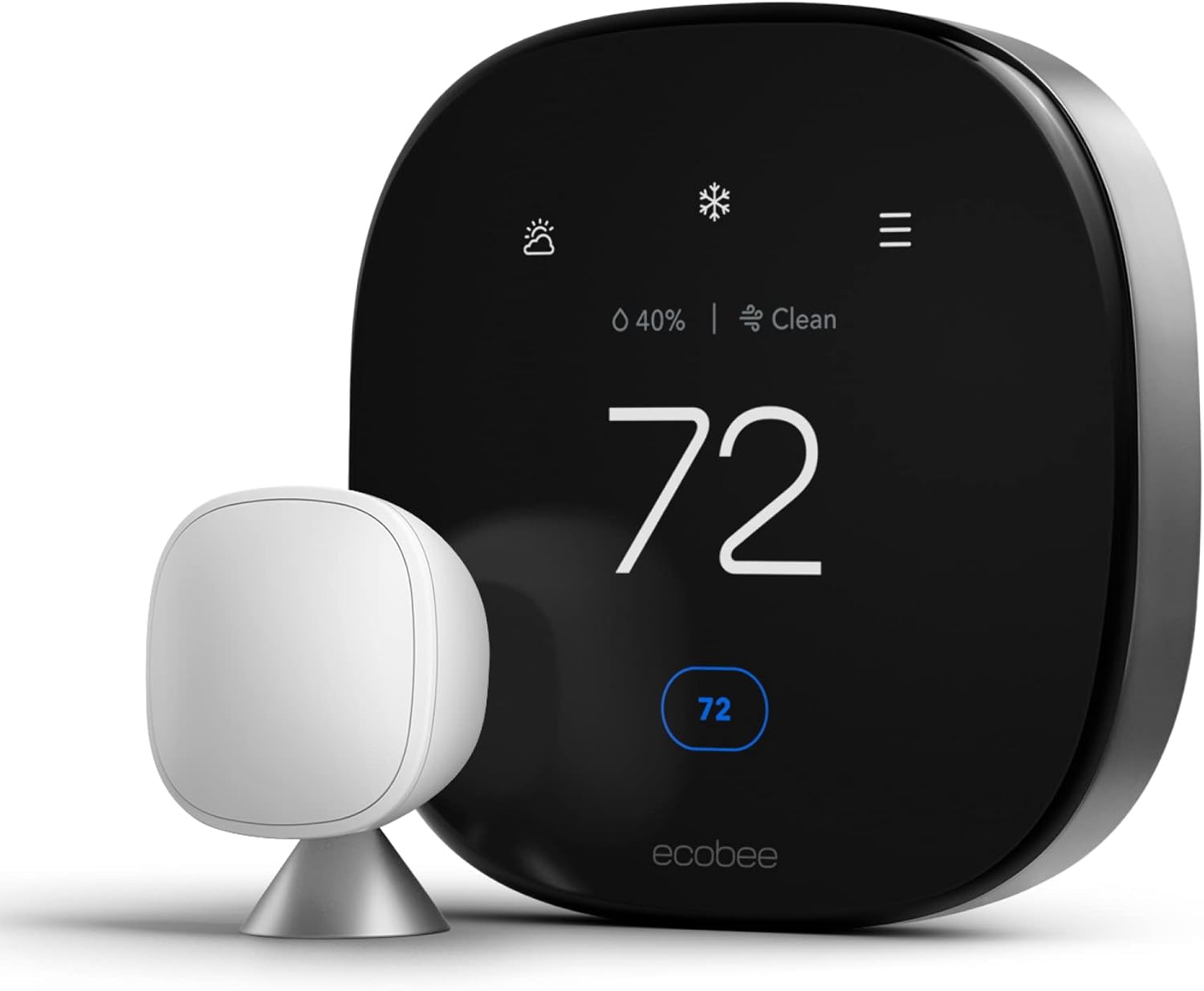
- For ecobee, see our ecobee Premium vs. Enhanced comparison, plus the dedicated reviews of the ecobee Premium air quality VOC and CO2 monitoring and ecobee Premium radar sensor vs. PIR occupancy.
- For Honeywell, our Honeywell Home T9 review and T9 vs. T10 Pro comparison cover the consumer lineup, while the T9 vs. T10 Pro IAQ wiring comparison handles the professional decision. For longevity data, our piece on how long Honeywell thermostats last is illuminating.
- For Sensi, our Sensi Touch review covers the unique features.
- For Wyze, our Wyze Thermostat review covers what you get for the money.
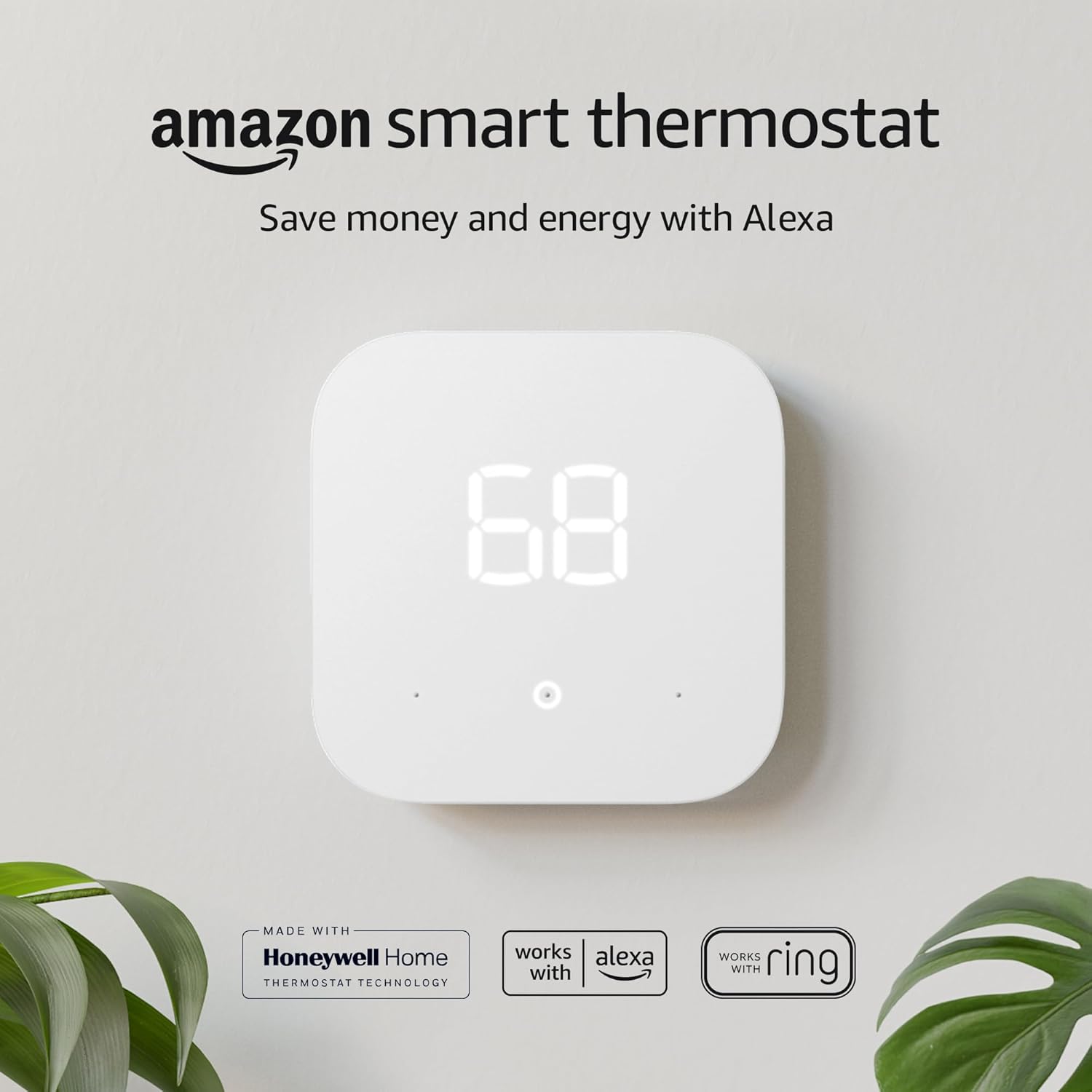
- For Amazon Smart Thermostat shoppers, our Amazon Smart Thermostat review and Amazon vs. ecobee Premium comparison handle the head-to-heads.
- For HomeKit users, the Honeywell Smart Color vs. Emerson Sensi Touch HomeKit comparison covers the Apple-specific decision.
- If budget is the only concern, our roundup of smart thermostats under $50 with Alexa and C-wire options covers the affordable tier.
Specialty Cases
Not every home needs a standard 24V smart thermostat. Several specialty scenarios call for different products:
- Electric baseboard heat: You need a line-voltage thermostat (Mysa, Sinopé, King). Our Mysa Smart Thermostat baseboard heater review and Mysa vs. Sinopé comparison cover this category. To verify which type you have, our line-voltage vs. low-voltage 2-minute wiring test resolves the question.
- Electric radiant floors: Our roundup of the best thermostats for electric radiant floors covers GFCI and line-voltage requirements.
- Heat pumps with multi-zone setups: Our guide to the best Bosch heat pump thermostats with multi-zone support covers this niche.
Energy Savings Math: Will a Smart Thermostat Pay for Itself?
If you’re upgrading from a manual or basic programmable thermostat, the smart upgrade typically pays back in 1-3 years through energy savings alone. Here’s the realistic math.
The Real-World Savings Numbers
Independent studies (Lawrence Berkeley National Lab, EPA Energy Star field trials) consistently show 8-15% savings for households that previously used a static setpoint, and as little as 0-3% for households that already manually adjusted setpoints diligently. Most households fall in the 10-12% range. For a household spending $1,500 annually on heating and cooling, that’s $150-180 per year — paying back a $200 smart thermostat in just over a year.
For your specific situation, our Wi-Fi thermostat ROI payback calculator walks through the variables. Our broader piece on smart thermostat energy savings via geofencing covers how the automation features actually generate the savings. And the thermodynamic ROI metrics for Nest geofencing protocols breakdown gets into the deeper math.
Rebates and Utility Incentives
Many U.S. utilities offer rebates of $50-150 for ENERGY STAR-certified smart thermostats, and a handful offer ongoing bill credits ($25-50/year) for participating in demand-response programs. These can shrink payback dramatically. The full breakdown of current programs is in our 2026 smart thermostat rebates ultimate guide and savings calculator.
Beyond the Thermostat: Whole-System Efficiency
A smart thermostat is most effective when paired with broader HVAC efficiency. Our HVAC energy efficiency tips guide covers the complementary improvements (sealing, insulation, duct fixes) that compound smart thermostat savings. If your equipment is genuinely old and inefficient, even a perfect thermostat schedule can’t fully compensate; our complete 2026 HVAC system replacement cost guide covers when full equipment replacement makes financial sense.
Mercury Thermostat Disposal: Don’t Just Throw It Away
If your old thermostat contains a mercury switch (common in pre-2000 round Honeywell-style thermostats), it cannot legally go in regular household trash. Mercury is a hazardous waste in all 50 states.
How to Identify a Mercury Thermostat
If your thermostat has a small glass tube containing a silver liquid, it contains mercury. Most mercury thermostats are the round Honeywell T87-style or rectangular bimetallic strip designs. Modern digital and smart thermostats do not contain mercury.
Proper Disposal
The Thermostat Recycling Corporation (TRC) operates a free recycling program with over 3,000 collection sites nationwide. HVAC contractors and many home improvement stores participate. Drop off your old mercury thermostat at any participating site. Never break the glass tube — mercury vapor is dangerous to breathe.
Maintenance Schedule: Keep Your Thermostat Working for 15+ Years
A quality thermostat can last 15-20 years with proper care. Most fail at the 5-8 year mark from neglect. Here’s the simple maintenance routine that extends thermostat life dramatically.
Quarterly Tasks
- Visual inspection: Check for dust accumulation around the sensor vents (bottom of the unit). Blow out dust with canned air.
- Battery contact inspection: If your thermostat uses batteries, inspect the contacts for blue/white corrosion. Clean with white vinegar on a cotton swab if found.
- Calibration check: Place a quality reference thermometer next to the thermostat. After 30 minutes, compare readings. Drift of more than 2°F warrants recalibration through the menu.
- Wi-Fi check: For smart thermostats, verify signal strength in the app. Weak signals cause intermittent failures.
Annual Tasks
- Replace batteries proactively at the 12-month mark for Wi-Fi units, 18 months for non-connected units. Don’t wait for the low-battery warning.
- Update firmware through the manufacturer app for connected units.
- Verify schedule still matches your life — schedules drift out of relevance as kids grow, jobs change, work-from-home patterns shift.
- Test heat and cool function in spring and fall before the season starts. Discovering a fault on the first cold night is the worst time.
- Audit energy reports if your thermostat provides them. Unusual runtime patterns indicate developing equipment problems before they become emergencies.
Battery Selection
For battery-powered thermostats and battery-backup smart thermostats, alkaline AAs are usually the right choice. Lithium AAs last longer but have a different voltage curve — they stay at 1.5V until they suddenly die, often without giving you the low-battery warning. For most users, a fresh pair of name-brand alkalines (Energizer Max, Duracell Optimum) every 12-18 months is the right approach. For more on battery troubleshooting, see our piece on thermostat battery failure and relay no-start scenarios.
Privacy and Security Considerations
A connected thermostat collects extraordinary amounts of data about your daily life: when you’re home, when you sleep, when you travel. Different brands handle this very differently.
Privacy Hierarchy
- Best privacy: Emerson Sensi (explicit no-data-mining policy)
- Good privacy: Apple HomeKit-only thermostats (data stays on home network)
- Mixed: ecobee (aggregates and sells anonymized data; opt-out exists)
- Concerning: Some no-name budget brands grant broad rights to share data with “partners”
Security Best Practices
- Put IoT devices on a guest or VLAN network separate from your computers.
- Use strong, unique passwords for the thermostat’s cloud account — not the same password as your email.
- Enable two-factor authentication on the cloud account if available.
- Apply firmware updates promptly — older firmware often has unpatched vulnerabilities.
- If you sell your home, factory-reset the thermostat before turnover.
The connection between smart thermostats and home safety extends beyond comfort. Our piece on how a smart thermostat improves home safety covers the safety dimension — alerts for extreme temperature drops (frozen pipes), abnormal HVAC runtime (equipment failure), and unusual activity patterns.
When to Call a Pro vs. DIY
Most thermostat projects are genuinely DIY-friendly. A few aren’t. Knowing when to call an HVAC pro saves money and prevents problems.
DIY-Appropriate Projects
- Replacing one thermostat with a similar one (same wiring scheme)
- Upgrading from manual to programmable
- Upgrading from programmable to smart (with C-wire already present)
- Battery replacement and routine cleaning
- Configuration and schedule changes
- Resetting or factory-defaulting a thermostat
Call a Pro When…
- You need to run new C-wire from the furnace to the thermostat (requires opening walls).
- You’re switching from gas to heat pump or vice versa (requires complete control system reconfiguration).
- You want to add zoning to a system that didn’t have it.
- You’re installing line-voltage thermostats and aren’t comfortable with high-voltage AC.
- You suspect equipment problems (the thermostat may not be the actual issue).
- You’re replacing zone thermostats in a multi-zone setup. Our walkthrough on replacing Honeywell HZ311 zone thermostats with ecobee covers one specific scenario, but each zone system has unique quirks.
Specialty Topics: Beyond Standard Home Thermostats
Reading and Operating Your Thermostat
For new smart-thermostat owners, basic operation can feel daunting at first. Our explainer on how to read a thermostat covers the display interfaces and what each indicator means. The companion piece on how heating and cooling thermostats differ handles the unit-type questions. If your home feels uncomfortable despite the thermostat reading correctly, our piece on always feeling cold at home — it might not be your thermostat covers the troubleshooting decision tree.
Foundational Knowledge
For users who want a deeper conceptual foundation, several explainers cover the basics. Our piece on key features to compare when buying a smart thermostat walks through the spec sheet variables. Our explainer on what a battery-powered smart thermostat actually is covers an underappreciated category. And our piece on how smart thermostat connectivity works covers the radio protocols (Wi-Fi, Z-Wave, Zigbee, Thread, Matter) that determine which thermostat fits which home.
Aesthetics and Decor
If your new smart thermostat is a focal point on your wall, decorating around it matters. Our 25 thermostat cover ideas guide handles the cosmetic challenge, and our piece on the best wall color behind your thermostat covers the paint dimension. For installation cleanup, see how to hide thermostat wires on your wall.
Touchscreen and Display Considerations
Thermostat displays vary from simple LCD to full color touchscreens. For users who specifically want touchscreen interfaces, our roundup of touchscreen thermostats with backlights covers the leaders.
Smart Home Ecosystem: Choosing the Right Thermostat for Your Setup
A thermostat that works perfectly with Alexa might be useless to a HomeKit household. Ecosystem compatibility is one of the most important variables, and one that doesn’t appear prominently in most spec sheets.
Apple HomeKit Households
For Apple users wanting Siri voice control and integration into Home app scenes, the choices have expanded thanks to Matter. Native HomeKit options include ecobee (full HomeKit support since 2017) and Honeywell (T9 and T10 Pro both support HomeKit). Sensi Touch supports HomeKit but typically requires a C-wire for full responsiveness. The 2026 Matter standard means many previously non-HomeKit thermostats now work with Apple Home — Nest is the most prominent example, historically Google-only but now appearing in Apple Home thanks to Matter support.
Amazon Alexa Households
Nearly every smart thermostat supports Alexa to some degree. The depth of integration varies significantly. ecobee has Alexa built directly into the device (you can speak to your thermostat as if it’s an Echo). Amazon’s own Smart Thermostat naturally has the deepest Alexa integration. Nest, Honeywell, and Sensi all work with Alexa as voice-controlled devices.
Google Home Households
Google Home users have many options. Nest (owned by Google) integrates natively with the deepest functionality. ecobee, Honeywell, and Sensi all work via Google Assistant routines. The Matter standard has improved cross-compatibility significantly — many actions that previously required brand-specific apps now work directly through Google Home.
Multi-Brand Households (The Reality)
Most homes end up with multiple smart-home brands over time. Matter is the answer to this fragmentation, and 2026 is the year it actually became viable. A 2026 Matter-capable thermostat works in Apple Home, Google Home, Amazon Alexa, and SmartThings simultaneously without separate apps for each. The simplification is dramatic for households that previously juggled three different apps for HVAC, lighting, and security.
Ten Common Mistakes Homeowners Make With Their Thermostats
Even with a great thermostat, common user errors can undermine performance and cost real money. Here are the ten mistakes I see most often.
Mistake 1: Cranking the Setpoint to Force Faster Heating
If your house is at 60°F and you want it at 70°F, setting the thermostat to 80°F doesn’t make the furnace work faster. The furnace runs at the same output regardless of the setpoint. Cranking just causes overshoot and energy waste. Set your target temperature and let the system work.
Mistake 2: Constant Manual Overrides
If you find yourself adjusting the thermostat manually every couple of hours, your schedule isn’t matching your actual life. Update the schedule rather than fighting it. Smart thermostats with adaptive learning will eventually figure this out themselves; programmable units require manual reprogramming.
Mistake 3: Setting Heat and Cool Setpoints Too Close
If your heating setpoint is 70°F and your cooling setpoint is 72°F (a tight 2°F dead band), the system will rapidly switch between heating and cooling on shoulder-season days, wasting enormous energy. Set at least a 4-5°F dead band — heating to 68°F, cooling to 76°F is a typical setup that prevents constant switching.
Mistake 4: Closing Vents in Unused Rooms
Common myth: closing vents in unused rooms saves energy. Reality: it disrupts the duct pressure your HVAC system was designed for, causing inefficient operation, condensation in ducts, and potentially equipment damage. Leave vents open everywhere unless you have a true zoned system designed for it.
Mistake 5: Ignoring the Filter
Not strictly a thermostat mistake, but a clogged filter undermines everything else. Most smart thermostats include filter-change reminders; pay attention to them. A 1-inch standard filter typically needs changing every 1-3 months depending on your home’s dust load.
Mistake 6: Putting the Thermostat on Hold Indefinitely
Most thermostats have a “hold” feature that overrides the schedule. Many users hit hold during a manual adjustment and never turn it off, effectively eliminating their schedule. Check whether you’re in hold mode if your savings have unexpectedly dropped.
Mistake 7: Forgetting Daylight Saving Time
Older programmable thermostats don’t automatically adjust for DST. Twice a year, your morning ramp-up might be an hour off. Smart thermostats handle this automatically; older programmables require manual intervention.
Mistake 8: Setting Up Wi-Fi on the 5GHz Band Only
Most smart thermostats operate on the 2.4GHz Wi-Fi band only — the 5GHz band uses radios that older smart thermostats don’t include. If your home network is 5GHz-only, your thermostat won’t connect. Solution: enable a 2.4GHz network (most modern routers can broadcast both simultaneously) or create a dedicated IoT network on 2.4GHz.
Mistake 9: Mounting on an Exterior Wall
Exterior walls have temperature swings that interior walls don’t. A thermostat mounted on an exterior wall reads outdoor temperature variations, causing the system to over-correct. If your existing thermostat is on an exterior wall, moving it to an interior wall can dramatically improve performance.
Mistake 10: Ignoring Firmware Updates
Smart thermostat manufacturers push firmware updates that fix bugs, improve algorithms, and patch security vulnerabilities. Many users decline these updates. Don’t. The improvements are usually worth a brief 5-minute update process every few months.
Thermostat Types Beyond Standard Home Use
Greenhouse Thermostats
Greenhouses use thermostatically-controlled heaters to protect plants from cold. The control logic is similar to home HVAC but with different setpoint priorities (frost protection rather than comfort). For greenhouse-specific equipment, our greenhouse heater sizing by BTU, watts, and heat load guide handles the calculation, and the best greenhouse heaters for power outages with ODS roundup covers backup options.
Thermostatic Showers
Thermostatic mixing valves in showers serve a fundamentally different purpose than HVAC thermostats — they prevent scalding by quickly adjusting hot/cold water mix when a toilet flushes or another fixture is used. For installation and calibration, our thermostatic shower calibration guide for the 120°F stop ring covers the safety adjustment, and our roundup of budget thermostatic shower kits covers the hardware options.
Car Engine Thermostats
Automotive engines use a different kind of thermostat — a wax-pellet valve that opens at a specific temperature to allow coolant flow. Symptoms of failure are very different from HVAC thermostat failure. If you came to this article with a car-thermostat question, our pieces on how to tell if a car thermostat is bad, stuck-open vs. stuck-closed thermostat symptoms, and the car thermostat wax-pellet valve explained cover that side of the family.
Whole-House Humidity Control
Many smart thermostats integrate with whole-house humidifiers and dehumidifiers, controlling moisture along with temperature. This integration matters enormously in dry winters (when you need humidification) and humid summers (when you need dehumidification). Our 2026 best whole-house humidifier guide covers the equipment side of this integration.
Frequently Asked Questions
How long should a thermostat last?
A quality thermostat can last 15-20 years. Most fail at the 5-8 year mark due to preventable causes (battery corrosion, dust accumulation, neglected updates). Battery-powered units typically last longer than smart Wi-Fi units because they have fewer firmware-related failure points. Older Honeywell and White-Rodgers mechanical thermostats from the 1980s are still working in some homes today.
What’s the difference between a programmable and a smart thermostat?
Programmable thermostats let you set fixed schedules (e.g., 70°F at 7 AM, 62°F at 10 AM). Smart thermostats add Wi-Fi connectivity, app control, learning algorithms, geofencing, and integration with home assistants. Smart thermostats also send maintenance alerts, track energy usage, and integrate with utility rebate programs. Smart units cost $100-250; basic programmables cost $25-60.
Do I really need a C-wire for a smart thermostat?
For most smart thermostats, yes. The C-wire provides continuous 24V power that keeps the Wi-Fi radio and display active. If you don’t have one, three options exist: install a C-wire adapter (PEK), use a power-stealing thermostat like Nest, or run new wire to the furnace. Each approach has trade-offs covered in detail throughout this guide.
How accurate are smart thermostats?
Modern smart thermostats with thermistor sensors are accurate to within ±0.5°F when properly calibrated and placed in a representative location. Inaccurate readings almost always result from poor placement (sun, drafts, near appliances) rather than sensor failure. Our deep-dive on how thermistors enable smart thermostats to sense temperature covers the underlying technology.
Can I install a thermostat myself?
For most homes, yes. Replacing one 24V thermostat with another similar one is a 30-minute DIY project requiring basic tools and modest electrical knowledge. Skip the DIY route if your home has line-voltage electric heat (different category entirely), if you need to run new wires through walls, or if you’re switching to or from a heat pump system.
How do I know if my thermostat is bad or if it’s the HVAC equipment?
The simplest test: if the thermostat display works but the system doesn’t respond, manually short the R and W wires together at the thermostat (very briefly, with power off and back on). If the heat fires up, the thermostat is the problem. If nothing happens, the equipment is the problem. Our diagnostic guides on whether a bad thermostat can cause your heater not to work walk through the systematic isolation.
Will a smart thermostat work with my heat pump?
Most modern smart thermostats support heat pumps with single-stage or two-stage configurations, plus auxiliary and emergency heat. Verify the manufacturer’s compatibility checker before buying. Variable-speed inverter heat pumps using proprietary communication protocols (Carrier ABCD, Trane ComfortLink) often require the OEM thermostat instead of an aftermarket smart unit.
Are smart thermostats secure? Can they be hacked?
Like any internet-connected device, smart thermostats have potential vulnerabilities. Major brands (Nest, ecobee, Honeywell) maintain active security teams and push regular firmware updates. The biggest risks come from weak passwords and shared accounts, not the devices themselves. Use strong unique passwords, enable two-factor authentication, and apply firmware updates promptly. Putting IoT devices on a separate VLAN network is best practice for security-conscious users.
Why did my electric bill go up after installing a smart thermostat?
This usually indicates incorrect setup rather than a faulty thermostat. Common causes: poorly configured schedule, geofencing not enabled when it should be, learning algorithms still adapting (give it 2-3 weeks), or an inappropriate setpoint range (some users set wider differentials, causing more cycles). Audit your settings against the recommendations in this guide. If your bill is genuinely 20%+ higher than before with no obvious cause, the thermostat may be miscommunicating with your equipment — call an HVAC pro.
How often should I change my thermostat batteries?
For battery-powered or battery-backup thermostats, replace batteries proactively at 12 months for Wi-Fi-enabled units and 18 months for non-connected units. Don’t wait for the low-battery warning — by the time it appears, you may have only weeks of remaining life, and a sudden failure on a cold night risks frozen pipes. Use name-brand alkaline batteries; avoid generic dollar-store options that can leak.
Should I leave my smart thermostat running 24/7?
Yes. Smart thermostats are designed for continuous operation and use minimal electricity (under $1/year for the device itself). Turning the system “off” entirely is rarely the right choice — even an “Eco” mode or vacation setpoint provides better protection (against pipe freeze in winter, mold in humid summers) than complete shutoff.
Will moving my thermostat improve comfort?
Often yes, especially if it’s currently in a poor location (direct sun, near a heat source, in a drafty hallway). Moving to an interior wall in a frequently used room with stable airflow typically improves both accuracy and overall comfort. The trade-off is the labor of running new wiring or extending existing wires, which can be substantial.
Can I use a smart thermostat in a rental property?
Yes, but with caveats. As a tenant, get landlord permission first if you’re hardwiring something different from the existing setup. Battery-powered or easily-removable smart thermostats let you take the device with you when you move. As a landlord, lockable thermostats prevent tenants from cranking heat to extreme settings on your dime. Our roundup of landlord thermostat lockouts with PIN and range limits covers the leaders for rental scenarios.
What’s the difference between a “schedule” and “geofencing”?
A schedule operates on time (e.g., set back at 10 PM, ramp up at 6 AM). Geofencing operates on location (set back when you leave home, ramp up when you head back). Smart thermostats combine both: a baseline schedule plus geofencing override when location data indicates the schedule is wrong. Households with predictable routines benefit from schedules; households with irregular patterns benefit more from geofencing.




 Home
Home
 Info
Info
 Compare
 Reviews
 Shop
Shop